

FinOps Rate Optimization Agent
Use the CoreStack FinOps Rate Optimization Agent to analyze commitment waste, assess portfolio health, and build recovery plans across AWS and Azure.
Feature Overview
The Rate Optimization Agent is a new AI agent within CoreStack's FinOps module that delivers intelligent, agent-generated analysis of your organization's commitment discount portfolio - covering Reserved Instances (RIs), Savings Plans, and Azure Reservations across AWS and Azure. It is most relevant for FinOps teams managing active cloud commitments who need a fast, decision-ready view of waste, portfolio health, and recovery opportunities without manually assembling data from multiple sources.
This agent is most valuable to FinOps Leads, FinOps Practitioners, and FinOps Analysts who need to assess commitment health, identify and classify waste, and produce actionable recovery plans. It is not a general-purpose cost analytics tool -- it is scoped specifically to commitment discount portfolios and rate optimization workflows.
Note: The Rate Optimization Agent is available under AI Agents in the left navigation panel, alongside the Assessments and Apps agents. It requires an active FinOps subscription with[UD1.1] at least one AWS or Azure account onboarded and active commitment data. Currently, the agent supports AWS and Azure. Support for GCP and OCI will be added in a future release.
How it works
Rate Optimization Agent interprets your request and generates a ready-to-read report without requiring you to configure filters or build queries. When you invoke the agent, it fetches your commitment portfolio data — including utilization rates, waste classifications, breakeven thresholds, anomalies, and recovery options — and renders a single-screen analysis against sensible defaults: full organization scope and a 3-month utilization lookback.
The agent has built-in knowledge across:
- RI and Savings Plan mechanics, plus budget and anomaly signals
- Commitment expiry and renewal timing, including renewal-versus-on-demand cost comparisons and instrument switch suggestions (for example, Standard RI to Compute Savings Plan)
- Your account identity and hierarchy, so answers are scoped to the accounts you meant
It also checks usage recommendations — rightsizing, idle, and orphaned resources — against your active commitments before you act on them, so a saving on paper doesn't strand an RI or Savings Plan you've already paid for.
Note: The CoreStack AI Agent framework includes Concierge Runtime Platform Integration — a behind-the-scenes enhancement that enables the agent to draw on multiple data sources and tools for improved accuracy and response quality. This integration currently powers two capabilities documented in this guide: policy remediation and workload creation.
Prerequisites
Before you begin, ensure the following:
-
Role: A FinOps role that grants access to FinOps features is required in CoreStack.
-
Cloud accounts: At least one AWS or Azure account is onboarded in CoreStack with active commitment data (Reserved Instances, Savings Plans, or Azure Reservations)
-
Access: You can access
AI Agents > Rate Optimization from the left navigation panel in CoreStack
Accessing the Rate Optimization Agent
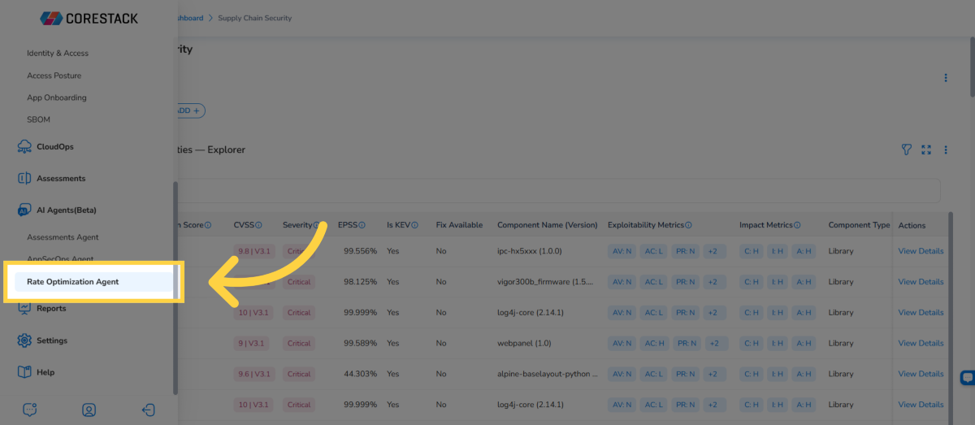
In the left navigation panel, go to AI Agents > Rate Optimization to open the agent. The landing screen displays the two available dashboards -- Portfolio Health Assessment and Waste Analysis -- each designed to answer a distinct question about your commitment portfolio.
Portfolio Health Assessment Dashboard
The Portfolio Health Assessment answers: 'Is my commitment portfolio healthy?' It gives you a single-screen view of your active commitments across AWS and Azure, with headline KPIs, ranked insights, and a conditional Expiry Alert Bar that surfaces commitments expiring within 30 days. For a full walkthrough, see the Portfolio Health Assessment user guide.
Waste Optimization Dashboard
The Waste Analysis dashboard answers: 'How much am I wasting right now, and what do I do about it?' It classifies commitment waste by root cause and recovery action, and surfaces a conditional Below-Breakeven Alert when any commitment is actively losing money against on-demand pricing. For a full walkthrough, see the Waste Analysis user guide.
Tip: Use the Portfolio Health Assessment to identify where to look, then use the Waste Analysis dashboard to build the recovery plan. The dashboards are designed to be used together.
Reports generated in the agent's chat can also be downloaded as HTML or PDF and shared with your team.
What You Can Ask the Agent
The Rate Optimization Agent is built to answer questions across the following areas:
| Area | What It Covers | Example Prompts |
|---|---|---|
| Portfolio & inventory | Commitment overview, RI vs. Savings Plan, Standard vs. Convertible RIs | "Provide the rate optimization overview." "Group active commitments by commitment type (RI vs SP)." "Which of my reserved instances are Standard versus Convertible?" |
| Waste | Ranking by waste, sunk vs. ongoing waste, root cause per commitment | "Rank all active commitments by monthly waste amount in descending order." "Is the t3.micro Reserved Instance waste sunk or ongoing?" "Why is this commitment underutilized and what can I do about it?" |
| Expiry & renewal | Expiry timelines, renewal priorities, renewal-versus-on-demand comparison, instrument switch suggestions | "Show commitments expiring after 90 days." "Which commitments require renewal?" "What renewal planning actions should be prioritized based on the expiry of each commitment?" |
| Savings | Net, realized, and unrealized savings by period and instrument | "How much am I saving per month through Reserved Instances only?" "Net savings from RIs last quarter." "Which reservations had negative net savings last month?" |
| Utilization | Portfolio health, utilization trends, low-utilization days | "Show me RI/SP portfolio health." "Show the utilization trend for my EC2 reserved instance over the last 3 months." "Which days last month had RI utilization below 50%, and also mention the name of the RI." |
| Coverage & resource linking | Which commitment covers which resource, and which resources are uncovered | "Is this EC2 instance covered by any of my Reserved Instances, and which one?" "Which specific instances consumed capacity from this reservation, and on which days?" "Which of my running EC2 instances are NOT covered by any RI or Savings Plan?" |
| Commitment-safe actions | The impact of a usage recommendation (rightsize, idle, orphaned) on the commitments you already own | "If I terminate this idle instance, what is the impact to my commitments?" "If I right-size this instance based on the recommendation, do I lose any RI discount?" "Which idle recommendation has the largest saving, and is it commitment-covered?" |
| Purchase sequencing | Optimize-then-commit ordering and purchase justification | "Should I implement usage recommendations before buying the recommended RIs and SPs?" "If my t2.nano RIs cover only 4 distinct instances, is buying more t2.nano RIs justified?" "Does my Savings Plan have room to absorb more usage?" |
Note: The agent has enriched knowledge of AWS SKU history and unit pricing history for the following resource categories: EKS (Worker Nodes), ElastiCache, Redshift, SageMaker (Notebook Instances and Endpoints), OpenSearch, EMR, ECS (Fargate/EC2), and Lambda (Memory Configuration). This enables the agent to answer prompts related to SKU changes and unit price history for these resources without any additional configuration.
To view the full capabilities of AI Agents in CoreStack and learn how to create a report, navigate to AI Agents.
Frequently Asked Questions
Q: Where do I find the Rate Optimization Agent in CoreStack?
In the left navigation panel, go to AI Agents > Rate Optimization. The Rate Optimization Agent is listed alongside the Assessments and Apps agents.
Q: What is the difference between the two dashboards?
The Portfolio Health Assessment focuses on overall portfolio health -- utilization rates, expiring commitments, realized savings, and optimization recommendations. The Waste Analysis dashboard focuses on waste -- how much you are wasting, whether it is recoverable, the root cause per commitment, and the specific action to take. Both dashboards are complementary; most FinOps workflows benefit from using both.
Q: Do I need to configure anything before using the agent?
No. The agent generates reports using sensible defaults -- full organization scope and a 3-month utilization lookback -- with no setup required. Open the agent, select a dashboard, and the report renders immediately.
Q: What cloud providers does the Rate Optimization Agent support?
The Rate Optimization Agent supports AWS and Azure commitments, including EC2 and Compute Reserved Instances, AWS Savings Plans, and Azure Reservations.
Q: What does an em-dash (--) mean in a KPI card?
An em-dash means the underlying data for that field is genuinely unavailable. The agent never substitutes $0 or 0% for missing data, as those values could be misleading. If you see em-dashes across multiple KPI cards, check that your cloud accounts are onboarded and that commitment data exists for the selected scope.
Troubleshooting
Multiple KPI cards show em-dashes instead of values
Cause: One or more upstream data sources returned no data. This typically occurs when cloud accounts are newly onboarded, commitment data has not yet populated, or a data source connection is inactive.
Solution:
- Confirm that at least one AWS or Azure account is active in CoreStack with existing commitment data.
- Allow up to 24 hours for data to propagate after initial account onboarding.
- Refresh the dashboard and check whether values populate.
- If em-dashes persist after 24 hours, contact CoreStack support with your tenant ID, the affected dashboard name, and the generation timestamp from the dashboard footer.
The Expiry Alert Bar or Below-Breakeven Alert is not appearing when expected
Cause: Both alert bars are conditional. The Expiry Alert Bar only appears when at least one commitment expires within 30 days. The Below-Breakeven Alert only appears when at least one commitment falls below its breakeven utilization threshold. If neither condition is met, the alert bars are intentionally hidden.
Solution:
-
Check the Active Commitments table on the Portfolio Health Assessment to verify expiry dates directly.
-
Confirm that utilization data is current -- a data ingestion delay could temporarily prevent below-breakeven detection.
-
If the issue persists, contact your CoreStack administrator to verify that the commitment data source is connected and current.
Updated about 2 months ago