

AI Agent
Learn how to use CoreStack AI Agents to query insights, manage chat history and prompts, generate reports, and share chats or artifacts with your tenant.
Feature Overview
AI Agents is a conversational AI capability in CoreStack, available under AI Agents, that spans three dedicated agents: Assessments Agent, Graphion Agent, and Rate Optimization Agent. Each agent answers natural-language questions and generates reports for its own domain - compliance assessments, application security and vulnerability management, and cost and commitment optimization, respectively while sharing the same chat, prompt, report, and sharing experience underneath. It is most relevant once your tenant has data for the agent you want to query, since each agent's answers and reports are generated from that underlying data. This guide is for any user working with an AI Agent who needs to ask questions, manage chats and prompts, generate a report, and share a chat or report with others. It does not cover the insights or dashboards specific to a single agent, such as the Assessments Agent's Agentic Feed, those are documented in that agent's own overview guide.
Note: By default, AI Agents are disabled. Please reach out to [email protected] or any CoreStack support channel to enable AI Agents and the knowledge required for AI Agents.
How It Works
When you open an AI Agent and submit a question either typed or chosen from a suggested prompt, the agent searches your tenant's relevant data and generates a response in the chat. From there, you can copy the response, save the question as a reusable prompt, continue with follow-up questions, or ask the agent to generate a downloadable report. Any report the agent generates is saved as an artifact attached to that chat, in both HTML and PDF formats, which you can preview, download, or share independently of the chat itself. Every conversation is kept in Chat History, where you can revisit, rename, share, or delete it later. Because responses and reports are generated from your tenant's most recently available data, the content reflects whenever that data was last updated, not necessarily live cloud state.
Prerequisites
Before you begin, ensure the following:
-
Role: You have the role appropriate to the agent you want to use.
-
Prior setup: The agent you want to query has underlying data to draw from, for example, at least one completed assessment for the Assessments Agent, or connected cost and commitment data for the Rate Optimization Agent.
-
Access: Your tenant has the AI Agents (Beta) section enabled, and you can select the correct tenant from the Tenant switcher in the top-right corner.
Accessing AI Agents
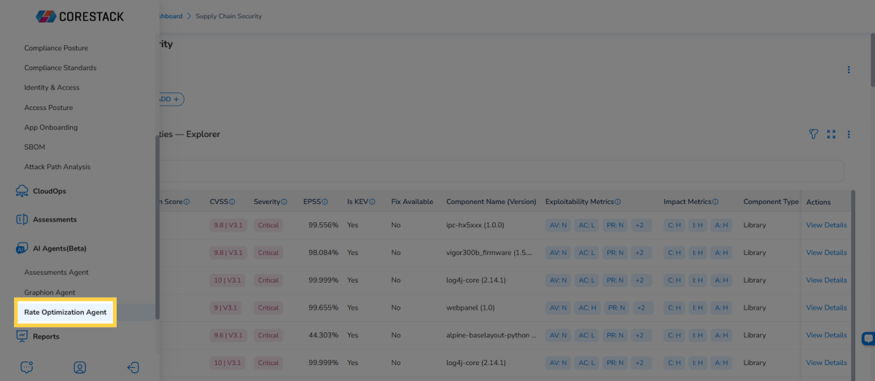
Navigate to AI Agents (Beta) in the left navigation panel, then click the agent you want to use - Assessments Agent, Graphion Agent, or Rate Optimization Agent - to open its dedicated chat interface.
Querying an AI Agent
Use these steps to ask an agent a question and work with its response.
Step 1: Enter or select a question
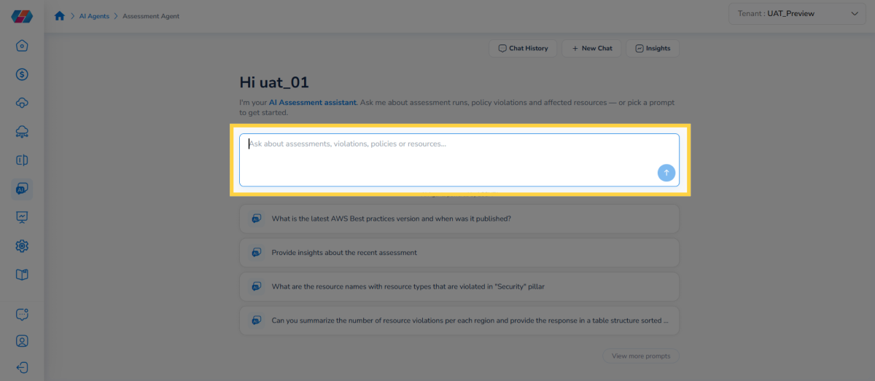
Click the query field and type a question relevant to the agent's domain. Alternatively, click one of the default prompts to use a suggested query instead of typing one.
Step 2: Submit the question
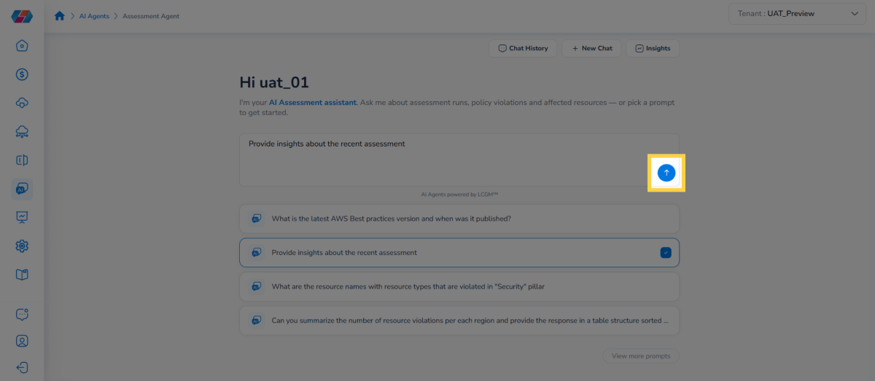
Click the send icon next to the query field. The agent begins processing the request and displays its progress under a "Thinking..." indicator.
Step 3: Review the response
Read the agent's answer as it appears in the chat. Depending on your question, the response may include a summary, a table of results, or a note if the agent cannot answer as asked.
Tip: If the response isn't specific enough, ask a follow-up question in the same chat — the agent retains the context of the current conversation.
Step 4: Copy a response
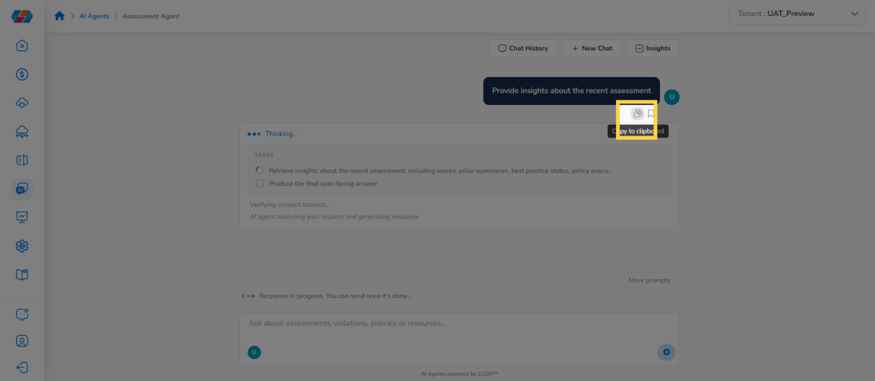
Click the copy icon above the agent's answer to copy it to your clipboard.
Step 5: Save a question as a reusable prompt
Click the save icon next to the copy icon to open the Save this prompt dialog.
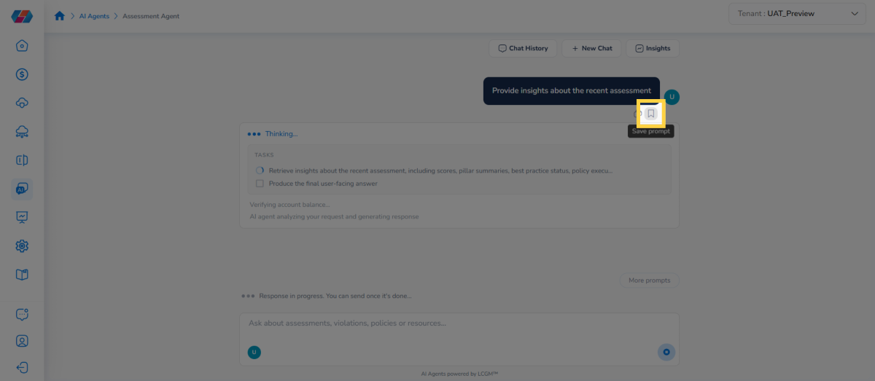
Review the prompt text in the dialog and click Save. The prompt is added to your Saved Prompts tab for future use.
Managing Prompts
Use these steps to browse, search, and reuse both AI-generated and saved prompts.
Step 1: Open additional prompts
Click More Prompts below the agent's response to view additional AI-generated prompts related to that agent's domain.
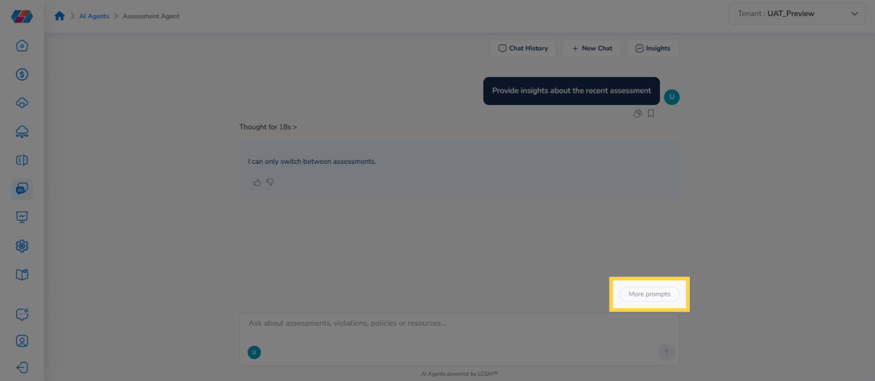
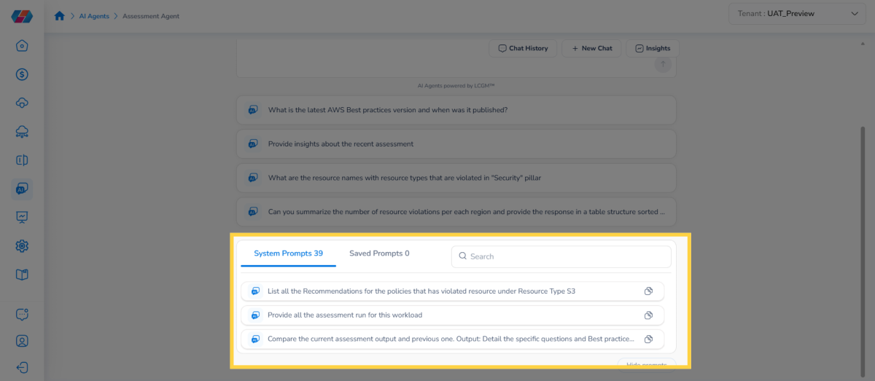
Step 2: View system and saved prompts
Scroll down to see the full System Prompts and Saved Prompts tabs. These give you quick access to additional AI-generated and previously saved queries without typing them manually.
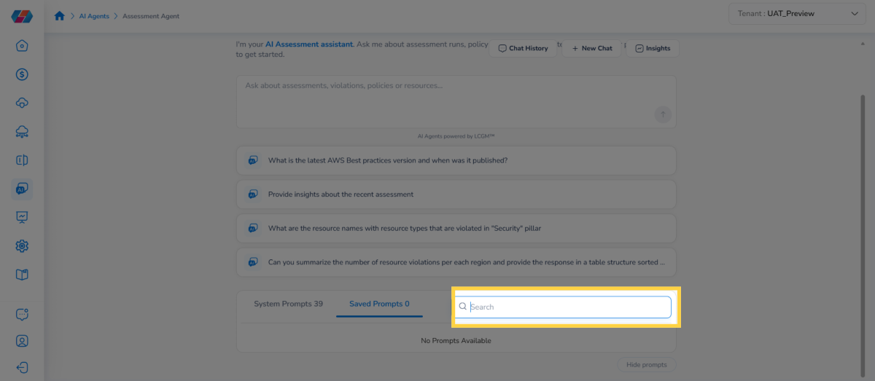
Step 3: Search for a specific prompt
Enter a keyword in the Search field to find a specific prompt within System Prompts or Saved Prompts.
Managing Chat History
Click Chat History at the top of the page to open a panel listing your recent chats under My Chats, along with an Artifacts section below it for reports you've saved from a chat.
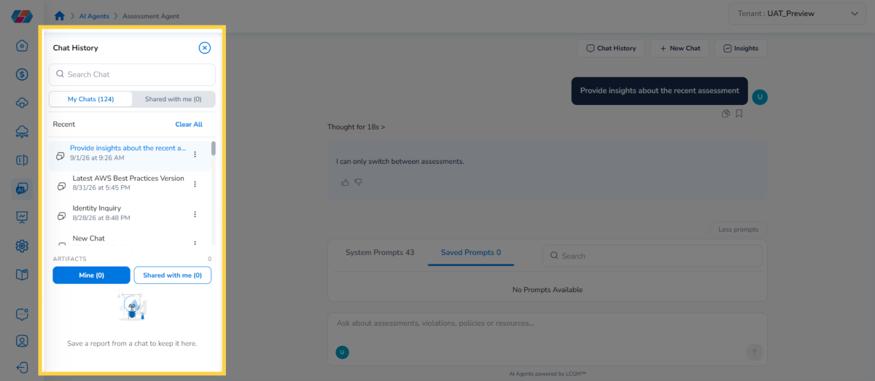
Click the Shared with Me tab to view chats that other users have shared with you, separate from your own chats.
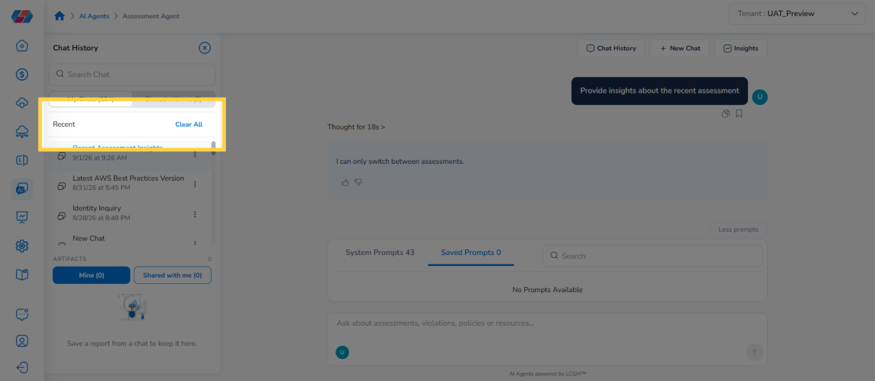
Click Clear All above the Recent list to remove temporary or outdated chat entries. This does not affect chats saved to Artifacts.
Sharing a Chat
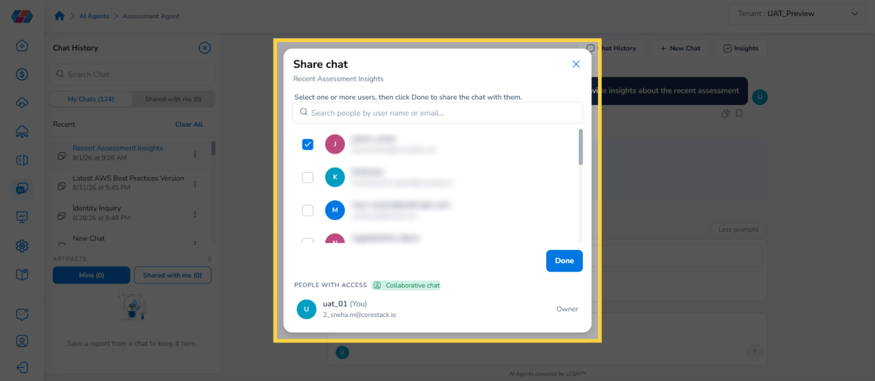
You can share an entire chat conversation with other users in your tenant. Click the options icon next to a chat entry, then click Share Chat.
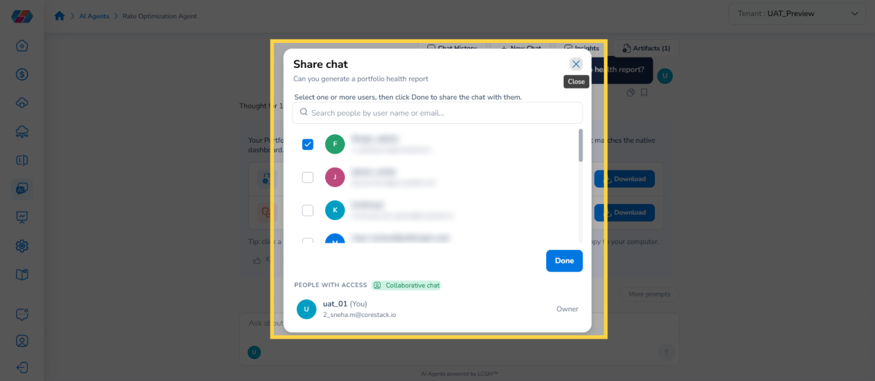
The Share chat dialog opens. Select the checkbox next to each user you want to share this chat with, then click Done. Shared users appear under People with Access and can view the conversation as a Collaborative chat.
Renaming a Chat
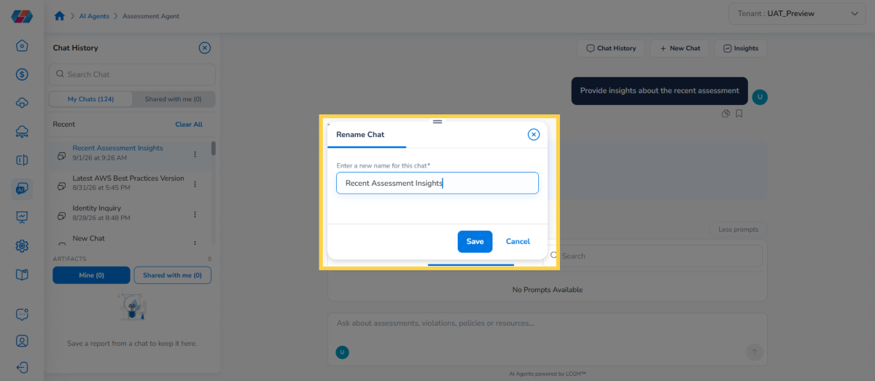
Click the options icon next to a chat entry, then click Rename Chat. Enter the new name in the text field and click Save to apply it.
Deleting a Chat
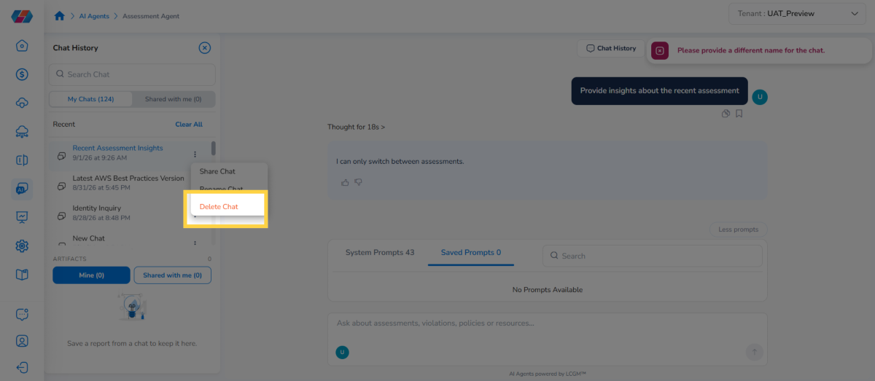
Click the options icon next to a chat entry, then click Delete Chat to remove the selected chat session. A confirmation prompt appears, asking you to confirm before the chat is permanently deleted.
Starting a New Chat
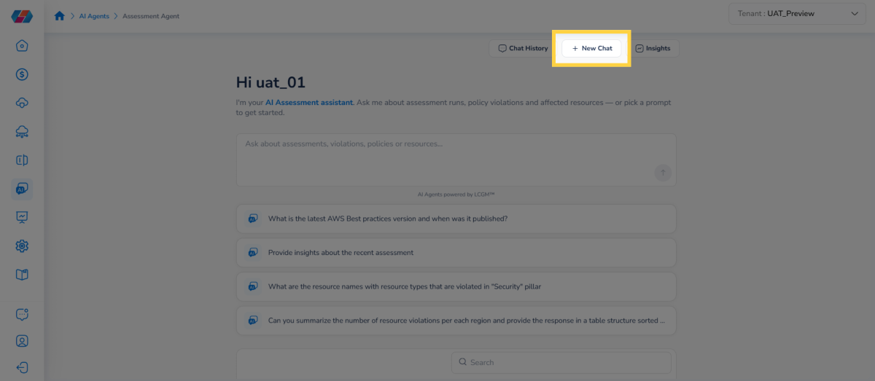
Click New Chat to start a fresh conversation with the agent. This clears the current chat and returns you to the default prompts.
Generating a Report
Any AI Agent can generate a downloadable report from your request, in addition to answering questions directly in the chat. This is a newer capability, currently demonstrated using the Rate Optimization Agent. Once generated, a report is saved as an artifact you can revisit, share, and download.
Step 1: Enter your report request
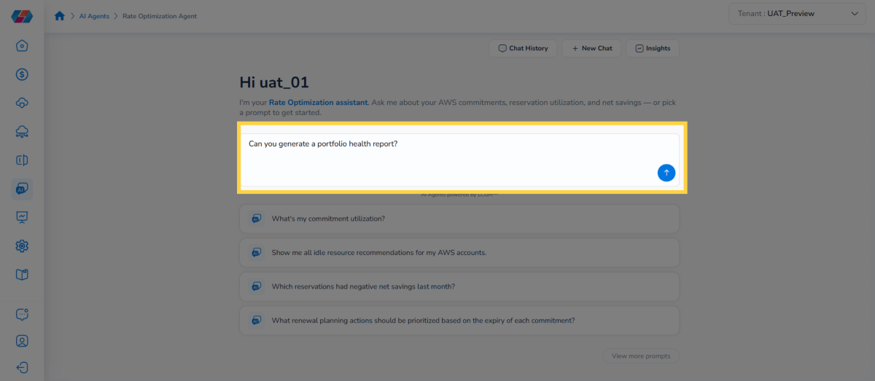
Click the query field and type a request for the report you want to generate, such as a portfolio health report.
Step 2: Submit your report query
Click the submit arrow. This prompts the agent to process your request and prepare the report.
Step 3: Access the generated report files
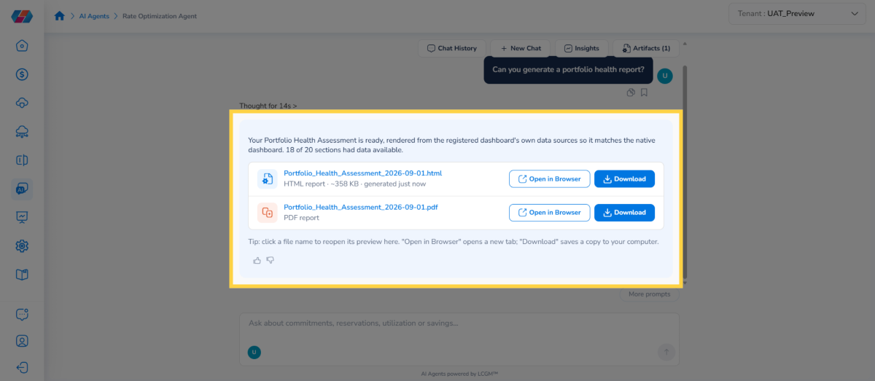
The agent generates the report in two file formats --- HTML and PDF. Click Open in Browser to preview either version, or Download to save a copy to your computer.
Step 4: View a report in your browser
Click Open in Browser next to either file to view it online. The report opens in a new browser tab, rendered from your tenant's underlying data.
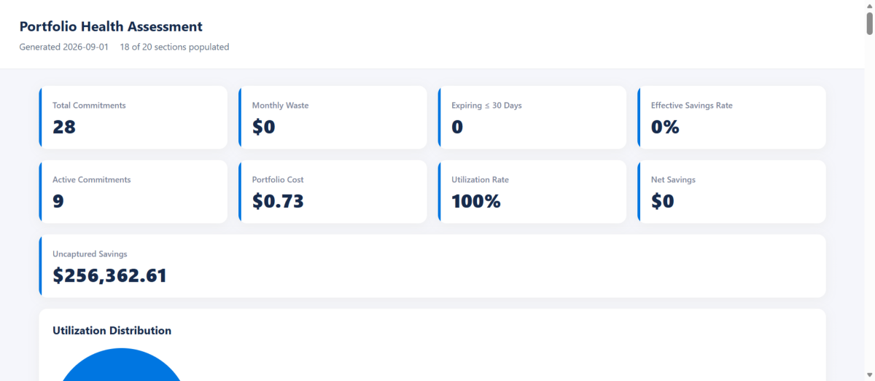
Note: A generated report may show fewer sections populated than the full template if some underlying data isn't available yet - for example, "18 of 20 sections had data available." This reflects the data CoreStack currently has, not an error.
Step 5: Share the chat using your user icon
Click your user avatar icon below the query field to open the sharing options for this conversation.
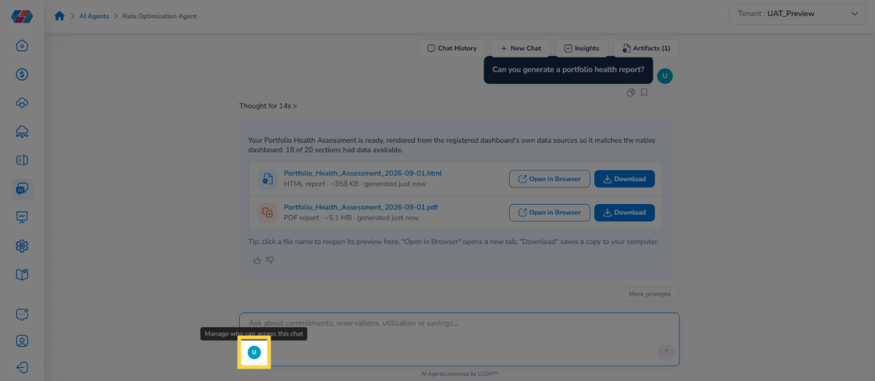
This opens the Share chat dialog. Select the checkbox next to each user you want to share this chat with, then click Done. Shared users appear under People with Access and can view the conversation as a Collaborative chat.
Working with Artifacts
Every report you generate is saved as an artifact attached to its chat. Use these steps to find, preview, share, and download artifacts.
Step 1: Open the Artifacts panel
Click Artifacts in the top toolbar to open the list of files generated during this chat. The badge next to it shows how many artifacts are available.
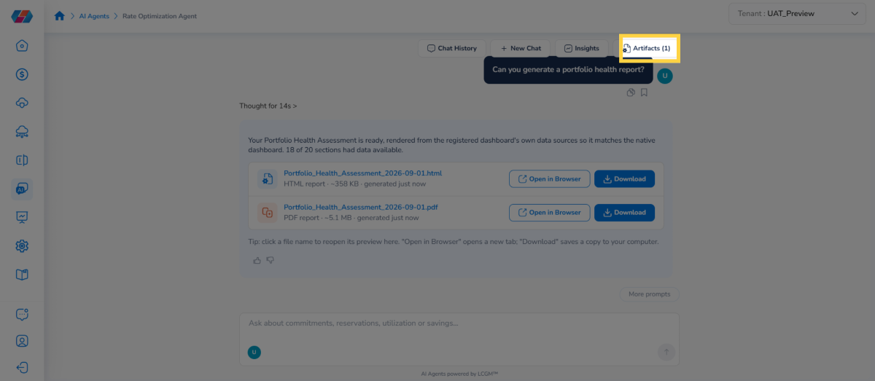
Step 2: Select the report artifact
Click a saved artifact, such as a generated report, to open it.
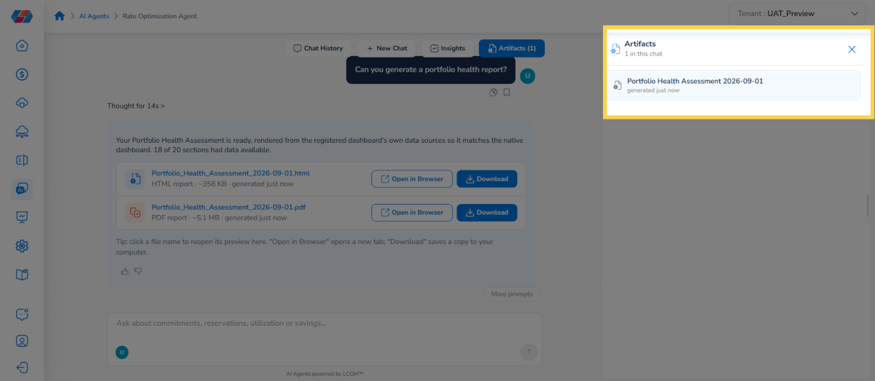
Step 3: Preview the report artifact
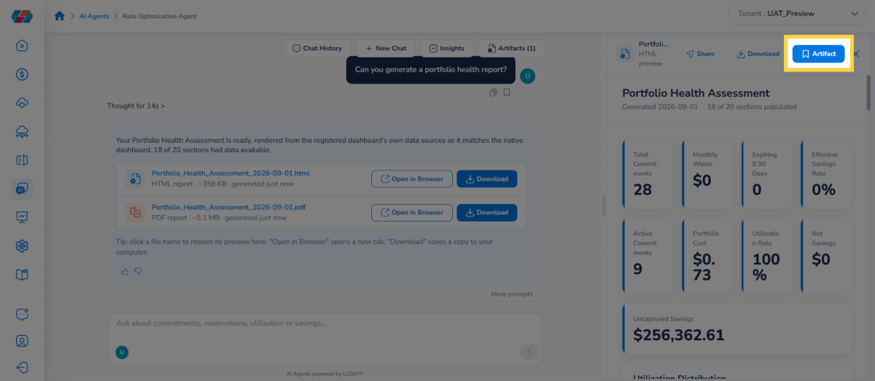
Review the artifact preview panel that opens on the right side of the chat. It displays the full report inline, along with Share, Download, and Artifact controls at the top.
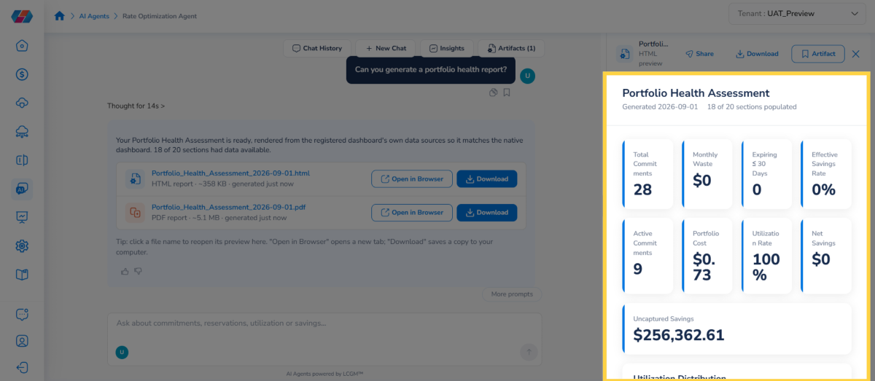
Depending on the agent, the report may also include data tables specific to that agent's focus area, such as rate or savings recommendations.
Sharing an Artifact
Click Share in the artifact preview toolbar to open the sharing menu. Choose Users to share with people in your tenant, or Email to send the report to anyone outside CoreStack.
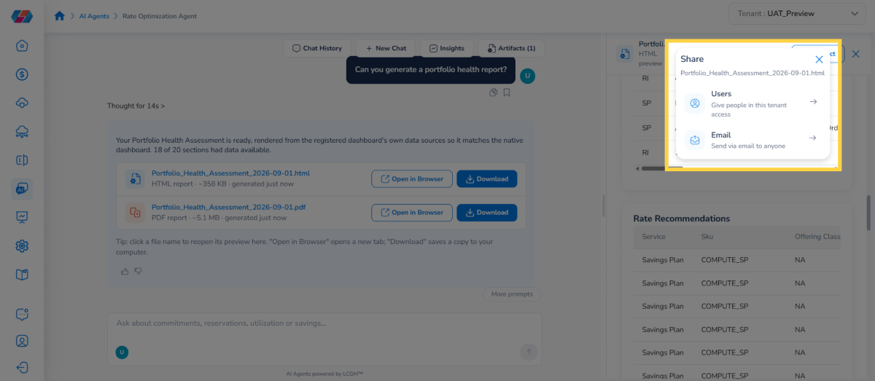
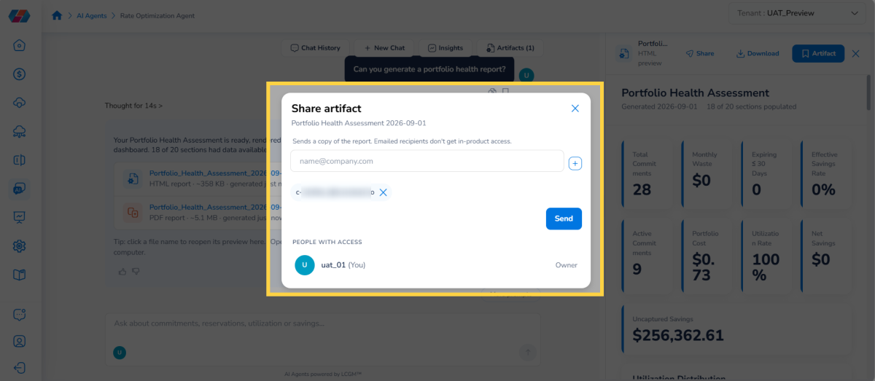
To share with tenant users, select the checkbox next to each user in the Share artifact dialog, then click Send. Shared users are added under People with Access for this artifact.
To share by email, enter the recipient's address and click + to add it, then click Send.
Note: Emailed recipients receive a copy of the report but do not get in-product access to CoreStack.
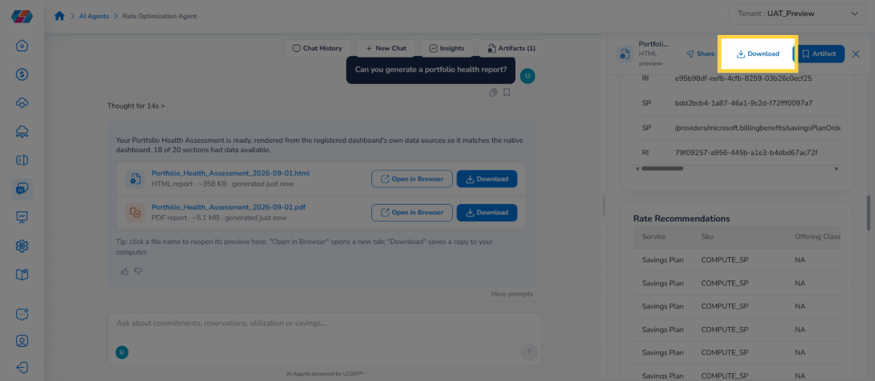
Step 4: Download the report
Click Download in the artifact preview toolbar to save a local copy of the report. The file downloads in the same format - HTML or PDF - as the artifact you have open.
Step 5: Save the report to chat history
Click Artifact to save the report artifact to this chat's history. The saved artifact then appears in the Chat History panel, under Artifacts for this chat.
Frequently Asked Questions
Q: Can an AI Agent answer questions about a different tenant than the one I'm viewing?
No. An agent only has context for the tenant currently selected in the Tenant switcher, top-right of the page. Switch tenants there, then ask your question again in that tenant's agent.
Q: If I delete a chat, do I lose the prompts I saved from it?
No. Prompts you save with the save icon are stored independently in the Saved Prompts tab. Deleting a chat removes the conversation itself, not any prompts you saved from it. [VERIFY: behavior inferred from the UI structure, not explicitly confirmed]
Q: What's the difference between sharing a chat and sharing a report?
Sharing a chat gives selected users access to the entire conversation, including every question and response in it, as a Collaborative chat. Sharing a report gives access to only that one generated report artifact, without exposing the rest of the conversation. Use report sharing when you only want to distribute the report itself.
Q: Can I share a report artifact with someone outside my organization?
Yes, using the Email option in the Share artifact dialog. Emailed recipients receive a copy of the report file but do not get in-product access to CoreStack, so they cannot view the underlying chat or ask the agent follow-up questions.
Troubleshooting
The agent doesn't answer my question directly, or responds with something unrelated
Cause: The question likely asked the agent to perform an action it doesn't support, rather than asking it to retrieve information. [VERIFY: exact cause not confirmed with engineering]
Solution:
1. Rephrase the question to ask for specific information --- name a resource, framework, service, or time period.
2. If unsure how to phrase it, click one of the default or system prompts instead of typing a custom question.
3. If the agent still can't answer, try starting a New Chat in case the previous conversation's context is affecting the response.
Renaming or deleting a chat shows "Please provide a different name for the chat"
Cause: This message appears to be a validation message from the Rename Chat action, and can surface even when using Delete Chat if a rename was attempted just before. [VERIFY: exact trigger not confirmed]
Solution:
1. Click the options icon next to the chat and select Rename Chat.
2. Enter a name that is different from all existing chat titles, then click Save.
3. Once the rename succeeds, retry the original action.
If the issue persists, contact CoreStack support with your tenant name, the chat's original title, and a screenshot of the error message.
A generated report opens with missing or incomplete data
Cause: The report generates from your tenant's currently available data. If a data source hasn't reported recently, or a section has no matching data, that section is left unpopulated.
Solution:
1. Check the report's summary line (for example, "18 of 20 sections had data available") to see how many sections were populated.
2. Confirm the relevant cloud accounts or data sources are connected and reporting for the agent you used.
3. Regenerate the report after the missing data source has had time to sync.
If the issue persists, contact CoreStack support with your tenant name, the report name and generation date, and which sections were missing.
An emailed report recipient says they can't access CoreStack
Cause: Sharing an artifact by email sends a copy of the report file only --- it does not grant in-product access to CoreStack.
Solution:
1. Confirm with the recipient that they only need to view the report, not interact with the agent.
2. If they need in-product access, share the artifact with them using Share > Users instead, which requires they have a user account in your tenant.
3. If they still need an account, contact your tenant's Account Admin to have one created.
Updated about 2 months ago