

Configuring a Budget (Cost Metrics)
Learn how to configure a CoreStack FinOps budget — scope, thresholds, and notifications.
Feature Overview
Budget Management is a planning and control feature within CoreStack's FinOps module that lets you define a spend limit for a tenant, cloud provider, dimension, or custom scope, then trigger alerts and automated actions when spend approaches or exceeds that limit. It is most relevant whenever your organization needs to track cloud spend against a plan and be notified before, or as soon as, spend gets out of line.
This feature is most valuable to FinOps Admins and Budget Owners who set up budgets and their alerting, and to Cloud Account Owners who receive breach notifications and take corrective action. It is not a cost reporting or dashboarding tool — for historical cost analysis outside of a specific budget, use the FinOps cost dashboards instead.
Note: Budget notifications support a third channel — Webhook — alongside the existing Email and ITSM (ServiceNow) options. This guide reflects that update; the rest of the budget configuration workflow is unchanged.
How It Works
When you create or edit a budget, you define its scope, spend amount, and one or more thresholds expressed as a percentage of that amount. CoreStack's threshold evaluation engine continuously compares actual (or forecasted) spend against each threshold. When a threshold is crossed, the engine fires every notification channel and budget action attached to that threshold — email recipients, an ITSM ticket, a webhook post to a URL such as a Slack channel, or an automated resource action like stopping an instance.
Webhook deliveries are designed to complete within 5 minutes of breach detection and retry automatically on failure, so treat this as a near real-time alert channel rather than an instant one.
Prerequisites
Before you begin, ensure the following:
- Role: You have the FinOps Admin or FinOps Practitioner role assigned in CoreStack.
- Prior setup: The cloud accounts, tenants, or dimensions you plan to scope the budget to are already onboarded in CoreStack.
- Slack setup (only if using Webhook notifications): You, or your Slack workspace admin, have created a Slack Incoming Webhook and have its URL available. Webhook URLs must use HTTPS; HTTP endpoints are rejected.
- Access: You can access
FinOps > Budgetin the CoreStack navigation.
Configure a Budget
Navigate to FinOps > Budget. This page lists all existing budgets along with their scope, actual spend, and forecasted costs.
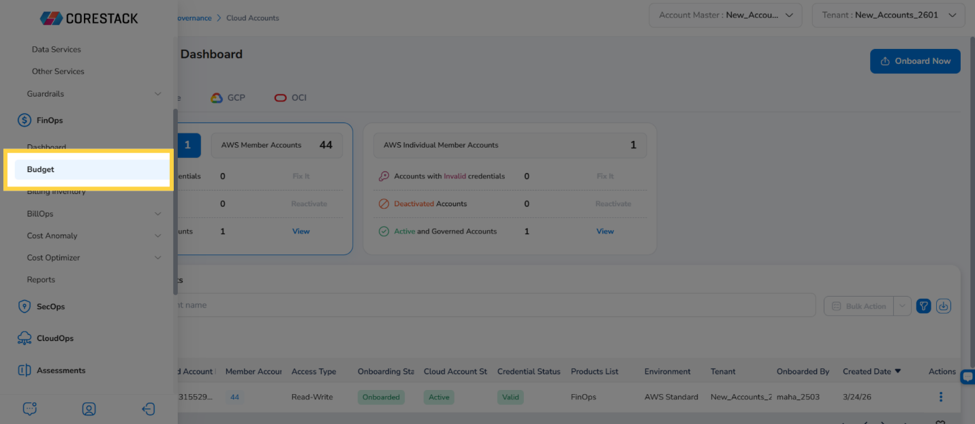
Click Create Budget to start the budget wizard, or open an existing budget and click Edit to update one. The wizard has three stages: Basic Details, Alert Thresholds & Actions, and Review.
Basic Budget Details
Complete these steps to define what the budget covers and how much it allows.
Step 1: Enter the budget name
In the Budget Name box, type a name that identifies this budget.
Step 2: Select the budget type and currency
In the Budget Type dropdown, select Cost. In the Budget Currency dropdown, select the currency this budget tracks spend in.
Step 3: Select the budget reset period
In the Budget Reset Period dropdown, select Daily, Monthly, Quarterly, or Annually.
Step 4: Choose recurring or one-time budget dates
In Budget Effective Dates, choose Recurring Budget to renew the budget automatically on the first day of every billing period, or One-time Budget to run once and stop tracking at a fixed expiry date. Then set the Budget Start Date and, for one-time budgets, the Budget Expiry Date using the calendar pickers.
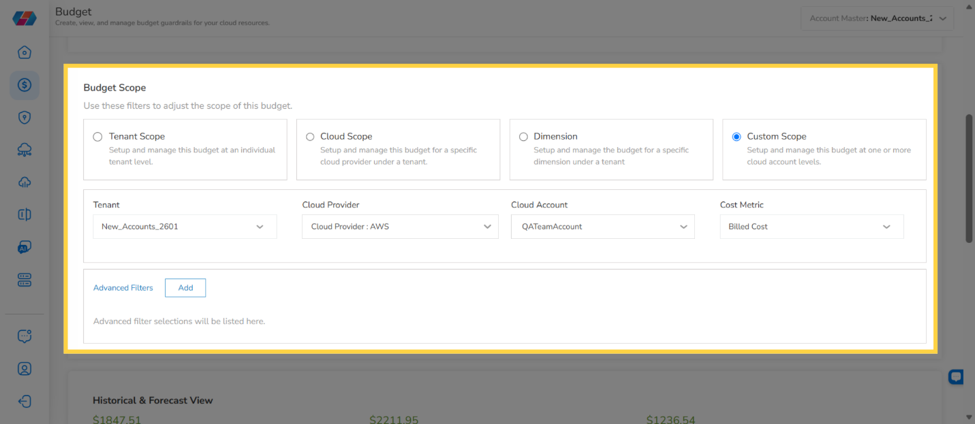
Step 5: Select the budget scope
In Budget Scope, select one option:
- Tenant Scope: manage this budget at an individual tenant level.
- Cloud Scope: manage this budget for a specific cloud provider under a tenant.
- Dimension: manage this budget for a specific dimension under a tenant. If the selected dimension group includes Kubernetes filters (Container Accounts, Kubernetes Labels, Pod Name/ID, Workload Type, Namespace, and similar), the budget automatically includes Kubernetes spend from those filters, and threshold alerts account for it.
- Custom Scope: manage this budget across one or more cloud accounts, with the option to apply advanced filters (Tags, Location, Resource Group, Resource Type) by clicking Add in the Advanced Filters dialog.
Each option reveals additional fields — tenant, cloud provider, cloud account, dimension/entity/value, and cost metric (Billed Cost, Effective Cost, or Contracted Cost) — that determine exactly which cost data the budget engine uses.
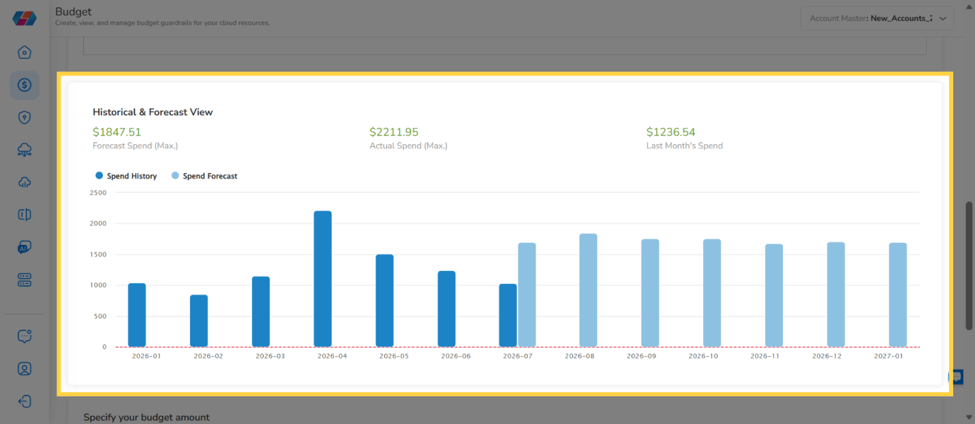
Tip: Use the Historical & Forecast View that appears below your scope selections to sanity-check a realistic budget amount against actual spending trends before moving on.
Step 6: Specify the budget amount
In Specify your budget amount, select one option:
- Fixed Value for Budget Period: enter a single amount in the Enter Budget Amount box.
- Monthly Budget Planning: enter a starting amount and a Monthly budget growth %.
- Monthly Budget Planning (auto-suggest): review the month-by-month suggested amounts and adjust any of them as needed.
Step 7: Save and continue
Click Save & Next to save the basic details and move to the Alert Thresholds & Actions stage.
Alert Thresholds, Notifications, and Actions
This stage defines what triggers an alert, who and what gets notified, and any automated response.
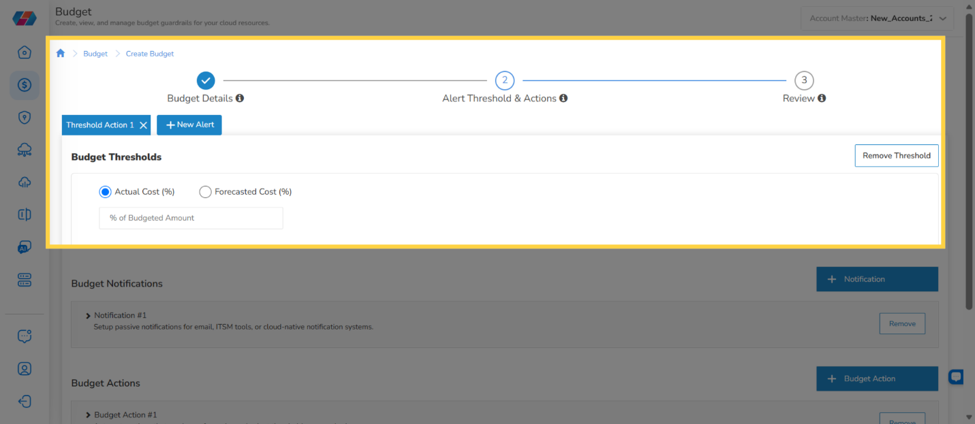
Step 8: Set the budget threshold
In Budget Thresholds, select Actual Cost (%) or Forecasted Cost (%), then enter the % of Budgeted Amount that should trigger this threshold.
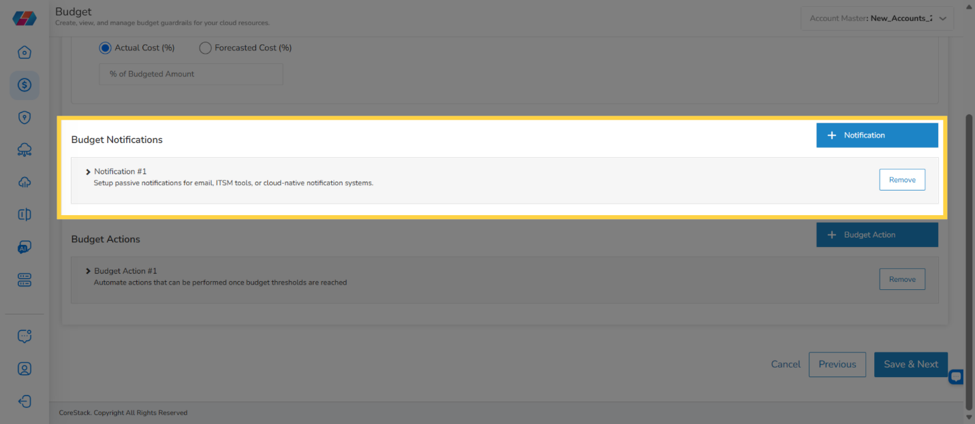
Step 9: Add a notification
Click + Notification, then click Create New to configure a new notification rule for this threshold (or select a previously saved template).
Step 10: Name the notification
In the Notification Settings Name box, enter a name that identifies this notification rule.
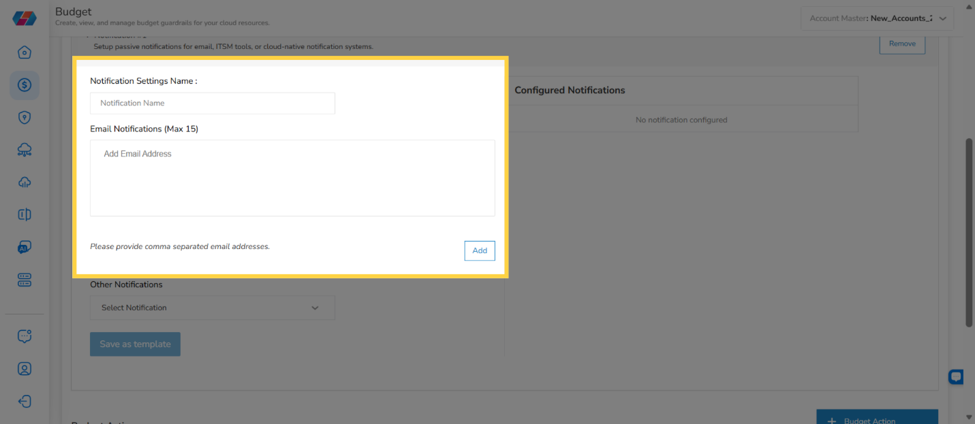
Step 11: Add email recipients (optional)
In Email Notifications (Max 15), enter recipient addresses and click Add. To remove an address, click its X icon.
Step 12: Choose a channel under Other Notifications
Open the Other Notifications dropdown. It lists two options:
- ITSM: select ServiceNow from the ITSM Alerts dropdown, then click Add.
- Webhook: see Step 13 below.
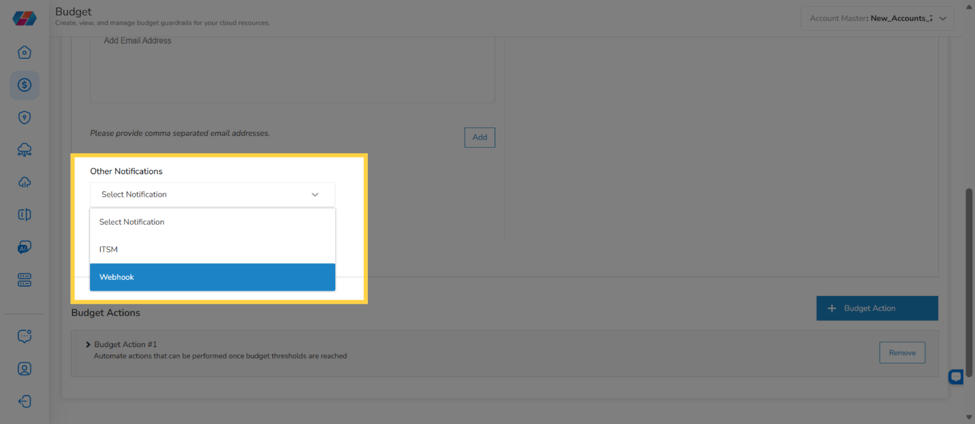
Step 13: Configure the Webhook option
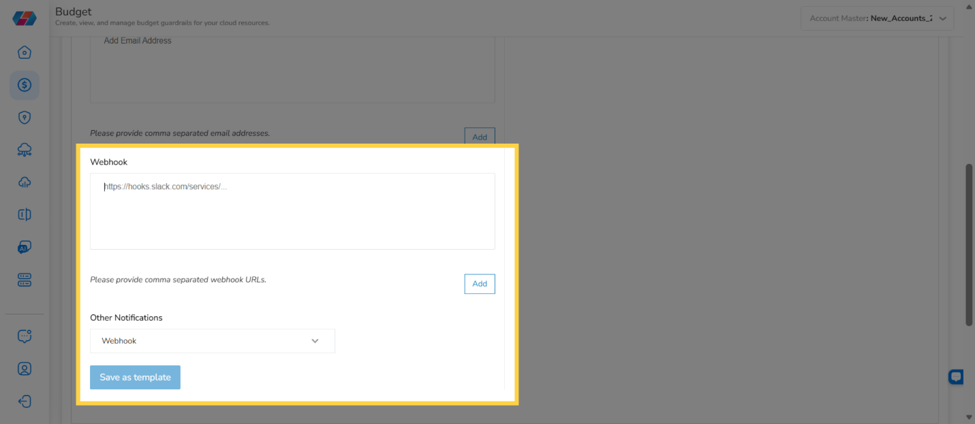
If you selected Webhook, enter your Slack incoming webhook URL (for example, https://hooks.slack.com/services/...) in the Webhook URL field. CoreStack auto-trims leading or trailing whitespace and requires HTTPS; HTTP endpoints are rejected with an inline error: "Please enter a valid webhook URL."
Then click Add to save the webhook. It appears in the Configured Notifications panel alongside any email or ITSM channels on the same rule.
Tip: Configure email, ITSM, and webhook notifications on the same rule for redundant alert coverage — all three fire independently when the threshold is breached.
Step 14: Save the notification as a template
Click Save as template to store this notification configuration, including any webhook, ITSM, or email channels, for reuse on other budgets.
You can add multiple notifications to the same threshold, and remove any of them by clicking Remove next to that notification.
Step 15: Add a budget action (optional)
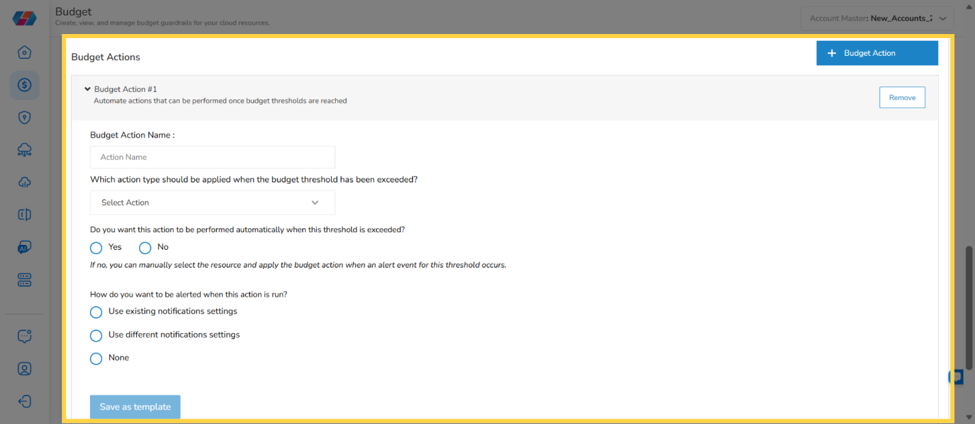
Click + Budget Action. In the Budget Action Name box, enter a name, then select an action type — Stop Instance or Terminate Instance — from the "Which action type should be applied when the budget threshold has been exceeded?" dropdown.
Step 16: Choose automatic or manual application
Answer "Do you want this action to be performed automatically when this threshold is exceeded?" with Yes or No. Choosing No means you'll manually select resources and apply the action yourself when an alert fires. Choosing Yes requires selecting the resources now: click Select Resources, choose the cloud provider and cloud account, select the relevant resource IDs, click Add Selected Resources, review the Potential Cost Avoidance shown, then click Apply.
Step 17: Choose how the action alerts you
Under "How do you want to be alerted when this action is run?", select Use existing notifications settings to reuse a saved template, Use different notifications settings to configure separate email/ITSM recipients for this action, or None. You can add multiple budget actions to the same threshold.
Step 18: Save and continue
Click Save & Next to save the threshold, notification, and action settings and move to the Review stage.
Step 19: Review the summary
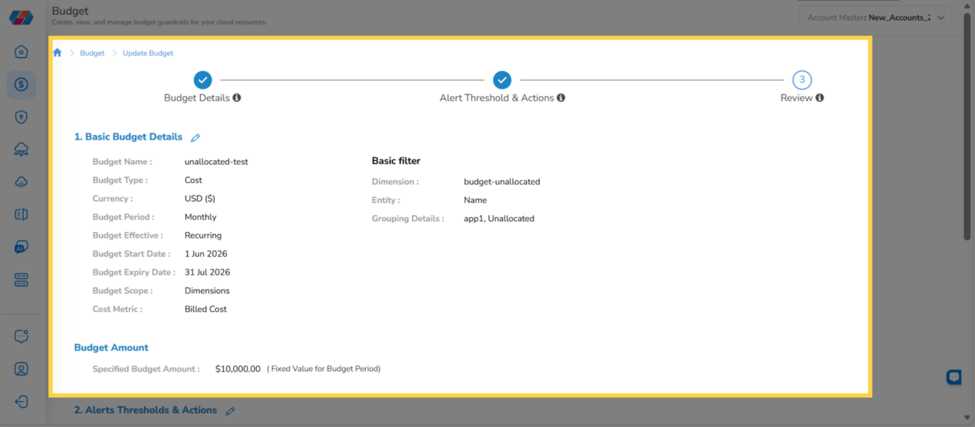
Review the Basic Budget Details and Alerts Thresholds & Actions sections, confirming the scope, amount, thresholds, and every notification channel — including any webhook URLs — are correct.
Step 20: Submit the budget
Click Submit Budget to finalize the budget. It now appears in the Budget Management list with its type, period, scope, and spend details, and its notifications are active.
Additional Tasks
Removing a webhook notification
In the Configured Notifications panel, locate the webhook entry and click the delete icon to remove it. The change takes effect the next time you save the budget.
Reusing a saved notification template
When adding a notification to a different budget, click + Notification, then select your previously saved template instead of Create New. Any webhook, email, or ITSM channels saved in that template carry over automatically.
Frequently Asked Questions
Q: Can I set more than one threshold on a single budget?
Yes. A budget supports one or more thresholds, each expressed as a percentage of the budget amount. Repeat Steps 11–17 to add each additional threshold, and attach its own notifications and actions.
Q: Can I change a budget's scope, amount, or thresholds after it's already live?
Yes. Open the budget from FinOps > Budget and click Edit to relaunch the same three-stage wizard with your existing configuration pre-filled.
Q: I'm not sure what monthly growth rate to enter — is there a way to get CoreStack's estimate instead of guessing?
Yes. Choose Monthly Budget Planning (auto-suggest) instead of Monthly Budget Planning. CoreStack proposes month-by-month amounts, which you can still adjust individually before saving.
Q: Can I configure email, ITSM, and webhook notifications on the same budget threshold?
Yes. All three channels are independent — configuring more than one means each fires separately when the threshold is breached.
Q: My Dimension-scoped budget includes Kubernetes costs — will my thresholds and notifications reflect that?
Yes. Threshold alerts, across all notification channels (email, ITSM, and webhook), trigger based on total spend for the scope, which includes Kubernetes costs when the selected dimension group has Kubernetes filters applied.
Troubleshooting
Expected cloud accounts, tenants, or dimensions don't appear when selecting Budget Scope
Cause: The cloud account, tenant, or dimension you want to scope the budget to hasn't been onboarded in CoreStack yet.
Solution:
- Confirm the target cloud account, tenant, or dimension is already onboarded and visible elsewhere in CoreStack (outside this budget wizard).
- If it's missing, complete onboarding for that account, tenant, or dimension first.
- Return to
FinOps > Budget, reopen the budget wizard, and confirm the option now appears in Budget Scope.
If the option still doesn't appear after confirming onboarding, contact CoreStack support with the tenant name, expected cloud account or dimension name, and a screenshot of the Budget Scope screen.
A saved notification template doesn't appear when adding a notification to another budget
Cause: The original notification was configured but never saved as a template.
Solution:
- Open the budget that has the notification you want to reuse.
- Confirm you clicked Save as template (Step 17) when you originally configured it — if not, the configuration exists only on that one budget.
- If it wasn't saved, reconfigure the notification and click Save as template this time.
- Return to the other budget, click + Notification, and confirm the template now appears as an option.
A budget action doesn't run automatically even though "Yes" was selected
Cause: Choosing automatic application (Step 19) requires selecting specific resources at the time of configuration; if resources were never added and applied, CoreStack has nothing to act on when the threshold is breached.
Solution:
- Open the budget and expand the relevant Budget Action.
- Confirm resources are listed under Select Resources. If the list is empty, click Select Resources, choose the cloud provider and cloud account, select the relevant resource IDs, and click Add Selected Resources.
- Click Apply, then re-save the budget.
If the action still doesn't run after a confirmed threshold breach, contact CoreStack support with the tenant name, budget name, and budget action name.
Budget threshold breached but no notification of any kind arrived
Cause: The notification rule may not be attached to the budget's threshold, or the threshold itself hasn't been breached according to the selected cost metric (Actual vs. Forecasted).
Solution:
- Open the budget and confirm the notification rule is listed under the relevant threshold in Alert Thresholds & Actions.
- Confirm whether the threshold is set to Actual Cost % or Forecasted Cost %, and check actual spend against the budgeted amount for that period.
- Re-save the budget after confirming the rule is attached, then monitor for the next breach.
If the notification rule is correctly attached and still doesn't fire, contact CoreStack support with the tenant name, budget name, and threshold configuration.
Updated 3 months ago