

Assessments Dashboard
Learn how to read the Assessments Dashboard in CoreStack's Assessments Agent, covering total assessment count, the Agentic Feed, coverage and violation charts, and Agentic Feed subscriptions.
Feature Overview
The Assessments Dashboard is a dashboard within CoreStack's Assessments Agent. It gives compliance leads and cloud governance teams a single-view read of assessment health — covering total assessment count, AI-generated Agentic Feed findings, coverage analysis, and resource violation detail. This dashboard surfaces findings for review; running a new assessment or remediating a violation is done in separate workflows.
Note: The Assessments Agent is currently in Beta. Contact your CoreStack administrator if AI Agents is not visible in your left navigation panel.
How It Works
When you open the Assessments Dashboard, the agent fetches your tenant's assessment run data and renders the dashboard. The Agentic Feed is the primary reading surface — it translates assessment results into ranked, sentence-form findings. The coverage and violation charts below confirm those findings at a deeper level. Data reflects assessment results as of the most recent completed run.
Prerequisites
Before you begin, ensure the following:
-
Role: You have the appropriate Assessment role assigned in CoreStack (see the Assessments Agent guide's Prerequisites for the exact roles).
-
Access: AI Agents is visible in your CoreStack left navigation panel.
-
Data: At least one completed assessment run is available for the selected tenant.
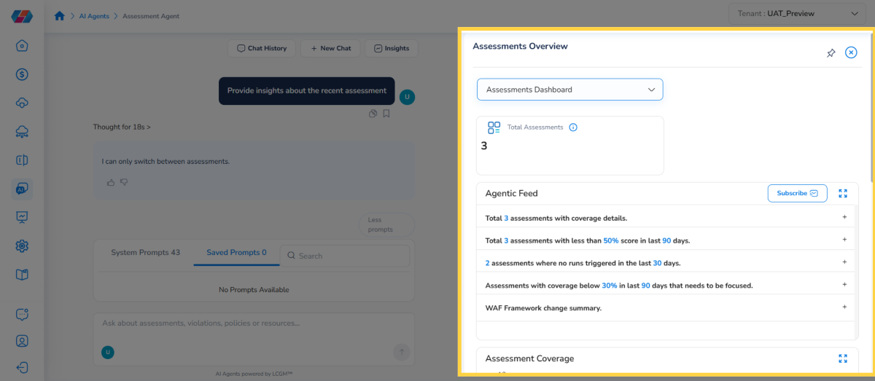
Navigate to AI Agents > Assessments Agent, click Insights, and select Assessments Dashboard from the dropdown (selected by default).
Reading the Assessments Dashboard
The dashboard is organized into four reading zones. Each zone answers a specific question about your compliance posture.
Zone 1 — Total Assessments
The top of the dashboard shows the Total Assessments count — how many assessments are currently active for the selected tenant.
Zone 2 — Agentic Feed
The primary reading surface of the dashboard, translating assessment results into ranked, sentence-form findings.
-
Agentic Feed: lists findings such as the total number of assessments with coverage details, assessments scoring below a threshold in a recent period, assessments with no runs triggered recently, assessments with coverage below a threshold that need focus, and framework change summaries.
-
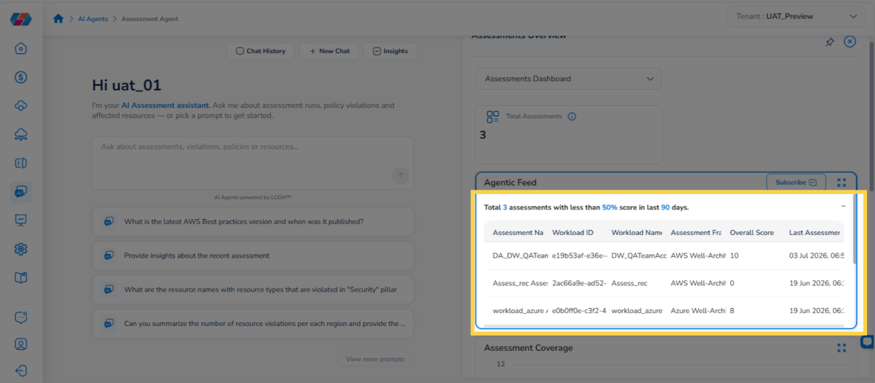
Expanded finding detail: click a feed item to expand it into a table listing the affected assessment, workload ID, workload name, framework, overall score, and last-assessed date.
Zone 3 — Coverage and Violation Analysis
Visual analysis of how your assessments compare on coverage and violation count.
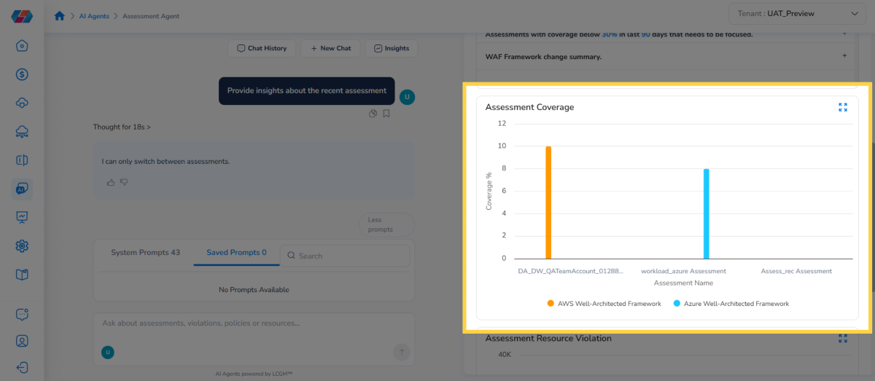
- Assessment Coverage chart: a bar chart comparing coverage percentage across assessments, color-coded by framework (for example, AWS Well-Architected Framework, Azure Well-Architected Framework). Hover over a bar to see its exact value.
- Assessment Resource Violation chart: a bar chart showing the number of policy violations recorded for each assessment. Use it to identify which assessments need remediation first.
Subscribing to the Agentic Feed
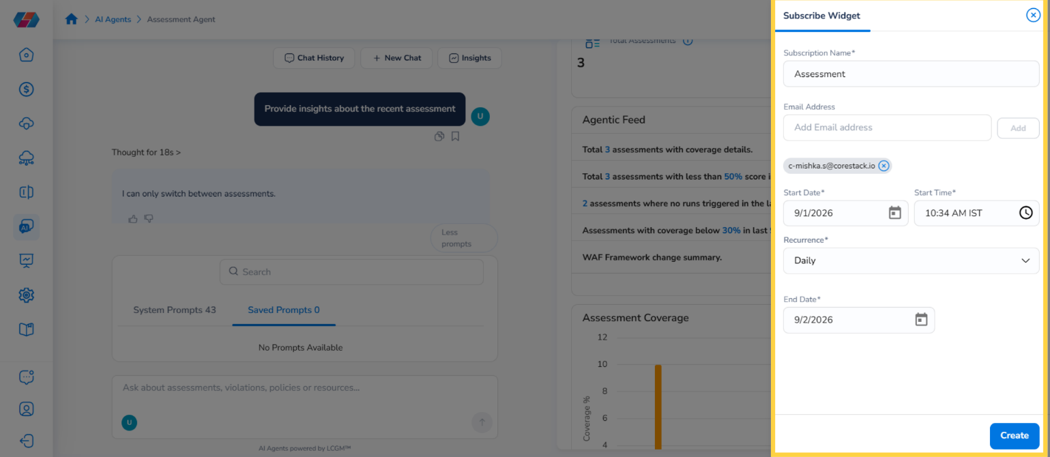
Click Subscribe on the Agentic Feed to receive scheduled updates about assessment activity.
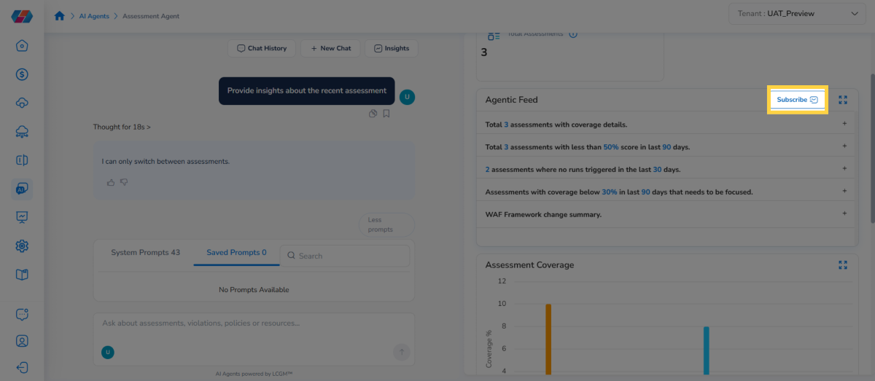
In the Subscribe Widget that opens, enter a subscription name, add one or more recipient email addresses, and set a start date, start time, and recurrence (Once, Daily, Weekly, or Monthly). Weekly and Monthly recurrence let you select specific days; Monthly additionally lets you exclude specific months and choose a day either by week-of-month or day-of-month. Set an end date, then click Create to activate the subscription.
Frequently Asked Questions
Q: What does an Agentic Feed finding like "coverage below 30% in last 90 days" mean?
It flags assessments whose coverage percentage has fallen below the stated threshold within the stated lookback window, so you know which assessments need attention first.
Q: How current is the data in this dashboard?
Data reflects assessment results as of the most recent completed run for the selected tenant. Trigger a new assessment run and reload the dashboard for a fresher snapshot.
Q: Can I act on a violation directly from this dashboard?
No. This dashboard is for review only. Use the relevant remediation workflow outside this dashboard, or ask the Assessments Agent chat for detailed recommendations tied to a specific violation.
Q: Why does the Assessment Coverage or Resource Violation chart show 0 for one of my assessments?
A bar showing 0 usually means that assessment has no coverage percentage or violations recorded yet for the current period — for example, a newly created assessment or one with no completed run. Confirm the assessment has at least one completed run.
Q: Can I subscribe to updates for the Workload Dashboard the same way?
[VERIFY: not confirmed from available source material — the Subscribe control was only captured on the Assessments Dashboard's Agentic Feed. Confirm with the product team before publishing.]
Troubleshooting
All charts and the Agentic Feed show no data
Cause: No assessment runs have completed yet for the selected tenant, or the wrong tenant is selected.
Solution:
- Check the Tenant switcher in the top-right corner and confirm the correct tenant is selected.
- Confirm at least one assessment has a completed run in the Assessments module.
- Reload the dashboard after the run completes.
If the issue persists, contact CoreStack support with your tenant name and the assessment you expected to see.
A subscription doesn't seem to send updates
Cause: The recurrence, start date, or end date may be configured in a way that hasn't triggered a send yet, or the recipient email was entered incorrectly.
Solution:
- Reopen Subscribe on the Agentic Feed and confirm the recipient email address, start date/time, and recurrence are correct.
- For a Once subscription, confirm the start date/time has already passed.
- For Daily, Weekly, or Monthly, confirm the end date hasn't already passed and that the correct days or months are selected.
If the issue persists, contact CoreStack support with your tenant name, the subscription name, and the recipient email address.
A feed item's expanded table is missing an expected assessment
Cause: The assessment may not match the feed item's specific finding criteria — for example, it wasn't run within the lookback window that finding uses.
Solution:
- Confirm the assessment in question was run within the timeframe referenced by the feed item (for example, "last 90 days").
- Check the assessment's own coverage or score directly by asking the Assessments Agent chat.
- If the assessment should qualify but doesn't appear, contact CoreStack support with your tenant name, the feed item text, and the assessment name.
Updated about 1 month ago