

Graphion - App Onboarding
Learn how to onboard apps in CoreStack's Graphion module — create Portfolios, Applications, and Projects, configure BCS weights, and manage supply chain security.
Feature Overview
App Onboarding is the organisational hierarchy setup feature within CoreStack's Graphion module. It enables customers to structure their application security programme by creating Portfolios, Applications, and Projects. Graphion uses this hierarchy to surface risk insights contextualised to the right ownership level.
This feature is used by Graphion Admins and Application Admins when onboarding new applications or updating existing application context. It is not a cloud account management or scan configuration feature - it focuses on the business hierarchy and inputs that drive risk prioritisation.
How It Works
Customers build their hierarchy top-down: a Portfolio contains one or more Applications, and Applications are grouped into Projects. Creating a new Application uses a two-step wizard: Application Details and Business Criticality. The Business Criticality step presents all 14 questions of the Business Criticality Score (BCS) assessment on a single screen. The questions are grounded in the SSVC (Stakeholder-Specific Vulnerability Categorization) and HVA (High Value Asset) frameworks. You can answer each question, or copy the responses from an existing application and adjust them. A Running Score panel updates as you answer. On submission, Graphion saves the BCS value and feeds it into the Graphion Risk Score for every vulnerability associated with that application. BCS responses, score history, and weight configurations are versioned and auditable.
Prerequisites
Before you begin, ensure the following:
-
Role - Portfolios and Applications: Graphion Admin, Graphion Portfolio Admin, or Graphion Application Admin.
-
Role - BCS weight configuration: Tenant Admin only. Must be completed once before Application Owners can submit the BCS questionnaire.
-
BCS weights pre-configured: A Tenant Admin must have configured BCS question weights in Tenant Management before the questionnaire is available in any Application form. For instructions on setting up or modifying these weights, refer to Configure BCS Question Weights.
-
Navigation access: You can reach
Graphion > App Onboardingfrom the CoreStack left navigation pane.
View the Onboarding Page
Navigate to Graphion > App Onboarding. The Onboarding page opens with three tabs: Portfolio, Application, and Projects.
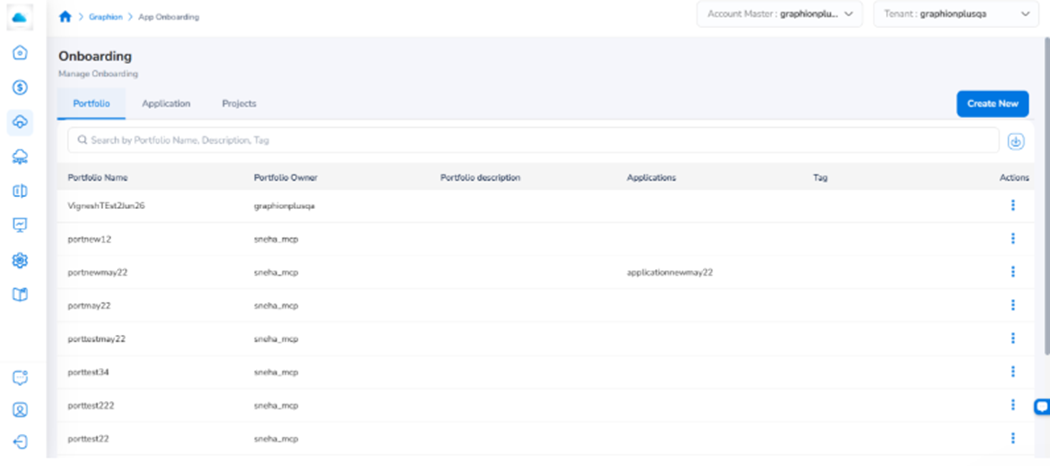
App Onboarding page showing the Portfolio, Application, and Projects tabs with the Create New button
Each tab shows a searchable list of records. Use the Search box to filter results, or click the download icon to export the current list.
Manage Portfolios
The Portfolio tab lists all portfolios with their name, owner, description, associated applications, tags, and available actions.
View or Edit a Portfolio
In the Portfolio tab, click the ellipsis (...) under Actions next to the portfolio.
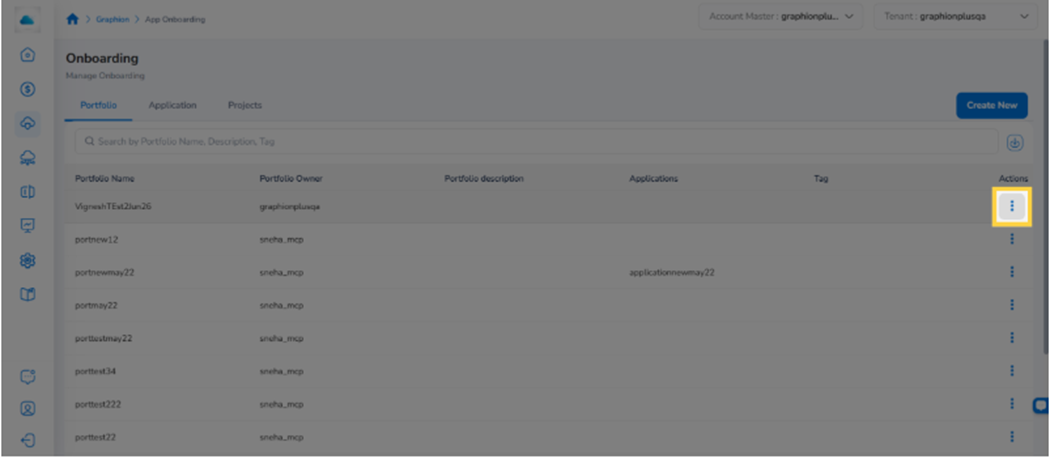
Portfolio tab showing the Actions ellipsis menu with View and Edit options
- View - opens the View Portfolio page showing the portfolio name, owner, description, and associated applications.
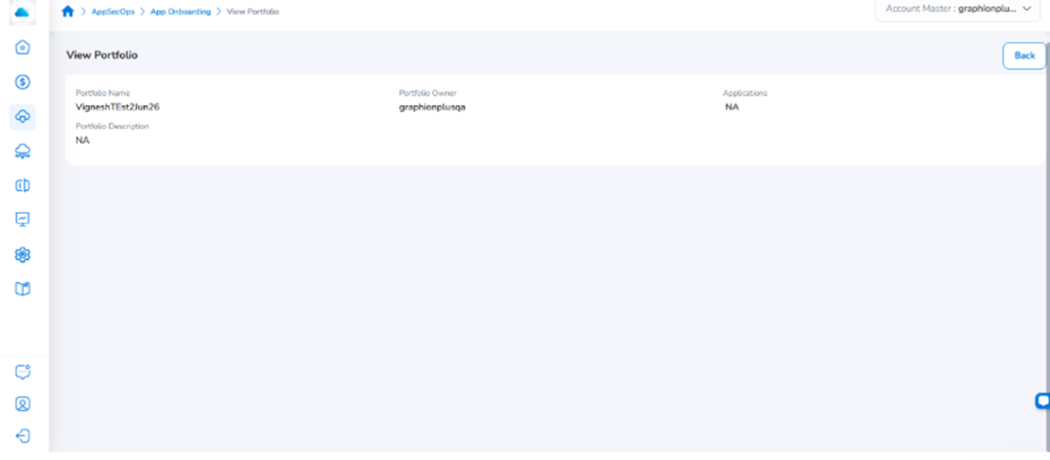
View Portfolio page showing portfolio name, owner, description, and ass**ociated applications.
- Edit - opens the portfolio form pre-populated with existing values. Update the relevant fields and click Submit to save.
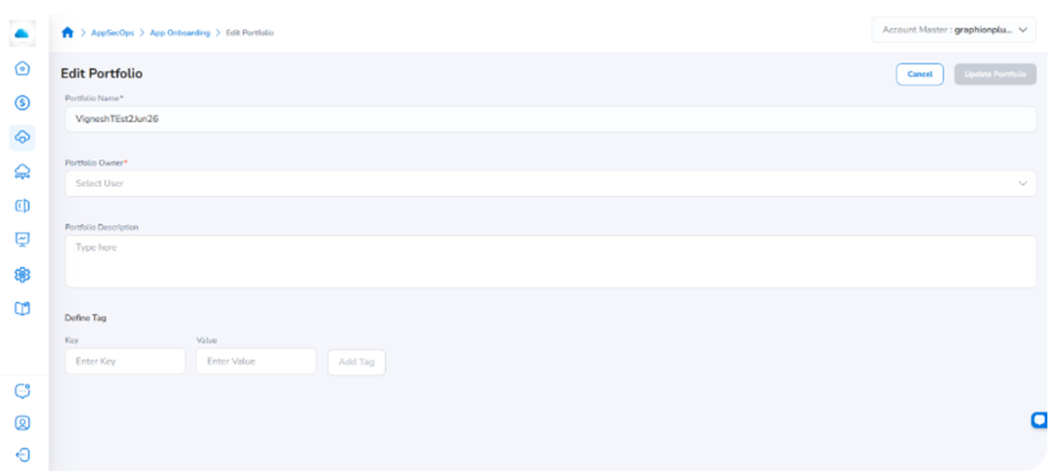
Edit Portfolio form pre-populated with the existing portfolio name, owner, description, and Define Tag fields
Create a Portfolio
In the Portfolio tab, click Create New. The Create Portfolio form opens.
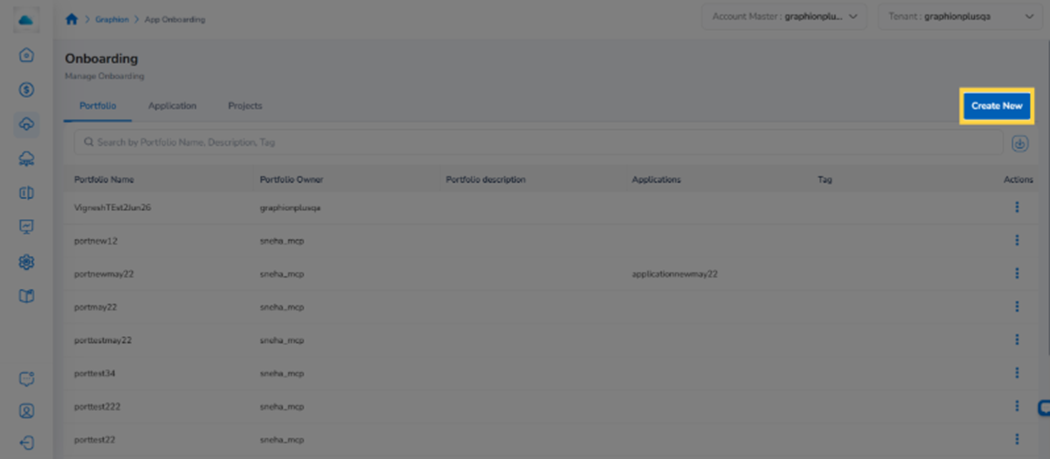
Create Portfolio form with Portfolio Name, Portfolio Owner, Description, and tag fields
1. Enter Portfolio Name Type a unique name in the Portfolio Name field.
2. Select Portfolio Owner Select the owner from the Portfolio Owner drop-down list.
3. Enter Description Type a brief description of the portfolio.
4. Enter a tag key (optional) In the Key field, type the tag key.
5. Enter a tag value (optional) In the Value field, type the tag value, then click Add Tag. Repeat Steps 4-5 to add more tags.
6. Submit Click Submit. The new portfolio appears in the Portfolio tab.
Manage Applications
The Application tab lists all applications with their name, owner, portfolio, associated projects, BCS score, tags, and available actions.
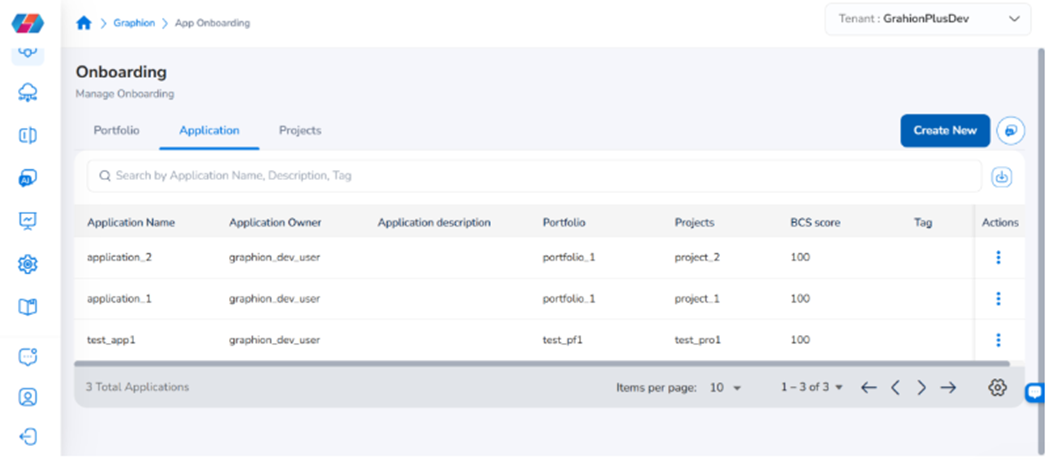
Application tab showing applications with Application Name, Owner, Portfolio, BCS Score, and Actions columns
View or Edit an Application
In the Application tab, click the ellipsis (...) under Actions next to the application.
View - opens the View Application page showing the business criticality score, description, and tags, with tabs for BCS Responses and Change History.
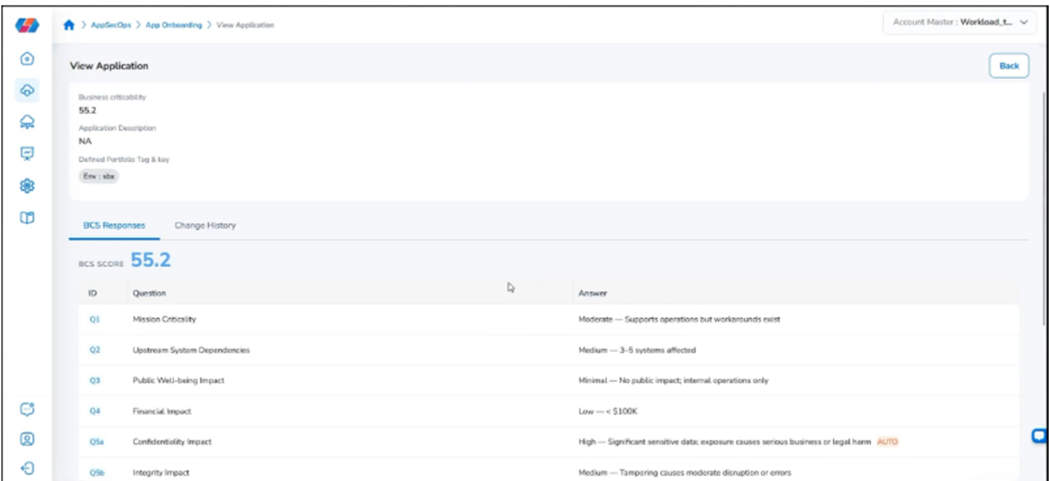
View Application page showing the business criticality score, application description, and portfolio tags
The View Application page has two tabs:
-
BCS Responses - shows the computed BCS score and a table of all 14 question responses.
-
Change History - shows a log of all previous questionnaire submissions, including the BCS score before and after each change.
Edit - opens the Create Application wizard pre-populated with existing values. Update as needed and click Submit Application on the Review screen.
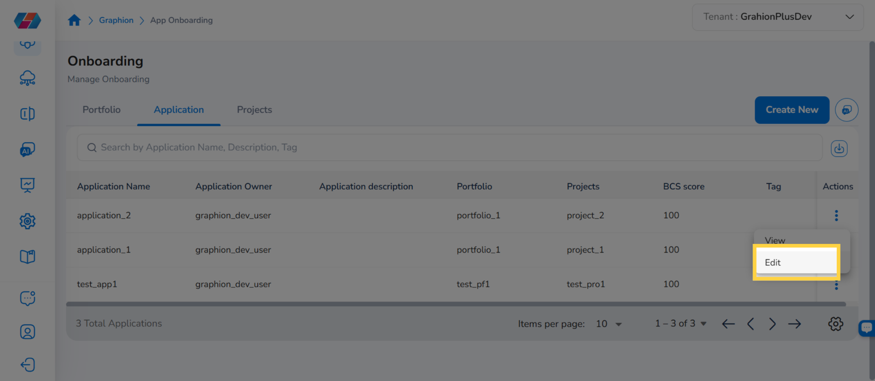
Actions menu for an application showing the View and Edit options
Updating the Business Criticality Score for an existing application
-
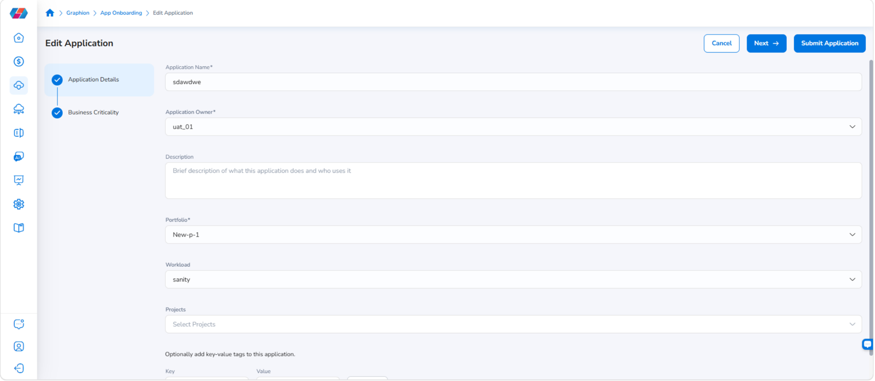
Open the Edit Application wizard Click the ellipsis (…) under Actions next to the application and select Edit. The Edit Application wizard opens on the Application Details step.
-
Update application details Change any fields as needed, such as Application Owner, Portfolio, Workload, or Projects.
-
Open the BCS responses Click Next. The Business Criticality step opens with all 14 existing responses and the current Running Score.
-
Change a response Click Edit next to the question you want to change, then select a new option. The Running Score updates immediately.
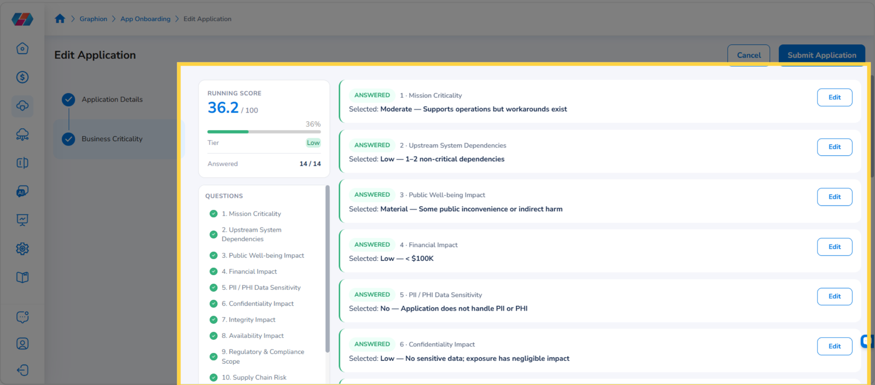
- Submit your changes Click Submit Application. Graphion recalculates the BCS score, and the Graphion Risk Score recalculates automatically. The updated responses appear in the BCS Responses tab, and the change is logged in Change History.
Create an Application
In the Application tab, click Create New. The Create Application wizard opens with three steps shown in the left panel: Application Details, Business Criticality, and Review.
Step 1 - Application Details
Fill in the following fields:
-
Application Name - enter a unique name for the application.
-
Application Owner - select the owner from the drop-down list.
-
Description - enter a brief description of what the application does and who uses it.
-
Portfolio - select the portfolio this application belongs to.
-
Workload - select the workload to associate with this application.
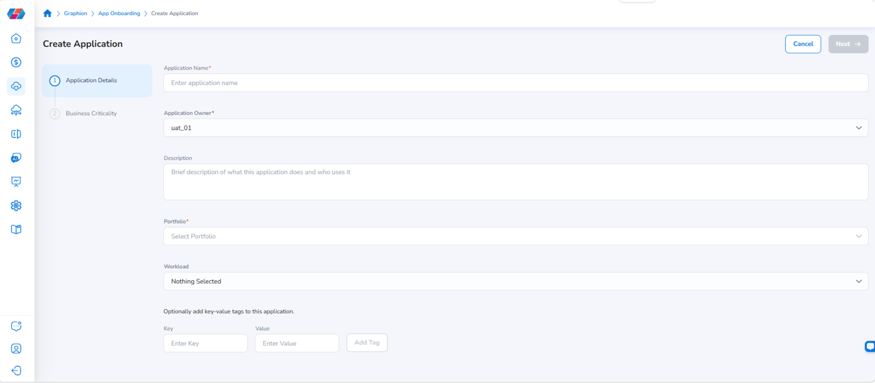
Create Application form showing the Application Details fields
1. Enter a tag key (optional) In the Key field, type the tag key.
2. Enter a tag value (optional) In the Value field, type the tag value, then click Add Tag. Tags appear as chips below the fields. Repeat to add more.
3. Proceed to Business Criticality Click Next. The wizard advances to Step 2.
Step 2 - Business Criticality
The Business Criticality step shows all 14 BCS questions on a single screen. The screen has three areas:
-
Copy answers from an existing application - a drop-down at the top that fills in all responses from another application.
-
Running Score panel (left) - shows the score out of 100, the tier, and how many questions you’ve answered (for example, 0 / 14). Below it, the Questions list shows each question’s status. Click a question in the list to jump straight to it.
-
Question cards (right) - each card shows the question number (for example, 1 of 14), a status badge (Pending, Current, or Answered), the maximum points for the question (MAX PTS), and explanatory text. Each response option shows the points it adds.
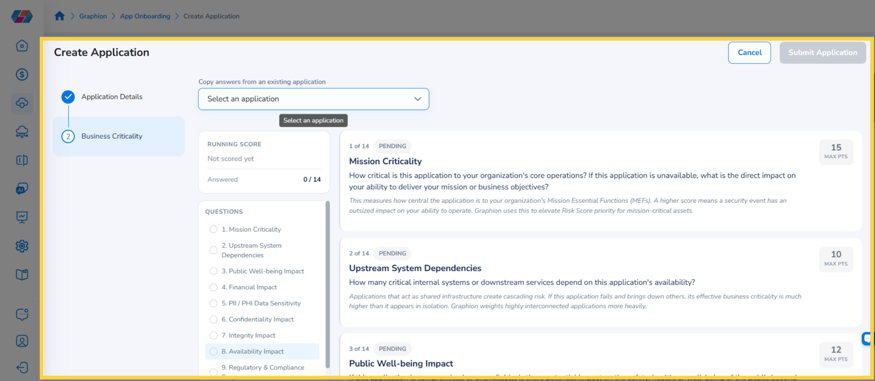
Business Criticality step with the Copy answers drop-down, Running Score panel, Questions list, and question cards
The 14 questions cover:
| Q # | Topic | What it measures |
|---|---|---|
| Q1 | Mission Criticality | How essential this application is to core operations. |
| Q2 | Upstream System Dependencies | How many critical systems depend on this application. |
| Q3 | Public Well-being Impact | Potential public harm if the application is compromised. |
| Q4 | Financial Impact | Estimated direct financial exposure from unavailability or breach. |
| Q5a | Confidentiality Impact | Severity of unauthorised information disclosure. |
| Q5b | Integrity Impact | Severity of unauthorised data modification. |
| Q5c | Availability Impact | Severity of loss of access or downtime. |
| Q6 | Regulators & Compliance Scope | Which regulatory frameworks apply. |
| Q7 | Supply Chain Risk | Dependency on unreviewed third-party vendors or open-source components. |
| Q8 | Reputational & Brand Impact | Risk to organisational reputation. |
| Q9 | Operational Maturity & Observability | Maturity of monitoring and incident response. |
| Q10 | Legacy & Supportability Risk | Degree of reliance on legacy or unsupported technology. |
| Q11 | PII / PHI Data Sensitivity | Whether the application stores or processes personal data or health information. |
| Q12 | Legal & Executive Accountability | Whether the application carries executive or legal obligations. |
Tip: Each question includes explanatory text below the title. Read it before selecting a response. Use Previous Question and Next Question to navigate between questions.
To complete the questionnaire, either copy answers from an existing application (see Copy BCS Answers from an Existing Application) or answer each question:
-
Answer a question In the question card, select the option that best describes the application. For example, in Mission Criticality, options range from Minimal (+3 pts) to Critical (+15 pts). The card collapses to show your selection, and the Running Score updates.
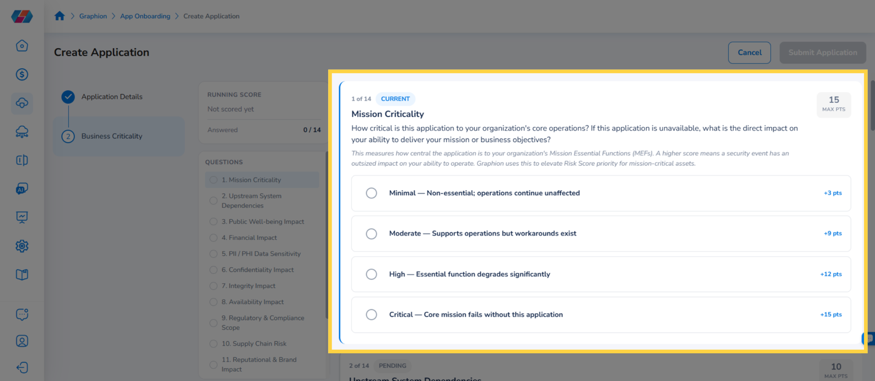
Mission Criticality question card with four response options and their point values
-
Answer the remaining questions Repeat for all 14 questions. Use the Questions list to jump to any pending question.
-
Review the Running Score When all 14 questions are answered, the Running Score panel shows the final score out of 100, its tier, and 14 / 14 answered.
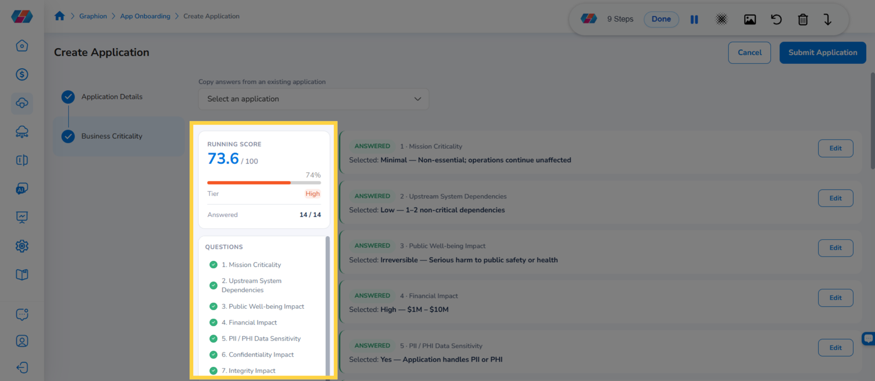
Running Score panel showing the final score, tier, and 14 / 14 answered
-
Change an answer (optional) Click Edit next to any answered question and select a different option. The Running Score updates to reflect the new answer.
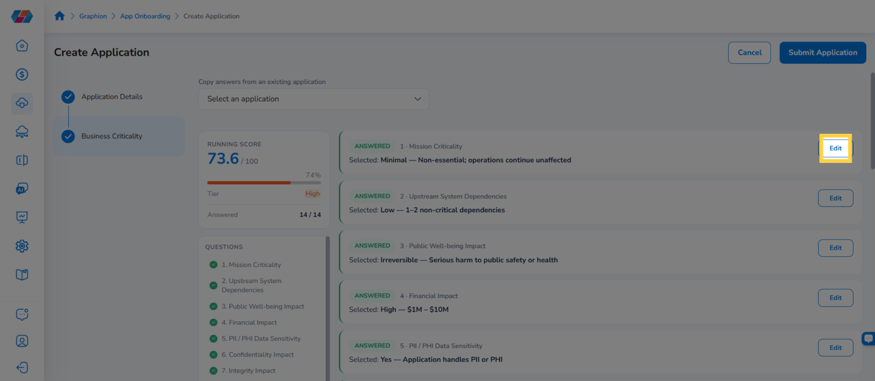
Edit button next to an answered question
-
Submit the application Click Submit Application (top right). A confirmation message appears, and the new application appears in the Application tab with its BCS score.
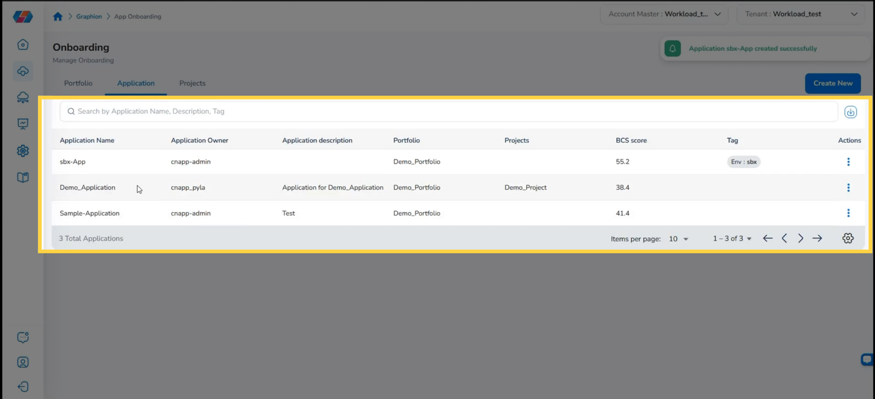
Application tab showing the new application with its BCS score and a success message
Note: Submit Application is available only after all 14 questions are answered. BCS score tiers: Low = 20-39 │ Moderate = 40-59 │ High = 60-79 │ Critical = 80-100. The Graphion Risk Score recalculates automatically on submission. If a scan ran before the questionnaire was completed, the Risk Score is flagged as incomplete and recalculates once the questionnaire is submitted.
Copy BCS Answers from an Existing Application
Use this option when the new application has a similar business profile to one that’s already onboarded. It saves answering every question from scratch and keeps responses consistent across similar applications.
-
Open the Copy drop-down On the Business Criticality step, click the Copy answers from an existing application drop-down. A list of existing applications opens.
-
Find the source application Type in the Type to filter options box to narrow the list.
-
Select the application Click the application name. Its BCS responses fill in all 14 questions, and the Running Score updates.
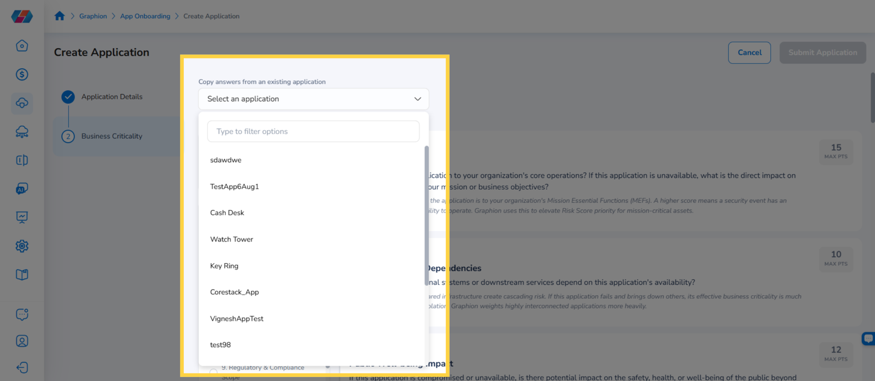
Copy answers from an existing application drop-down with the filter box and application list
- Adjust answers if needed Click Edit next to any question that differs for the new application, and select the correct option.
- Submit the application Click Submit Application.
Manage Projects
The Projects tab lists all projects with their name, associated SBOM, linked applications, description, tags, and available actions.
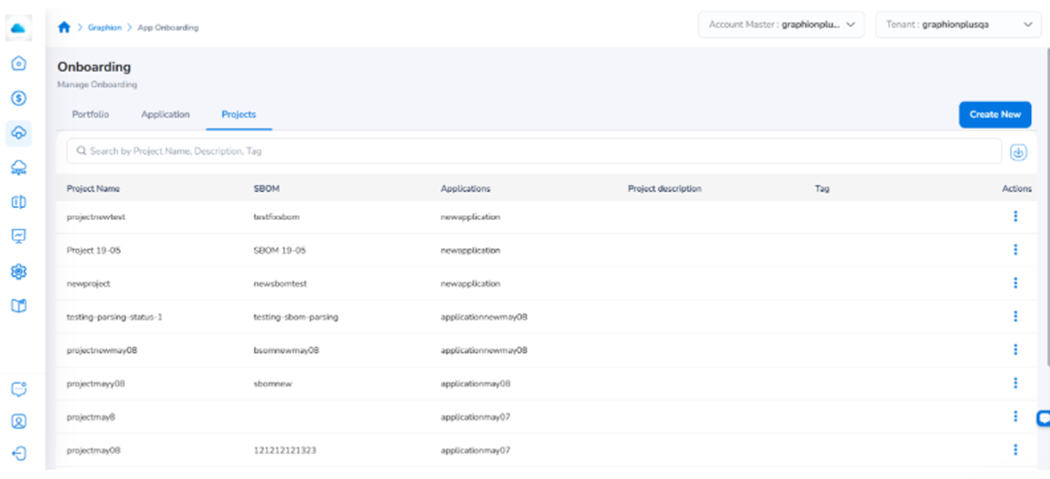
Projects tab showing the list of projects with Project Name, Applications, SBOM, and Actions columns
View or Edit a Project
In the Projects tab, click the ellipsis (...) under Actions next to the project.
- View - opens the View Project page showing the project name, linked application, SBOM, and description.
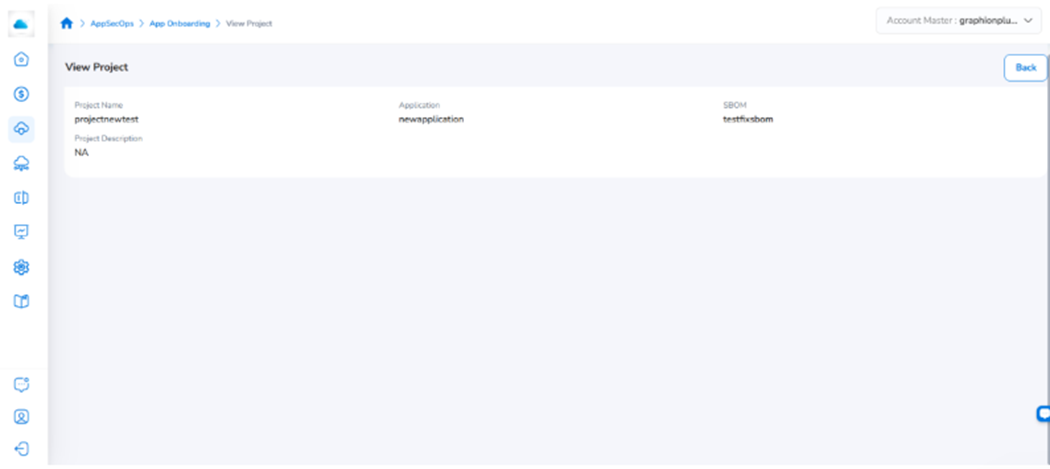
View Project page showing project name, linked application, SBOM, and project description with a Back button
- Edit - opens the project form. Update the relevant fields and click Submit to save.
Create a Project
In the Projects tab, click Create New. The Create Project form opens.
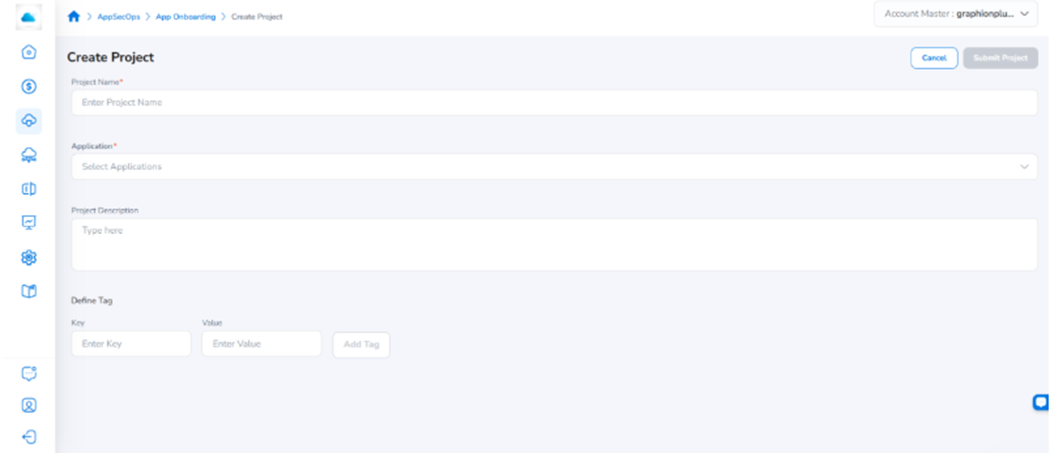
1. Enter Project Name Type a unique name in the Project Name field.
2. Select Applications In the Application drop-down, select all relevant applications and click Ok.
3. Enter Description Type a brief description of the project.
4. Enter a tag key (optional) In the Key field, type the tag key.
5. Enter a tag value (optional) In the Value field, type the tag value, then click Add Tag. Repeat Steps 4-5 to add more tags.
6. Submit Click Submit. The new project appears in the Projects tab.
Additional Configuration
Configure BCS Question Weights (Tenant Admin)
Tenant Admins set the question weights that determine how each of the 14 BCS questions contributes to the overall score. Graphion provides default weights that can be accepted as-is or customised. All changes are versioned and auditable. This configuration must be completed once before Application Owners can proceed through the Business Criticality step.
Note: Application Owners are not shown the underlying weight values. Only Tenant Admins can configure weights.
Navigate to the BCS Weight Configuration
Navigate to Tenant Management from the CoreStack Administration menu. Click on the tenant row to open the tenant detail panel. Scroll down and expand Business Criticality Score (BCS) Weights Configuration.
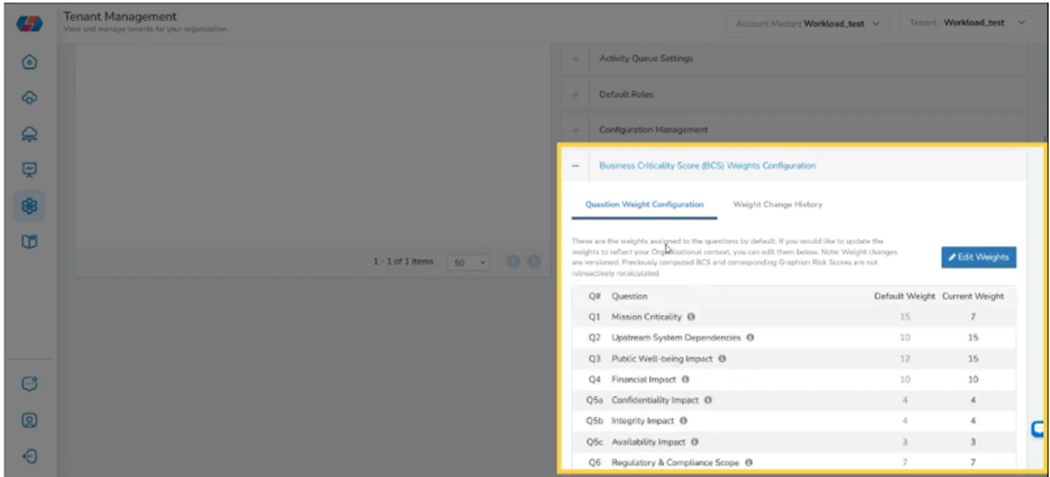
Tenant Management page with the tenant detail panel open, showing the Business Criticality Score (BCS) Weights Configuration section expanded at the bottom
The section contains two tabs: Question Weight Configuration and Weight Change History.
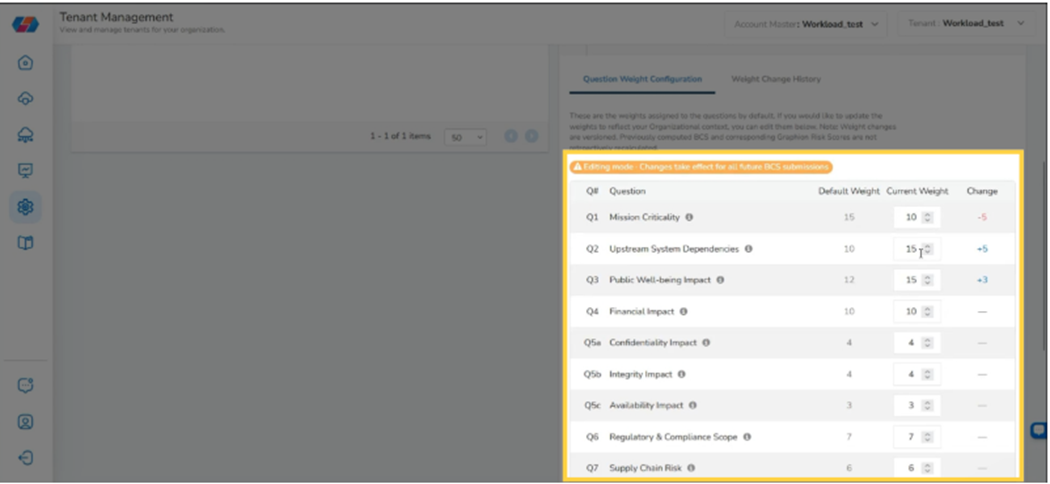
Set or update question weights
1. Open Question Weight Configuration Click the Question Weight Configuration tab. The table shows all 14 BCS questions with Default Weight and Current Weight columns.
2. Click Edit Weights Click Edit Weights. The weight fields become editable.
3. Adjust weights Modify the Current Weight values as needed. All weights must sum to exactly 100.
4. Resolve validation errors If the total is not 100, a validation error blocks saving until corrected.
5. Save Click Save. The change is versioned, timestamped, and logged with your username.
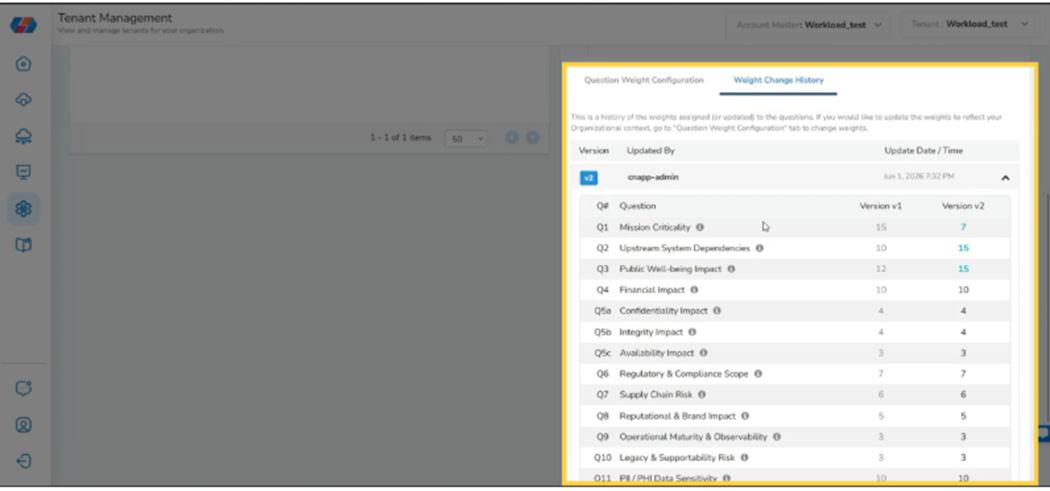
View weight change audit history
Click the Weight Change History tab. Each entry shows the timestamp, the Tenant Admin who made the change, BCS Config Version before and after, and per-question weight deltas. The log is read-only.
Configure the Table Column Selector
On any tab in App Onboarding, click the settings icon at the bottom-right corner of the table. The Table Column Selector dialog opens.
1. Rearrange columns Drag and drop column names to reorder them.
2. Show or hide columns Check or uncheck column names to display or hide them.
3. Save Click Save. The table updates immediately.
Frequently Asked Questions
What happens if a scan runs before the BCS questionnaire is submitted?
Graphion calculates the Risk Score using available data but excludes the BCS weighting. A warning appears on the application indicating the Risk Score is incomplete. The Risk Score recalculates automatically once the questionnaire is submitted - no manual trigger is needed.
Can I update the BCS questionnaire responses after the application has been created?
Yes. In the Application tab, click the ellipsis under Actions and select Edit. Navigate to the Business Criticality step, update any responses, and click Submit Application on the Review screen. Every resubmission is versioned and logged.
Can I reuse BCS answers from another application?
Yes. On the Business Criticality step, select an application from the Copy answers from an existing application drop-down. Its responses fill in all 14 questions. This works best for applications with a similar business profile, such as the same service deployed in different environments.
Who can complete the questionnaire and who can change the question weights?
Graphion Application Admins and Tenant Admins can complete and edit the BCS questionnaire. Only Tenant Admins can modify question weights in Tenant Management. Application Owners see the questions but are not shown the underlying weight values.
Do historical BCS scores change when a Tenant Admin updates question weights?
No. Existing BCS scores retain the BCS Config Version that was active when they were computed. Updated weights only apply to new questionnaire submissions. The Weight Change History shows which config version produced each score.
Can an application belong to more than one portfolio?
Each application is associated with a single portfolio, selected during creation. To change it, edit the application and select a different portfolio from the Portfolio drop-down. An application can be linked to multiple projects.
Troubleshooting
The Business Criticality step is not accessible when creating an application
Cause: The Tenant Admin has not yet configured BCS question weights. The questionnaire is unavailable until weights have been set.
Solution:
1. Ask your Tenant Admin to navigate to Tenant Management, open the tenant detail panel, expand Business Criticality Score (BCS) Weights Configuration, and save the question weights. Graphion default weights are pre-loaded and can be saved without changes.
2. Retry creating the application Return to Graphion > App Onboarding > Application, click Create New, and proceed through the wizard.
If the Business Criticality step is still inaccessible, contact CoreStack support with: tenant ID, application name, and a screenshot of the Create Application wizard.
The Risk Score shows an incomplete warning after the questionnaire is submitted
Cause: The Risk Score recalculates on the next scan after BCS submission. If no scan has run since submission, the warning persists.
Solution:
1. Confirm the BCS was saved Open the application and verify that the BCS score is visible with a Last updated timestamp from after your submission.
2. Trigger a new scan The Risk Score recalculates automatically after the scan completes.
If the warning persists after a scan, contact CoreStack support with: tenant ID, application name, BCS score and version, and the timestamp of the last scan.
An unexpected weight version appears in the Weight Change History
Cause: Another Tenant Admin in the organisation updated the question weights.
Solution:
1. Review the audit log Go to Tenant Management, open the tenant detail panel, expand Business Criticality Score (BCS) Weights Configuration, and click Weight Change History to identify who made the change.
2. Correct the weights if needed Click Edit Weights on the Question Weight Configuration tab and update the values. Each save creates a new versioned audit entry.
If you believe an unauthorised change was made, contact CoreStack support with: tenant ID, the BCS Config Version numbers from the audit log, and the user IDs associated with the change.
Updated 17 days ago