

Workload Dashboard
Learn how to read the Workload Dashboard in CoreStack's Assessments Agent, covering total workload count, the Agentic Feed, and the workload detail table.
Feature Overview
The Workload Dashboard is a dashboard within CoreStack's Assessments Agent. It gives compliance leads and cloud governance teams a workload-centric read of assessment status — covering total workload count, AI-generated Agentic Feed findings, and a searchable, downloadable table of workload-level detail. This dashboard surfaces findings for review; running a new assessment or editing a workload is done in separate workflows.
Note: The Assessment Agent is currently in Beta. Contact your CoreStack administrator if AI Agents is not visible in your left navigation panel.
How It Works
When you open the Workload Dashboard, the agent fetches your tenant's workload data and renders the dashboard. The Agentic Feed is the primary reading surface — it translates workload data into ranked, sentence-form findings. The Workload table below lets you search, sort, and export the full workload list. Data reflects workload records as of your most recent sync.
Prerequisites
Before you begin, ensure the following:
-
Role: You have the appropriate Assessment role assigned in CoreStack.
-
Access: AI Agents is visible in your CoreStack left navigation panel.
-
Data: At least one workload is registered for the selected tenant.
Navigate to AI Agents > Assessments Agent, click Insights, and select Workload Dashboard from the dropdown.
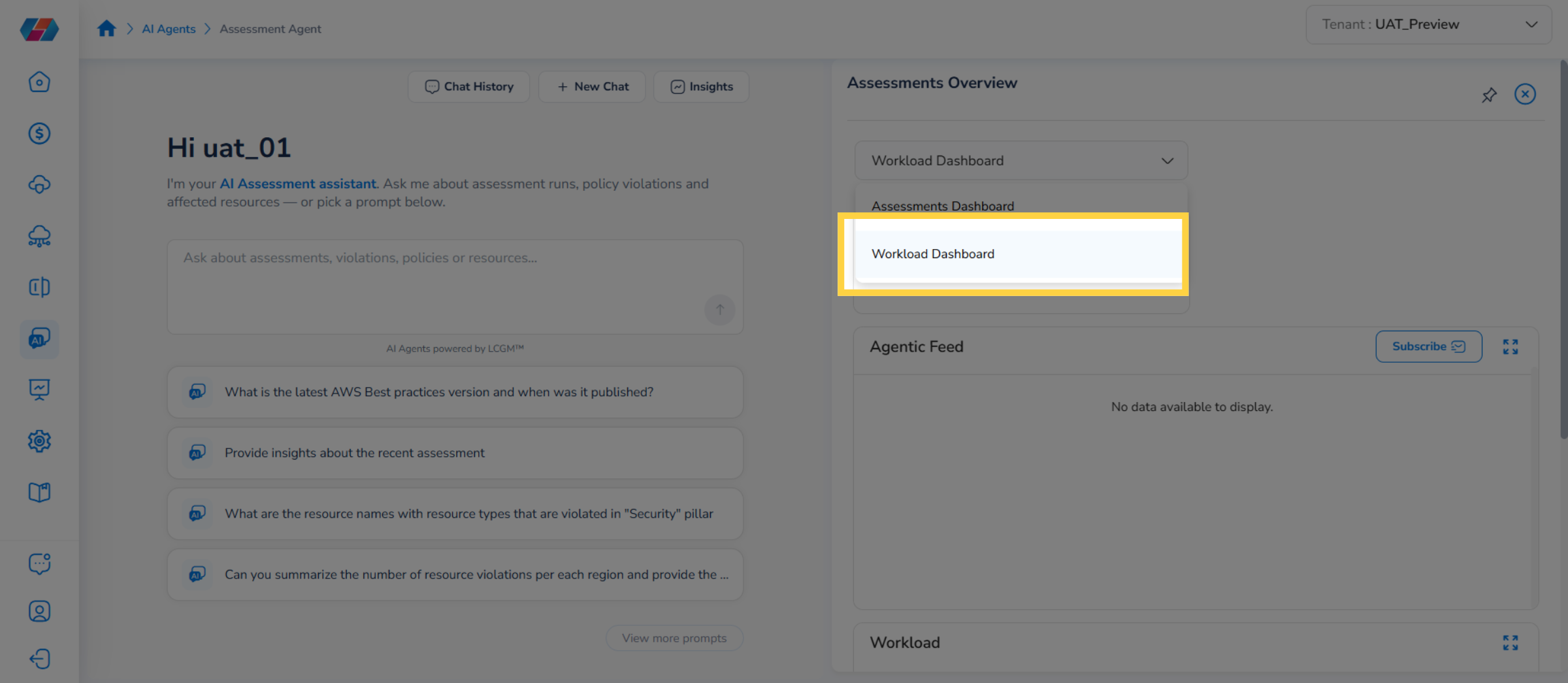
Note: The Agentic Feed findings shown throughout this guide are illustrative sample content, added to show how the feed looks once findings are available.
Reading the Workload Dashboard
The dashboard is organized into three reading zones. Each zone answers a specific question about your workload inventory.
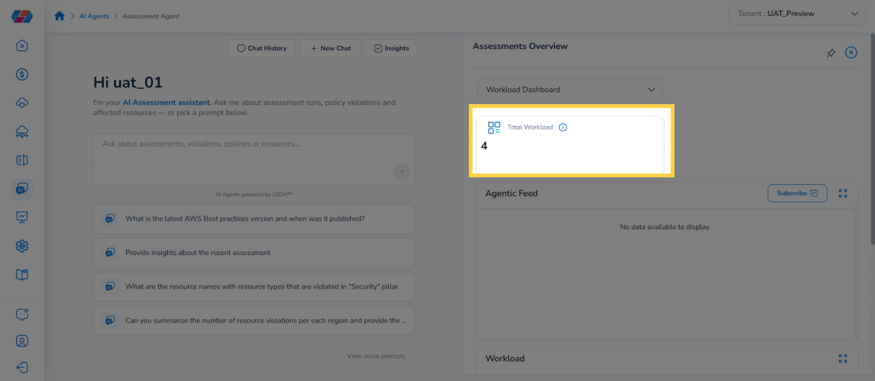
Zone 1 — Total Workload
The top of the dashboard shows the Total Workload count — how many workloads are currently registered for the selected tenant.
Zone 2 — Agentic Feed
The primary reading surface of the dashboard, translating workload data into ranked, sentence-form findings.
- Agentic Feed: lists findings such as the total number of workloads tracked, workloads updated within a recent period, workloads with no recent activity, workloads currently marked active, and a workload creation summary for a recent period.
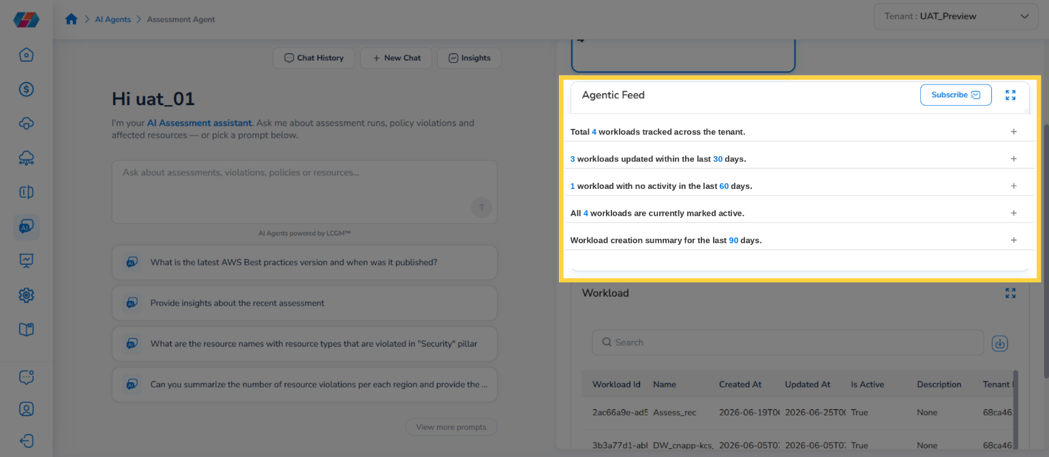
- Expanded finding detail: click a feed item's plus icon to expand it into further detail, the same way the Assessments Dashboard's Agentic Feed items expand.
Zone 3 — Workload Table
A searchable, downloadable table listing every workload registered for the selected tenant.
- Workload table: columns include Workload Id, Name, Created At, Updated At, Is Active, Description, and Tenant Id. Use the Search field to filter by name or ID, click the download icon to export the table, and use the pagination controls to page through results.
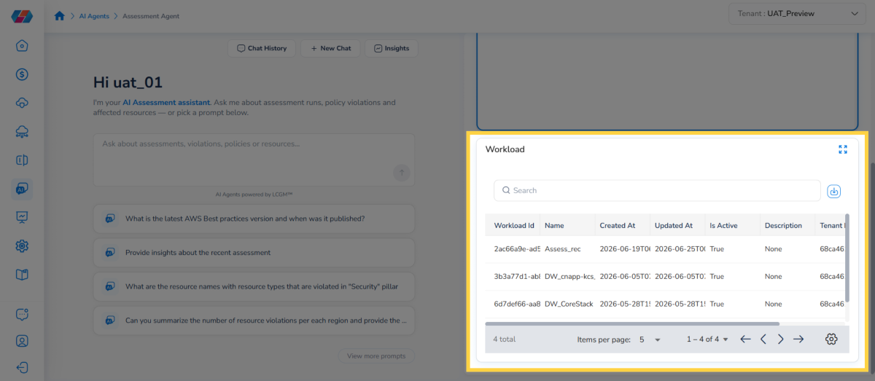
Note: Click the expand icon in the Workload table's top-right corner to open a full-screen Table Column Selector view, letting you choose which columns are displayed.
Subscribing to the Agentic Feed
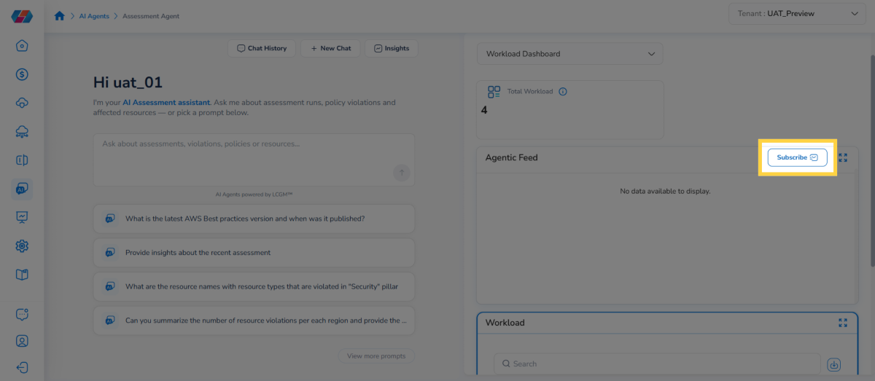
Click Subscribe on the Agentic Feed to receive scheduled updates about workload activity, the same way you would from the Assessments Dashboard.
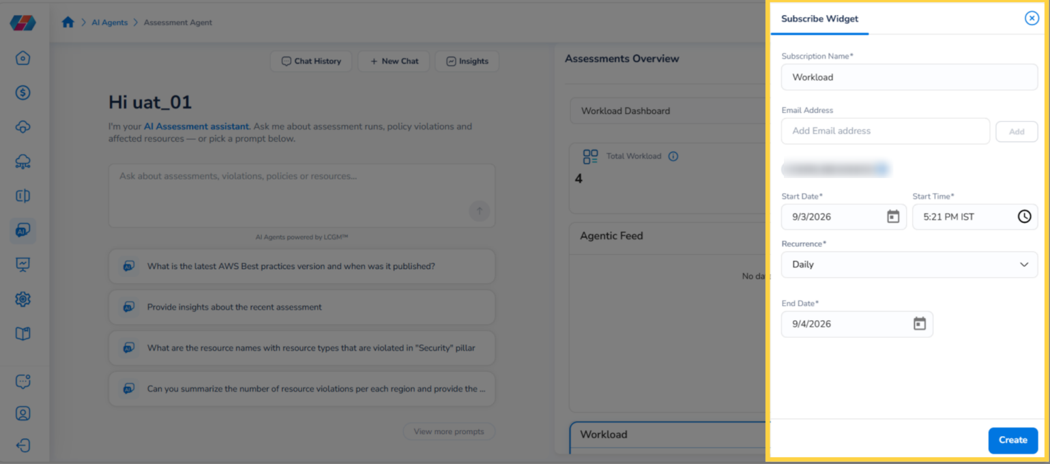
In the Subscribe Widget that opens, enter a subscription name, add one or more recipient email addresses, and set a start date, start time, and recurrence (Once, Daily, Weekly, or Monthly). Weekly and Monthly recurrence let you select specific days; Monthly additionally lets you exclude specific months and choose a day either by week-of-month or day-of-month. Set an end date, then click Create to activate the subscription.
Frequently Asked Questions
Q: What does an Agentic Feed finding like "workloads with no activity in the last 60 days" mean?
It flags workloads that haven't been created or updated within the stated lookback window, so you know which workloads may be stale or no longer in use.
Q: How current is the data in this dashboard?
Data reflects workload records as of your most recent sync with the selected tenant. Reload the dashboard for a fresher snapshot.
Q: Can I search for a specific workload by name?
Yes. Use the Search field above the Workload table to filter by workload name or ID.
Q: Can I choose which columns appear in the Workload table?
Yes. Click the expand icon in the Workload table's top-right corner to open the Table Column Selector, where you can choose which columns are displayed.
Q: Can I export the Workload table?
Yes. Click the download icon next to the Search field to export the current table.
Q: What's the difference between the Workload Dashboard and the Assessments Dashboard?
The Assessments Dashboard focuses on overall compliance health — total assessments, coverage, violations, and an Agentic Feed of ranked findings. The Workload Dashboard focuses on individual workloads — how many exist and their status in a searchable table. Both dashboards are complementary; most compliance workflows benefit from using both.
Troubleshooting
The Agentic Feed or Workload table shows no data
Cause: No workloads are registered yet for the selected tenant, or the wrong tenant is selected.
Solution:
- Check the Tenant switcher in the top-right corner and confirm the correct tenant is selected.
- Confirm at least one workload is registered for the tenant.
- Reload the dashboard after a workload is registered.
If the issue persists, contact CoreStack support with your tenant name and the workload you expected to see.
A workload I expect to see is missing from the table
Cause: The workload may be registered under a different tenant, or the Search field is filtering it out.
Solution:
- Clear the Search field and confirm the workload appears in the full, unfiltered table.
- Check the Tenant switcher and confirm you're viewing the tenant the workload was registered under.
- If the workload still doesn't appear, confirm it was registered successfully in CoreStack.
If the issue persists, contact CoreStack support with your tenant name and the workload name or ID.
A subscription doesn't seem to send updates
Cause: The recurrence, start date, or end date may be configured in a way that hasn't triggered a send yet, or the recipient email was entered incorrectly.
Solution:
- Reopen Subscribe on the Agentic Feed and confirm the recipient email address, start date/time, and recurrence are correct.
- For a Once subscription, confirm the start date/time has already passed.
- For Daily, Weekly, or Monthly, confirm the end date hasn't already passed and that the correct days or months are selected.
If the issue persists, contact CoreStack support with your tenant name, the subscription name, and the recipient email address.
Updated about 1 month ago