

Naming and Navigation Updates
See how the CoreStack left navigation is organized into Governance, Products, Agent Hub, and Platform, and how OSCAR names became FinOps, SecOps, and CloudOps.
Feature Overview
This page explains how CoreStack names its products and organizes the left navigation menu. CoreStack replaced the legacy OSCAR model with product names, and has now reorganized the menu into four sections: Governance, Products, Agent Hub, and Platform. Use this page to find where a menu item lives, or to match names used in older guides and screenshots. It does not explain how to use each feature; see the guide for each product instead.
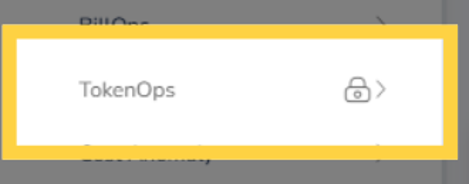
Note: The items you see depend on your tenant’s product bundle. Items outside your bundle appear with a lock icon.
How It Works
The left navigation groups items by purpose instead of listing every product at one level. Governance holds the account and policy controls shared across products. Products holds each product in your bundle, and Agent Hub holds the CoreStack AI agents. Platform holds shared tools and administration settings. Items outside your bundle stay visible but locked until a provider admin changes the tenant’s bundle, with no redeployment required.
Prerequisites
Before you begin, ensure the following:
-
Access: You can log in to a CoreStack tenant.
-
Role: To unlock items outside your bundle, a Provider Admin must change the tenant’s bundle.
Product Names
CoreStack replaced the legacy OSCAR model (Operations, Security, Cost, Compliance, Access, and Resources) with the names of its core products. This aligns the platform with modern cloud management practices and industry standards. The product login page, left navigation menu, and reports use these names consistently.
| OSCAR name | Product name | Location in the left navigation |
|---|---|---|
| Cost | FinOps | Products > FinOps |
| Security, Compliance, Access | Graphion | Products > Graphion |
| Operations, Resources | CloudOps | Platform > CloudOps |
The navigation now also includes Graphion and AgentOps under Products, and Assessments and Analytics under Platform.
Left Navigation Menu
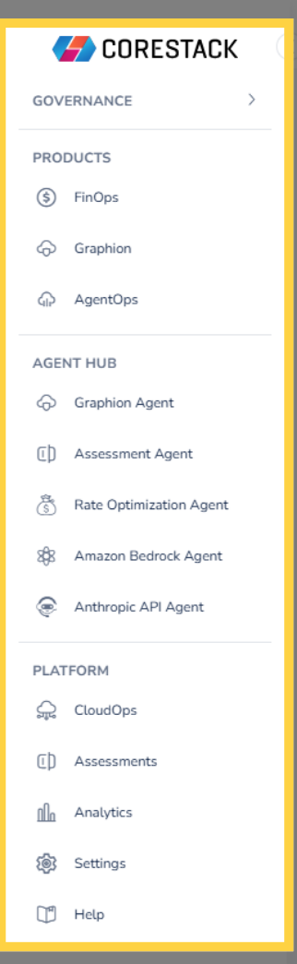
The left navigation is always visible on the left of the CoreStack page. It contains the following sections:
| Section | What it contains |
|---|---|
| Governance | Account and policy controls that apply across products, such as cloud accounts, AI services accounts, and Guardrails. |
| Products | The CoreStack products in your bundle, such as FinOps, Graphion, and AgentOps. |
| Agent Hub | The CoreStack AI agents, such as Graphion Agent and Rate Optimization Agent. |
| Platform | Shared tools and administration: CloudOps, Assessments, Analytics, Settings, and Help. |
Governance
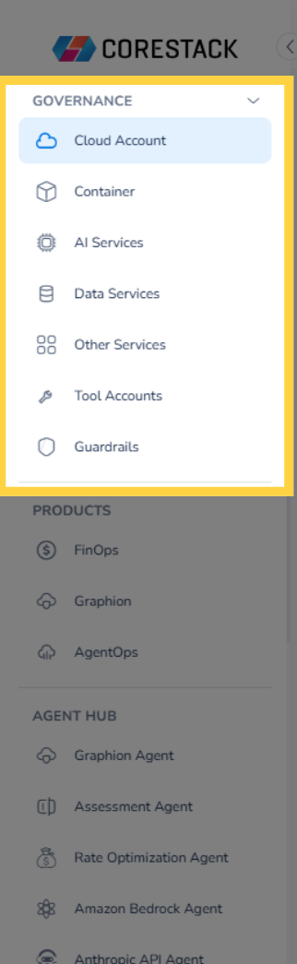
Click Governance at the top of the left navigation to expand it. Guardrails is now a peer item alongside the account types. The section contains the following items:
-
Cloud Account
-
Container
-
AI Services
-
Data Services
-
Other Services
-
Tool Accounts
-
Guardrails
Products
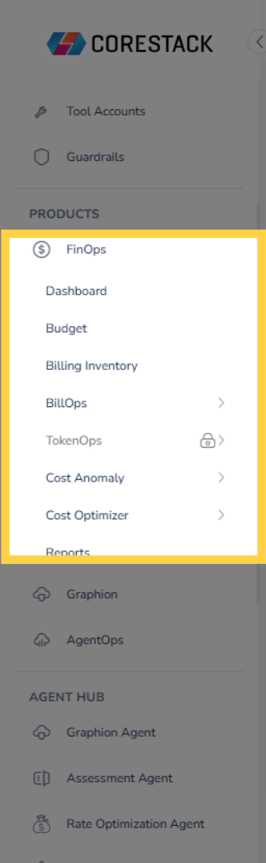
The Products section lists each product as its own menu. Click a product to expand it. Items with an arrow expand further.
FinOps
-
Dashboard
-
Budget
-
Billing Inventory
-
BillOps
-
TokenOps
-
Cost Anomaly
-
Cost Optimizer
-
Reports
Locked TokenOps: Only TokenOps under FinOps can appear locked. If TokenOps is not in your tenant’s product bundle, it stays visible with a lock icon instead of being hidden. A Provider Admin can unlock it by changing the tenant’s bundle, with no redeployment required.
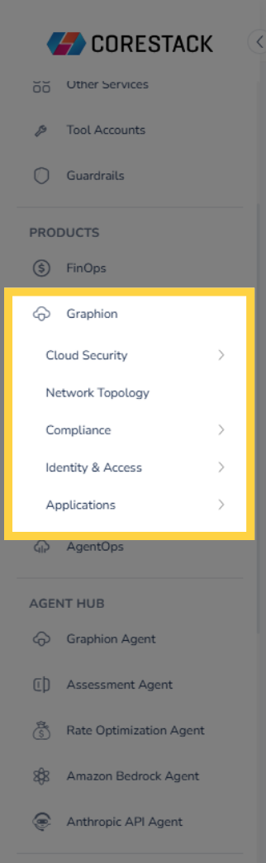
Graphion
-
Cloud Security
-
Network Topology
-
Compliance
-
Identity & Access
-
Applications
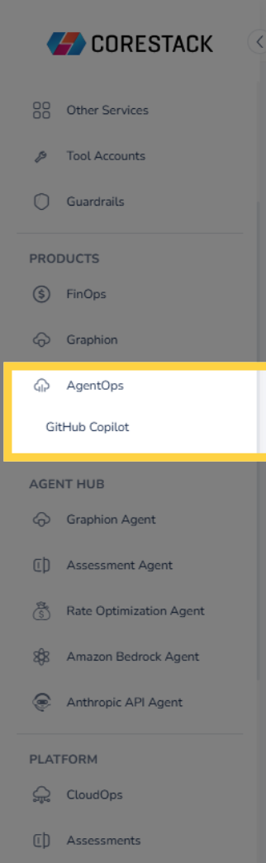
AgentOps
- GitHub Copilot
Agent Hub
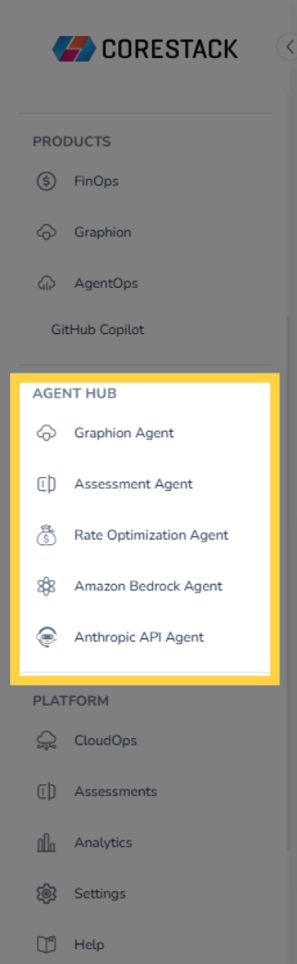
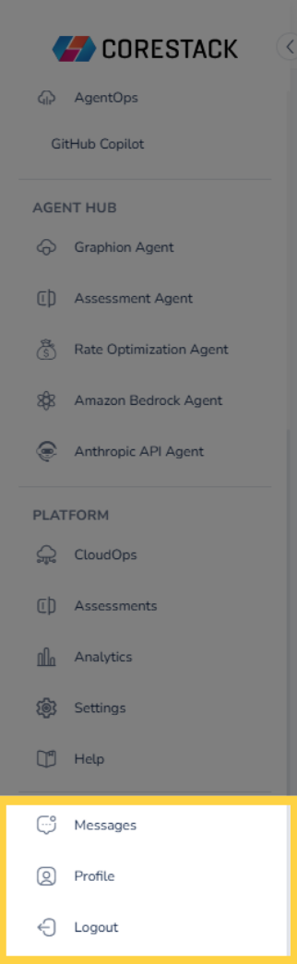
Agent Hub replaces the AI Agents (Beta) section. It contains the following agents:
-
Graphion Agent
-
Assessment Agent
-
Rate Optimization Agent
-
Amazon Bedrock Agent
-
Anthropic API Agent
Platform
The Platform section contains shared tools and administration settings. CloudOps and Settings keep the sub-items they had in the previous menu.
-
CloudOps
-
Assessments
-
Analytics
-
Settings
-
Help
CloudOps items
-
CloudOps Posture
-
Orchestration
-
Templates
-
Blueprints
-
AWS SSM Documents
-
-
Activity
-
Monitoring & Alerts
-
Native Tools
- Azure Log Analytics
-
Cloud Inventory
-
Inventory
-
Tag Governance
-
Workloads
-
Settings items
-
Onboard Accounts
-
Integrate Tools
-
Account Management
-
Account Info
-
Account Configuration
-
Account Hierarchy
-
-
Tenant Management
-
Identity and Access Management
-
Users
-
User Groups
-
User Delegation
-
Roles
-
Authorization
-
-
Audit Log
-
Currency Exchange Plans
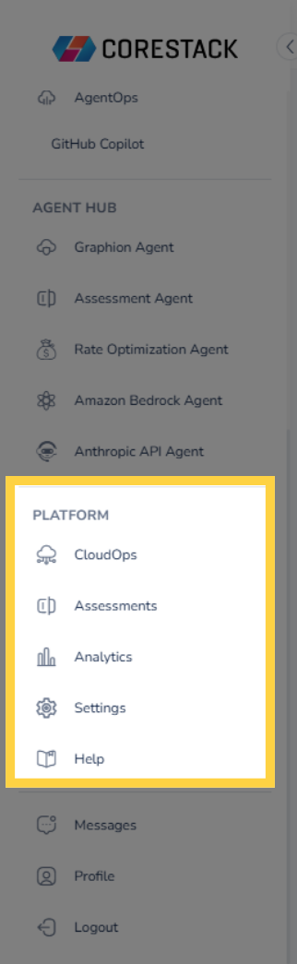
Messages, Profile, and Logout appear at the bottom of the left navigation.
Reports and Analytics
Reports are grouped by product and cloud provider. Open them from Platform > Analytics. FinOps reports are also available from Products > FinOps > Reports.
FinOps Reports
AWS
-
Cost Reports
- Cost Analytics
Azure
-
Cost Reports
- Cost Analytics
GCP
-
Cost Reports
- Cost Analytics
OCI
-
Cost Reports
- Cost Analytics
Multi-cloud
-
Cost Reports
-
Cost Analytics
-
Cost Recommendations
-
Cost Governance
-
General
Graphion Reports
AWS
-
Threat Analytics
-
Vulnerability Analytics
Azure
-
Threat Analytics
-
Vulnerability Analytics
GCP
-
Threat Analytics
-
Vulnerability Analytics
OCI
-
Threat Analytics
-
Vulnerability Analytics
Multi-cloud
-
Security Governance
-
Compliance Analytics
-
Compliance Reports
-
Access Governance
-
General
CloudOps Reports
AWS
-
Operations Governance
-
Activity Analytics
-
Backup Analytics
-
Monitoring Analytics
-
Patch Management
-
Monitoring Reports
-
Inventory Analytics
-
Cloud Service Analytics
Azure
-
Operations Governance
-
Activity Analytics
-
Backup Analytics
-
Monitoring Analytics
-
Patch Management
-
Monitoring Reports
-
Inventory Analytics
-
Inventory Reports
-
Cloud Service Analytics
GCP
-
Activity Analytics
-
Monitoring Analytics
-
Monitoring Reports
-
Inventory Analytics
-
Cloud Service Analytics
OCI
-
Activity Analytics
-
Monitoring Analytics
-
Monitoring Reports
-
Cloud Service Analytics
Multi-cloud
-
Operations Governance
-
Activity Analytics
-
Monitoring Analytics
-
Monitoring Reports
-
Inventory Analytics
-
Inventory Reports
-
General
Login Page
The login page uses the product names and follows the latest CoreStack branding guidelines.
Frequently Asked Questions
Q: Where did AI Agents go?
The AI Agents (Beta) section is now Agent Hub. Open an agent, such as Rate Optimization Agent, from the Agent Hub section.
Q: Why does a menu item show a lock icon?
The item isn’t part of your tenant’s product bundle. Ask your provider admin to change the tenant’s bundle to unlock it.
Q: Where is Settings now?
Click Settings in the Platform section. Its sub-items are listed under Platform on this page.
Q: Older guides mention SecOps, Reports, or OSCAR names. Where are they?
Use the Product Names table and the Where Items Moved table to find the current name and location.
Troubleshooting
A menu item shows a lock icon
Cause: The item isn’t included in your tenant’s product bundle.
Solution:
-
Note the locked item and the product it belongs to.
-
Ask your provider admin to add that product to the tenant’s bundle.
-
Refresh the page. The lock icon no longer appears.
If the item stays locked, contact CoreStack support with your tenant name, the locked item, and a screenshot of the left navigation.
I can’t find a page mentioned in an older guide
Cause: The page has moved, or the guide uses an earlier product name.
Solution:
-
Check the Product Names table for the current product name.
-
Find the page in the Where Items Moved table.
-
Open the new location in the left navigation.
If the page isn’t listed, contact CoreStack support with the page name and the guide that mentions it.
Updated 15 days ago