

Pre-Onboarding for Azure Microsoft Customer Agreement (MCA)
Introduction
Before onboarding an Azure Microsoft Customer Agreement (MCA) billing account into CoreStack, you must complete several setup tasks in the Azure portal. These steps ensure CoreStack has the correct credentials, permissions, and billing data export configuration needed to successfully connect and manage your MCA account.
This guide is for Azure administrators responsible for setting up the service principal and billing access required by CoreStack. Complete all steps in this guide before starting the MCA onboarding workflow in CoreStack.
Note: Azure MCA accounts support Read-Only access in CoreStack and are used primarily for FinOps capabilities. Ensure your Azure subscription includes MCA billing before proceeding.
Prerequisites
Before you begin, ensure the following:
- Azure Role: You have Global Administrator or Billing Account Owner access in the Azure portal.
- Azure Subscription: Your organization has an active Microsoft Customer Agreement (MCA) with Microsoft.
- CoreStack Access: You have Provider Admin or Account Admin role in CoreStack to perform the onboarding.
- Azure Portal Access: You can access portal.azure.com and the Cost Management + Billing section.
Step 1: Gather Your Billing Account ID
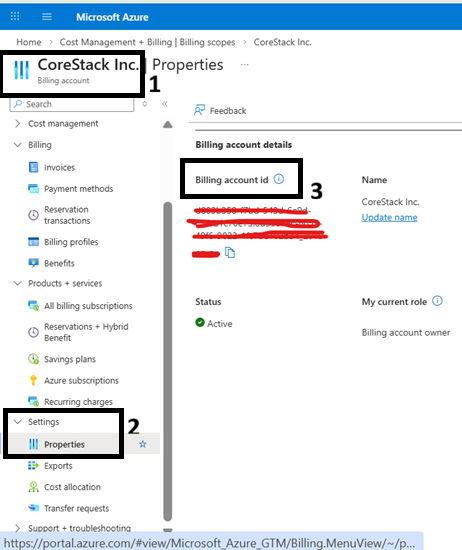
You will need the Billing Account ID to authenticate CoreStack with your MCA account.
- Sign in to the Azure portal.
- In the search bar, type Cost Management + Billing and select it from the results.
- In the left navigation pane, click Billing scopes.
- Select your MCA billing account from the list.
- Click Properties in the left menu.
- Copy the value in the Billing account ID field and save it for later.
Step 2: Register an Azure Active Directory (Azure AD) Application
CoreStack uses an Azure AD App Registration (Service Principal) to authenticate with your Azure environment.
- In the Azure portal, search for Azure Active Directory and open it.
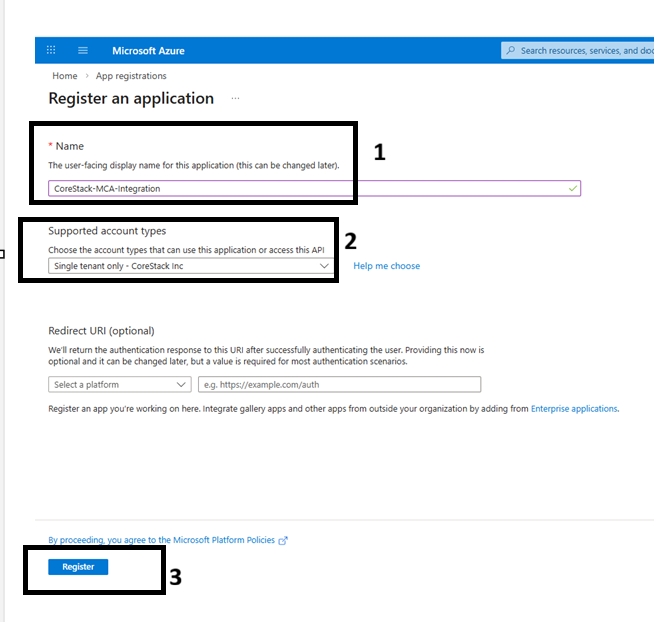
- In the left navigation pane, click App registrations.
- Click + New registration.
- Enter a meaningful name for the application (for example,
CoreStack-MCA-Integration). - Under Supported account types, select Accounts in this organizational directory only.
- Leave the Redirect URI blank.
- Click Register.
Step 3: Copy the Application (Client) ID and Tenant ID
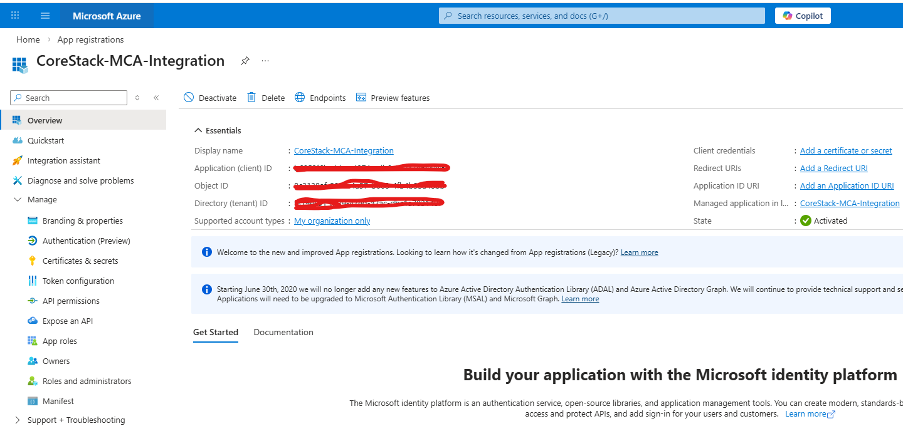
On the app registration Overview page, copy and save the following values:
- Application (client) ID — this is the Application ID required by CoreStack.
- Directory (tenant) ID — this is the Tenant ID required by CoreStack.
Step 4: Create a Client Secret
CoreStack requires a client secret to authenticate using the service principal.
-
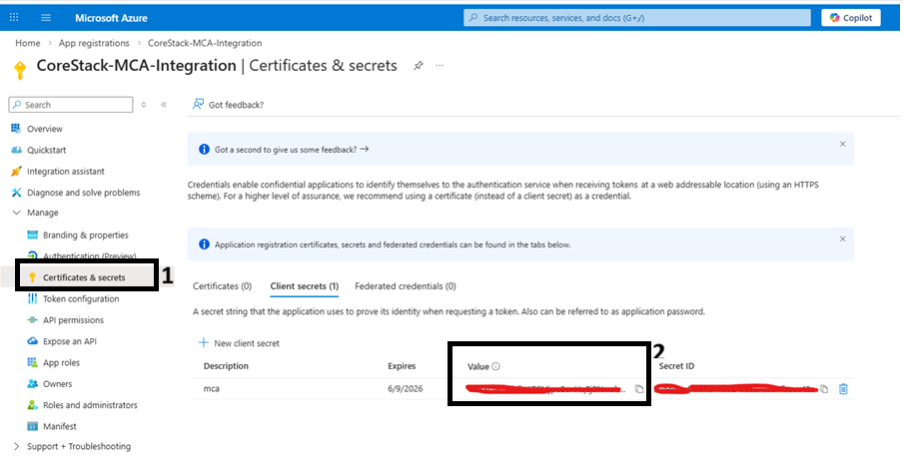
In the app registration, click Certificates & secrets in the left navigation pane.
-
Under the Client secrets tab, click + New client secret.
-
Enter a description (for example,
CoreStack MCA Secret) and select an expiration period.Important: Note the expiration date. You must rotate the secret in both Azure and CoreStack before it expires to avoid authentication failures.
-
Click Add.
-
Immediately copy the Value of the newly created secret. This value is only visible once.
Warning: Once you navigate away from this page, the secret value is no longer visible. Store it securely before proceeding.
Step 5: Assign Billing Account Reader Permission to the Service Principal
CoreStack requires the service principal to have Billing Account Reader access at the MCA billing account scope. This allows CoreStack to read billing profiles, invoice sections, and subscription data.
Note: For billing profiles that sync through hierarchy sync, the service principal must also have Billing Admin Reader permissions at the billing account scope. Without this, zero-cost billing profiles may fail to sync, leading to incomplete billing data in CoreStack.
- In the Azure portal, go to Cost Management + Billing.
- Select your MCA Billing account from the Billing scopes list.
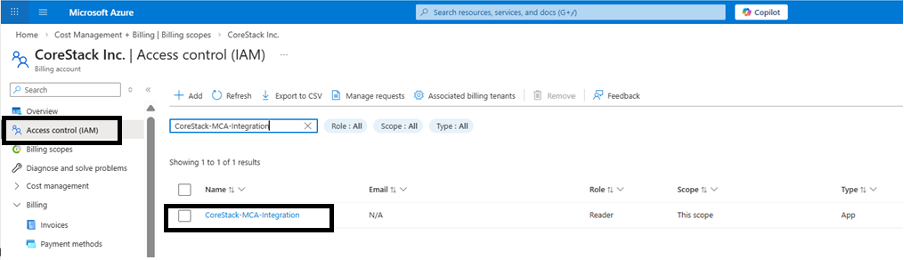
- In the left navigation pane, click Access control (IAM).
- Click + Add and select Add role assignment.
- In the Role dropdown, select Billing account reader.
- Under Select members, search for the name of the app registration you created in Step 2 (for example,
CoreStack-MCA-Integration) and select it. - Click Save.
Step 6: Set Up Cost Export to Azure Blob Storage
CoreStack requires billing cost data to be exported to an Azure Blob Storage container. You must configure exports for both Actual Cost and Amortized Cost.
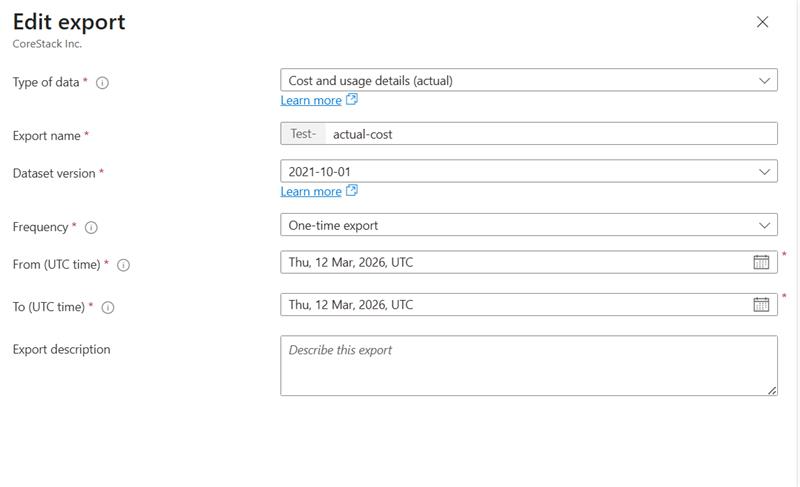
Note: To export cost data for previous months, the export must be configured with the “One-time export” frequency at the time of creation. This export is required to run for a minimum duration of three months and can be extended beyond this period if necessary.
Step 6a: Create or Identify a Storage Account
- In the Azure portal, search for Storage accounts and open it.
- Either select an existing storage account or create a new one in the same region as your billing data.
- Note the Storage account name and Subscription it belongs to — these are required during CoreStack onboarding.
Step 6b: Create a Blob Container
- Open your storage account.
- In the left navigation pane, click Containers.
- Click + Container and provide a name (for example,
corestack-mca-exports). - Set the Public access level to Private (no anonymous access).
- Click Create.
Step 6c: Configure the Actual Cost Export
- In the Azure portal, go to Cost Management + Billing.
- Select your MCA billing account.
- In the left navigation pane, click Cost Management > Exports.
- Click + Add.
- Fill in the following fields:
| Field | Value |
|---|---|
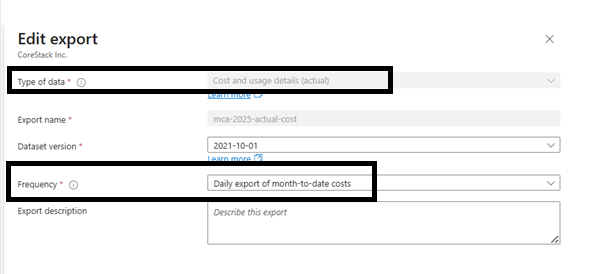
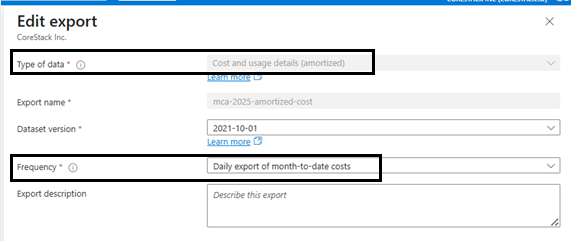
| Export type | Daily export of month-to-date costs |
| Metric | Actual cost (Usage and Purchases) |
| Export name | CoreStack-Actual-Cost (or similar) |
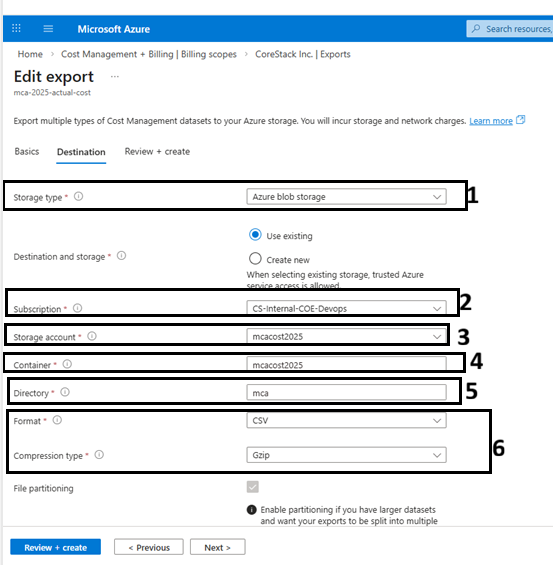
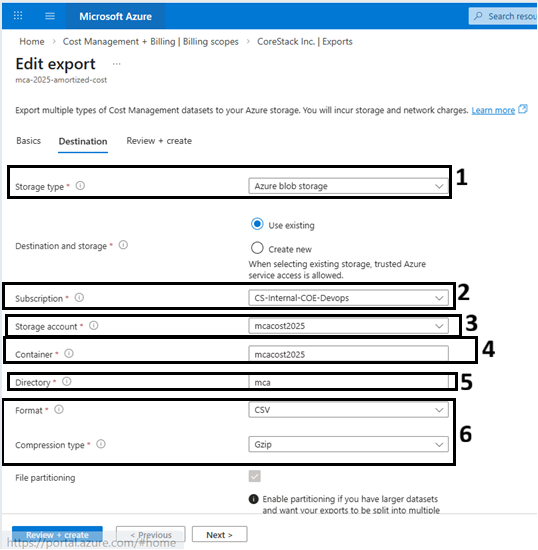
| Storage subscription | Select the subscription with your storage account |
| Storage account | Select the storage account from Step 6a |
| Container | Select the container from Step 6b |
| Directory | Enter a path (for example, actual) |
- Click Create.
- Note the full container path (for example,
corestack-mca-exports/actual) — this is the Actual Cost Path required during CoreStack onboarding.
Step 6d: Configure the Amortized Cost Export
- Repeat the export creation steps above.
- This time, set Metric to Amortized cost (Usage and Purchases).
- Use a different directory path (for example,
amortized). - Click Create.
- Note the full container path (for example,
corestack-mca-exports/amortized) — this is the Amortized Cost Path required during CoreStack onboarding.
Step 7: Grant Storage Blob Data Reader Access to the Service Principal
CoreStack's service principal must be able to read the exported cost files from the Blob Storage container.
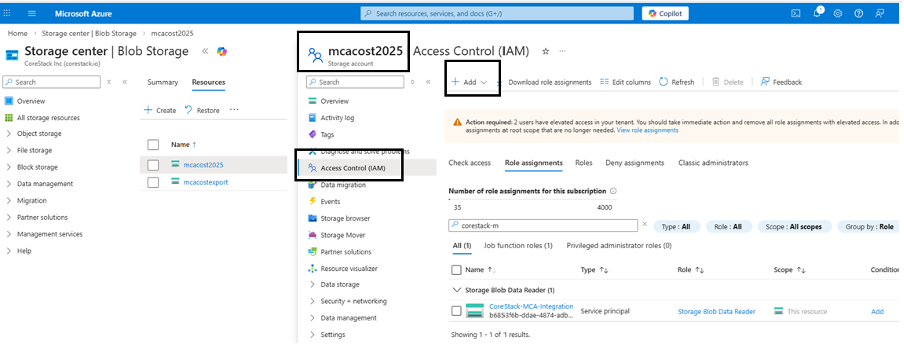
- In the Azure portal, open your Storage account.
- In the left navigation pane, click Access control (IAM).
- Click + Add > Add role assignment.
- Select the role Storage Blob Data Reader.
- Under Select members, search for your app registration (for example,
CoreStack-MCA-Integration) and select it. - Click Save.
Step 8: Check Storage Account Network Access
All customers must complete this check. CoreStack can read your cost export files only if your storage account's network settings allow it.
Check whether your storage account allows public network access from all networks:
- In the Azure portal, open your storage account.
- In the left navigation pane, go to Security + networking > Networking.
- On the Public access tab, check the Public network access setting.
- If public network access is enabled from all networks, no extra setup is needed. Continue to the Summary.
- If public network access is restricted (enabled from selected networks, or disabled), follow the rest of this step.
NoteContact CoreStack Support to get the 2 IP addresses and 2 subnet IDs for your CoreStack environment before you begin.
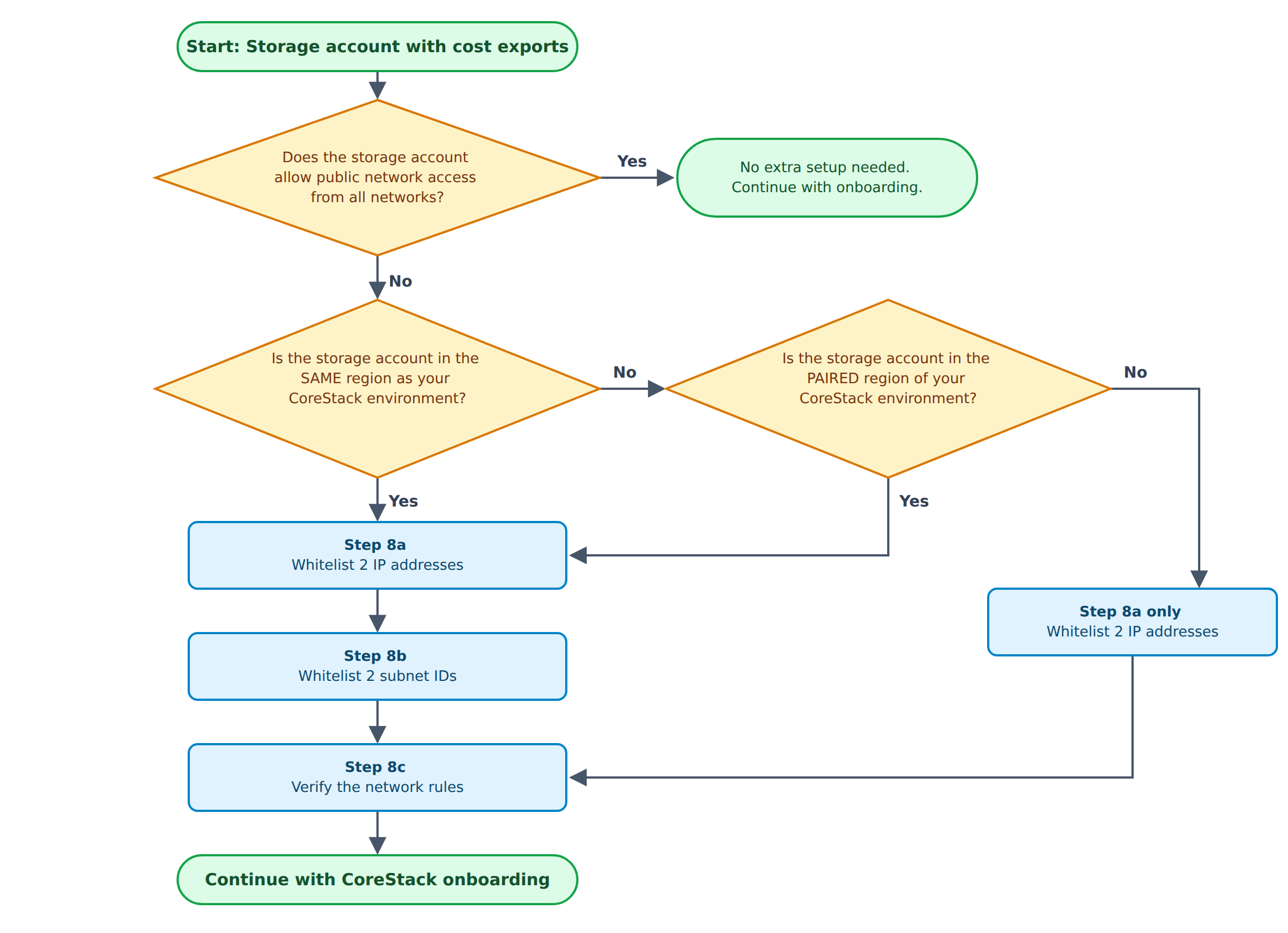
Use this flowchart to find out which steps apply to you.
Find Which Rules You Need
Azure links each region to a second region, called its paired region. When your storage account is in the same region as your CoreStack environment, or in its paired region, traffic from CoreStack travels over Microsoft's private network instead of the public internet. In these cases, IP addresses alone are not enough, and you must also add CoreStack's subnet IDs.
To check your storage account's region, open the storage account in the Azure portal and look at the Location field on the Overview page. Then compare it with your CoreStack environment's region in the table below.
| CoreStack Environment | Environment Region | Paired Region |
|---|---|---|
| PRD-US | West US 2 | West Central US |
| PRD-EU | West Europe | North Europe |
| PRD-UAE | UAE North | UAE Central |
| USEAST | Central US | East US 2 |
| MSPROD | Central US | East US 2 |
| PRD INDIA | Central India | South India |
Then follow these checks in order:
- Is the storage account in the same region as your CoreStack environment?
- Yes: Add the 2 IP addresses (Step 8a), then add the 2 subnet IDs (Step 8b).
- No: Go to the next check.
- Is the storage account in the paired region of your CoreStack environment?
- Yes: Add the 2 IP addresses (Step 8a), then add the 2 subnet IDs (Step 8b).
- No: Go to the next check.
- Is the storage account in any other region (not the same region and not the paired region)?
- Yes: Adding the 2 IP addresses (Step 8a) is enough. You do not need to add the subnet IDs.
Example: Your CoreStack environment is USEAST (Central US).
- If your storage account is in Central US, it is the same region. Add the IP addresses and subnet IDs.
- If your storage account is in East US 2, it is the paired region. Add the IP addresses and subnet IDs.
- If your storage account is in any other region, such as West US 2, add the IP addresses only.
Why CoreStack Needs 2 IP Addresses and 2 Subnet IDs?
CoreStack connects to your storage account from two components in its Azure environment:
- Application Gateway: Handles CoreStack's web traffic and API connections.
- Load Balancer: Handles traffic from CoreStack's processing services, which read and process your cost export files.
Requests to your storage account can come from either component, so both must be allowed. If only one is allowed, some requests are blocked and cost data may fail to load or load only partly.
The 2 IP addresses are the public IP addresses of these two components:
- Application Gateway IP
- Load Balancer IP
Azure checks these IP addresses when CoreStack's traffic reaches your storage account over the public internet. This happens when your storage account is in a region that is not the same as, or paired with, your CoreStack environment.
The 2 subnet IDs identify the private networks (subnets) where these two components run:
- Application Gateway subnet
- AKS subnet
When your storage account is in the same region as your CoreStack environment, or in its paired region, Azure sends CoreStack's traffic over Microsoft's private network instead of the public internet. In this case, Azure identifies the traffic by its subnet, not by its public IP address, so the IP rules alone do not match. Adding the subnet IDs lets Azure recognize this traffic as coming from CoreStack.
We ask you to add the IP addresses in every case, including the same and paired regions, so that access continues to work if any traffic reaches your storage account over the public internet.
These network rules only control where CoreStack can connect from. They do not grant any extra permissions. CoreStack can only read your cost export files, based on the Storage Blob Data Reader role you assigned in Step 7.
If you are not sure which CoreStack environment your account uses, contact CoreStack Support.
Step 8a: Add CoreStack IP Addresses
- In the Azure portal, open your storage account.
- In the left navigation pane, go to Security + networking > Networking.
- On the Public access tab, click Manage under Public network access.
- Set Public network access to Enable.
- Set Public network access scope to Enabled from selected networks.
- Under IPv4 Addresses, add the 2 IP addresses provided by CoreStack Support, one per row.
- Click Save and wait for the success notification.
Step 8b: Add CoreStack Subnet IDs
Complete this step only if your storage account is in the same region as your CoreStack environment, or in its paired region. If your storage account is in any other region, skip to Step 8c.
CoreStack's subnets are in CoreStack's Azure subscription, so they usually cannot be added through the Azure portal. Use the Azure CLI instead.
Before you begin, ensure the following:
- You have the 2 subnet IDs (App Gateway subnet and AKS subnet) provided by CoreStack Support.
- You are signed in to Azure as a user with write access to the storage account.
- You can run commands in Azure Cloud Shell.
- Select the subscription that contains your storage account.
az account set --subscription "<subscription-id>"- Add the App Gateway subnet.
az storage account network-rule add --resource-group "<storage-account-resource-group>" --account-name "<storage-account-name>" --subnet "<app-gateway-subnet-id>"- Add the AKS subnet.
az storage account network-rule add --resource-group "<storage-account-resource-group>" --account-name "<storage-account-name>" --subnet "<aks-subnet-id>"Replace the values in angle brackets with your own details. Use the full subnet ID exactly as provided by CoreStack Support. It starts with /subscriptions/.
Step 8c: Verify the Network Rules
If you completed Step 8b, verify the subnet IDs by running:
az storage account network-rule list --resource-group "<storage-account-resource-group>" --account-name "<storage-account-name>" --query "virtualNetworkRules[].{subnet:virtualNetworkResourceId, state:state}" -o tableBoth subnets should show the state Succeeded.
Summary: Values to Collect for CoreStack Onboarding
Before starting the MCA onboarding workflow in CoreStack, confirm you have collected all of the following values:
| Field Required in CoreStack | Where to Find It |
|---|---|
| Billing Account ID | Azure portal > Cost Management + Billing > Properties |
| Tenant ID | Azure AD > App registrations > Overview |
| Application ID | Azure AD > App registrations > Overview |
| Application Secret | Azure AD > App registrations > Certificates & secrets (copy on creation) |
| Subscription | Azure portal > Subscriptions |
| Storage Account | Azure portal > Storage accounts |
| Actual Cost Path | Container path used when creating the Actual Cost export |
| Amortized Cost Path | Container path used when creating the Amortized Cost export |
Note: Use the following script to create storage account, Assign roles to storage account and Billing account, execute cost exports for both Actual Cost and Amortized Cost, covering the required number of previous months. Additionally, ensure that daily cost exports for the current month are scheduled to run automatically.
[CmdletBinding()] param( [int]$NoOfMonths, [String]$costtype, [String]$billingNum, [String]$subsId, [String]$rgName, [String]$saName, [String]$containerName, [String]$location, [String]$skuName, [String[]]$blobReaderPrincipalIds, [String]$enableFirewall, [String[]]$allowedIPs, [switch]$NoConfirm ) #------------------------------------------------------------------------------------------ # User inputs #------------------------------------------------------------------------------------------ $script:config = $null Function intVariables(){ #fixed settings + the values entered by the user (see getUserInputs) $variables = @{ billingReaderRoleName = 'Billing account reader' #MCA billing account role (role definition ID is looked up by this name) billingRoleApiVersion = '2024-04-01' #Microsoft.Billing API version for MCA billing role assignments } if($script:config){ foreach($k in $script:config.Keys){ $variables[$k] = $script:config[$k] } } return $variables } Function isPrivateIPInput(){ param( [Parameter(Mandatory=$true)] [String]$ip ) $addr = ($ip -split '/')[0] return ($addr -match '^10\.' -or $addr -match '^192\.168\.' -or $addr -match '^172\.(1[6-9]|2[0-9]|3[0-1])\.' -or $addr -match '^127\.') } Function readValue(){ #returns the value passed as a script parameter (validated) or asks the user until a valid value is entered param( [Parameter(Mandatory=$true)] [String]$name, [Parameter(Mandatory=$true)] [String]$prompt, [String]$default = '', [Parameter(Mandatory=$true)] [ScriptBlock]$validate, [Parameter(Mandatory=$true)] [String]$errorMessage ) $provided = Get-Variable -Name $name -Scope Script -ValueOnly -ErrorAction SilentlyContinue if($provided){ $provided = ([String]$provided).Trim() if(& $validate $provided){ return $provided } throw ("Invalid value for -" + $name + " '" + $provided + "' : " + $errorMessage) } while($true){ $label = $prompt if($default){ $label += " [" + $default + "]" } $value = ([String](Read-Host $label)).Trim() if(-not $value){ $value = $default } if($value -and (& $validate $value)){ return $value } Write-Host (" " + $errorMessage) -ForegroundColor Red } } Function readList(){ #comma separated list, from the script parameter or from the user param( [Parameter(Mandatory=$true)] [String]$name, [Parameter(Mandatory=$true)] [String]$prompt, [Parameter(Mandatory=$true)] [ScriptBlock]$validate, [Parameter(Mandatory=$true)] [String]$errorMessage, [switch]$required ) $provided = @(Get-Variable -Name $name -Scope Script -ValueOnly -ErrorAction SilentlyContinue | Where-Object { $_ }) $fromParam = $provided.Count -gt 0 while($true){ if($fromParam){ $raw = $provided -join ',' }else{ $label = $prompt + ' (comma separated' if(-not $required){ $label += ', press Enter to skip' } $raw = [String](Read-Host ($label + ')')) } $items = @($raw -split '[,;\s]+' | Where-Object { $_ } | Select-Object -Unique) $bad = @($items | Where-Object { -not (& $validate $_) }) $msg = $null if($items.Count -eq 0 -and $required){ $msg = 'At least one value is required' }elseif($bad.Count -gt 0){ $msg = $errorMessage + ' : ' + ($bad -join ', ') } if(-not $msg){ return ,$items } if($fromParam){ throw ("Invalid value for -" + $name + " : " + $msg) } Write-Host (" " + $msg) -ForegroundColor Red } } Function getUserInputs(){ #asks for the given setting names; values passed as script parameters are used without asking param( [Parameter(Mandatory=$true)] [String[]]$names ) $isGuid = { param($x) $x -match '^[0-9a-fA-F]{8}-([0-9a-fA-F]{4}-){3}[0-9a-fA-F]{12}$' } $isYesNo = { param($x) $x -match '^(y|yes|n|no|true|false)$' } $isPublicIP = { param($x) if($x -notmatch '^(\d{1,3})\.(\d{1,3})\.(\d{1,3})\.(\d{1,3})(/(\d{1,2}))?$'){ return $false } foreach($n in 1..4){ if([int]$Matches[$n] -gt 255){ return $false } } if($Matches[6] -and ([int]$Matches[6] -gt 32 -or [int]$Matches[6] -eq 31)){ return $false } return (-not (isPrivateIPInput -ip $x)) } $cfg = [ordered]@{} Write-Host "" Write-Host "Enter the values for the cost export setup (press Enter to accept a [default])" -ForegroundColor Cyan if($names -contains 'NoOfMonths'){ $cfg.NoOfMonths = readValue -name 'NoOfMonths' -prompt 'Number of past months to export' -default '1' ` -validate { param($x) ($x -match '^\d+$') -and ([int]$x -ge 1) -and ([int]$x -le 36) } -errorMessage 'Enter a whole number from 1 to 36' } if($names -contains 'costtype'){ $val = readValue -name 'costtype' -prompt 'Cost type (ActualCost / AmortizedCost)' -default 'ActualCost' ` -validate { param($x) $x -in @('ActualCost','AmortizedCost') } -errorMessage 'Enter ActualCost or AmortizedCost' $cfg.costtype = @('ActualCost','AmortizedCost') | Where-Object { $_ -eq $val } } if($names -contains 'billingNum'){ $cfg.billingNum = readValue -name 'billingNum' -prompt 'MCA billing account ID' ` -validate { param($x) $x -match '^[0-9a-fA-F]{8}-([0-9a-fA-F]{4}-){3}[0-9a-fA-F]{12}:[0-9a-fA-F]{8}-([0-9a-fA-F]{4}-){3}[0-9a-fA-F]{12}_\d{4}-\d{2}-\d{2}$' } ` -errorMessage 'Enter an MCA billing account ID in the format <guid>:<guid>_<yyyy-mm-dd>' } if($names -contains 'subsId'){ $cfg.subsId = readValue -name 'subsId' -prompt 'Subscription ID for the storage account' -validate $isGuid -errorMessage 'Enter a valid subscription ID (GUID)' } if($names -contains 'rgName'){ $cfg.rgName = readValue -name 'rgName' -prompt 'Resource group name' -default 'ea_cost_export' ` -validate { param($x) ($x -match '^[-\w\.\(\)]{1,90}$') -and ($x -notmatch '\.$') } -errorMessage 'Use up to 90 letters, digits, - _ . ( ) and do not end with a period' } if($names -contains 'saName'){ $cfg.saName = readValue -name 'saName' -prompt 'Storage account name' ` -validate { param($x) $x -cmatch '^[a-z0-9]{3,24}$' } -errorMessage 'Use 3-24 lowercase letters and numbers only' } if($names -contains 'containerName'){ $cfg.containerName = readValue -name 'containerName' -prompt 'Container name' -default 'cscostcontainer' ` -validate { param($x) $x -cmatch '^[a-z0-9]([a-z0-9]|-(?!-)){1,61}[a-z0-9]$' } -errorMessage 'Use 3-63 lowercase letters, numbers and single hyphens, starting and ending with a letter or number' } if($names -contains 'location'){ $cfg.location = (readValue -name 'location' -prompt 'Azure region (e.g. eastus, westeurope)' -default 'eastus' ` -validate { param($x) $x -match '^[a-zA-Z0-9]+$' } -errorMessage 'Enter a region name without spaces, e.g. eastus').ToLower() } if($names -contains 'skuName'){ $skus = @('Standard_LRS','Standard_GRS','Standard_RAGRS','Standard_ZRS','Standard_GZRS','Standard_RAGZRS') $val = readValue -name 'skuName' -prompt ('Storage SKU (' + ($skus -join ' / ') + ')') -default 'Standard_LRS' ` -validate { param($x) $x -in @('Standard_LRS','Standard_GRS','Standard_RAGRS','Standard_ZRS','Standard_GZRS','Standard_RAGZRS') } -errorMessage ('Enter one of : ' + ($skus -join ', ')) $cfg.skuName = $skus | Where-Object { $_ -eq $val } } if($names -contains 'blobReaderPrincipalIds'){ $cfg.blobReaderPrincipalIds = readList -name 'blobReaderPrincipalIds' -prompt 'Service principal object ID(s) for Storage Blob Data Reader and Billing account reader' ` -validate $isGuid -errorMessage 'Not a valid object ID (GUID)' -required } if($names -contains 'enableFirewall'){ $val = readValue -name 'enableFirewall' -prompt 'Enable the storage firewall after the exports complete? (Y/N)' -default 'Y' ` -validate $isYesNo -errorMessage 'Enter Y or N' $cfg.enableFirewall = $val -match '^(y|yes|true)$' } if($names -contains 'allowedIPs'){ if($cfg.enableFirewall -eq $true){ $cfg.allowedIPs = readList -name 'allowedIPs' -prompt 'Public IP(s) or CIDR range(s) to whitelist' ` -validate $isPublicIP -errorMessage 'Not a valid public IPv4 address / CIDR (private ranges and /31 are not allowed)' -required }else{ $cfg.allowedIPs = @() } } #summary and confirmation Write-Host "" Write-Host "Values to be used :" -ForegroundColor Cyan foreach($k in $cfg.Keys){ $shown = $cfg[$k] if($shown -is [array]){ $shown = $shown -join ', ' } Write-Host (" {0,-24} : {1}" -f $k, $shown) } if(-not $script:NoConfirm){ $go = readValue -name '__confirm__' -prompt 'Proceed with these values? (Y/N)' -default 'Y' -validate $isYesNo -errorMessage 'Enter Y or N' if($go -notmatch '^(y|yes|true)$'){ throw 'Cancelled by the user' } } return $cfg } Function writeLog(){ param( [Parameter(Mandatory=$true)] [String]$message ) $entry = (Get-Date -Format dd-MM-yy:hh:mm:ss) + " : " + $message $script:log += $entry Write-Host $entry } Function registerAndInstall(){ #Register the resource provider $i=1; $RegPro = Register-AzResourceProvider -ProviderNamespace Microsoft.CostManagementExports -ErrorAction Stop while($i -ge 1){ $Reg = Get-AzResourceProvider -ProviderNamespace Microsoft.CostManagementExports if($Reg.RegistrationState -eq 'Registered'){ $i = 0; Write-Output $Reg.RegistrationState }elseif($Reg.RegistrationState -eq 'Registering'){ $i++ Start-Sleep -Seconds 10 }else{ $i = 0; Write-Output $Reg.RegistrationState Exit } } } Function isPrivateIP(){ param( [Parameter(Mandatory=$true)] [String]$ip ) $addr = ($ip -split '/')[0] return ($addr -match '^10\.' -or $addr -match '^192\.168\.' -or $addr -match '^172\.(1[6-9]|2[0-9]|3[0-1])\.' -or $addr -match '^127\.') } Function createStorageAccount(){ $v = intVariables Register-AzResourceProvider -ProviderNamespace Microsoft.Storage -ErrorAction SilentlyContinue | Out-Null #Resource group $rg = $null try{ $rg = Get-AzResourceGroup -Name $v.rgName -ErrorAction Stop }catch{} if(-not $rg){ New-AzResourceGroup -Name $v.rgName -Location $v.location -ErrorAction Stop | Out-Null writeLog ("Resource group " + $v.rgName + " has been created in " + $v.location) }else{ writeLog ("Resource group " + $v.rgName + " already exists") } #Storage account $sa = $null try{ $sa = Get-AzStorageAccount -ResourceGroupName $v.rgName -Name $v.saName -ErrorAction Stop }catch{} if(-not $sa){ $avail = Get-AzStorageAccountNameAvailability -Name $v.saName if(-not $avail.NameAvailable){ throw ("Storage account name '" + $v.saName + "' is not available : " + $avail.Message) } $saParams = @{ ResourceGroupName = $v.rgName Name = $v.saName Location = $v.location SkuName = $v.skuName Kind = 'StorageV2' AccessTier = 'Hot' MinimumTlsVersion = 'TLS1_2' EnableHttpsTrafficOnly = $true AllowBlobPublicAccess = $false AllowSharedKeyAccess = $true #copyFiles uses the account key } $sa = New-AzStorageAccount @saParams -ErrorAction Stop writeLog ("Storage account " + $v.saName + " has been created") }else{ writeLog ("Storage account " + $v.saName + " already exists") } #Container (management-plane call, so it works even when the firewall is on) $container = $null try{ $container = Get-AzRmStorageContainer -ResourceGroupName $v.rgName -StorageAccountName $v.saName -Name $v.containerName -ErrorAction Stop }catch{} if(-not $container){ New-AzRmStorageContainer -ResourceGroupName $v.rgName -StorageAccountName $v.saName -Name $v.containerName -PublicAccess None -ErrorAction Stop | Out-Null writeLog ("Container " + $v.containerName + " has been created") }else{ writeLog ("Container " + $v.containerName + " already exists") } return $sa } Function assignRole(){ #Assign an Azure RBAC role through ARM directly (no Microsoft Graph lookup needed) param( [Parameter(Mandatory=$true)] [String]$principalId, [Parameter(Mandatory=$true)] [String]$roleName, [Parameter(Mandatory=$true)] [String]$scope, [String]$principalType = '' ) $v = intVariables $roleDef = Get-AzRoleDefinition -Name $roleName -ErrorAction Stop $props = @{ roleDefinitionId = '/subscriptions/' + $v.subsId + '/providers/Microsoft.Authorization/roleDefinitions/' + $roleDef.Id principalId = $principalId } if($principalType){ $props.principalType = $principalType } $body = @{ properties = $props } | ConvertTo-Json -Depth 5 $path = $scope + '/providers/Microsoft.Authorization/roleAssignments/' + [guid]::NewGuid().ToString() + '?api-version=2022-04-01' for($attempt=1;$attempt -le 6;$attempt++){ $resp = Invoke-AzRestMethod -Path $path -Method PUT -Payload $body if($resp.StatusCode -in 200,201){ writeLog ("'" + $roleName + "' has been assigned to " + $principalId) return }elseif($resp.StatusCode -eq 409){ writeLog ("'" + $roleName + "' is already assigned to " + $principalId) return }elseif($resp.Content -match 'PrincipalNotFound' -and $attempt -lt 6){ #newly created identities take a little while to replicate Start-Sleep -Seconds 20 }else{ throw ("Role assignment '" + $roleName + "' failed for " + $principalId + " (" + $resp.StatusCode + ") : " + $resp.Content) } } } Function assignBlobReaderRoles(){ param( [Parameter(Mandatory=$true)] [String]$storageAccountId ) $v = intVariables $ids = @($v.blobReaderPrincipalIds | Where-Object { $_ }) if($ids.Count -eq 0){ writeLog "No principals configured in blobReaderPrincipalIds - skipping Storage Blob Data Reader assignment" return } foreach($id in $ids){ assignRole -principalId $id -roleName 'Storage Blob Data Reader' -scope $storageAccountId } } Function getBillingRoleAssignments(){ #lists all role assignments on the billing account (follows paging) $v = intVariables $path = '/providers/Microsoft.Billing/billingAccounts/' + $v.billingNum + '/billingRoleAssignments?api-version=' + $v.billingRoleApiVersion $resp = Invoke-AzRestMethod -Path $path -Method GET if($resp.StatusCode -ne 200){ throw ("Could not list billing role assignments (" + $resp.StatusCode + ") : " + $resp.Content) } $content = $resp.Content | ConvertFrom-Json $all = @($content.value) while($content.nextLink){ $resp = Invoke-AzRestMethod -Uri $content.nextLink -Method GET if($resp.StatusCode -ne 200){ break } $content = $resp.Content | ConvertFrom-Json $all += @($content.value) } return ,$all } Function getBillingReaderRoleDefinition(){ #looks up the MCA 'Billing account reader' role definition on the billing account by name $v = intVariables $path = '/providers/Microsoft.Billing/billingAccounts/' + $v.billingNum + '/billingRoleDefinitions?api-version=' + $v.billingRoleApiVersion $resp = Invoke-AzRestMethod -Path $path -Method GET if($resp.StatusCode -ne 200){ throw ("Could not list billing role definitions (" + $resp.StatusCode + ") : " + $resp.Content) } $def = @(($resp.Content | ConvertFrom-Json).value | Where-Object { $_.properties.roleName -eq $v.billingReaderRoleName }) | Select-Object -First 1 if(-not $def){ throw ("Role '" + $v.billingReaderRoleName + "' was not found on billing account " + $v.billingNum + " - check that billingNum is an MCA billing account ID") } return $def } Function assignBillingReaderRoles(){ #MCA 'Billing account reader' on the billing account for the same principals that get #Storage Blob Data Reader. Must be run by a Billing account owner of the MCA billing account. $v = intVariables $ids = @($v.blobReaderPrincipalIds | Where-Object { $_ }) if($ids.Count -eq 0){ writeLog "No principals configured in blobReaderPrincipalIds - skipping billing account reader assignment" return } if($v.billingNum -notmatch ':' -or $v.billingNum -notmatch '_'){ writeLog ("WARNING : billingNum '" + $v.billingNum + "' does not look like an MCA billing account ID (<guid>:<guid>_<yyyy-mm-dd>)") } $tenantId = (Get-AzContext).Tenant.Id $base = '/providers/Microsoft.Billing/billingAccounts/' + $v.billingNum $def = getBillingReaderRoleDefinition $existing = getBillingRoleAssignments foreach($id in $ids){ $hit = $existing | Where-Object { $_.properties.principalId -eq $id -and $_.properties.roleDefinitionId -like ('*/' + $def.name) } if($hit){ writeLog ("Billing account reader is already assigned to " + $id + " on billing account " + $v.billingNum) continue } $fields = @{ principalId = $id principalTenantId = $tenantId roleDefinitionId = $def.id } $path = $base + '/createBillingRoleAssignment?api-version=' + $v.billingRoleApiVersion #newer API versions wrap the payload in 'properties', older ones take it flat - try both $resp = Invoke-AzRestMethod -Path $path -Method POST -Payload (@{ properties = $fields } | ConvertTo-Json -Depth 5) $errText = $resp.Content if($resp.StatusCode -eq 400){ $resp = Invoke-AzRestMethod -Path $path -Method POST -Payload ($fields | ConvertTo-Json -Depth 5) $errText = $errText + ' | ' + $resp.Content } if($resp.StatusCode -in 200,201){ writeLog ("Billing account reader has been assigned to " + $id + " on billing account " + $v.billingNum) }elseif($resp.StatusCode -eq 202){ writeLog ("Billing account reader assignment accepted for " + $id + " (completes asynchronously, checked by the validation)") }elseif($resp.StatusCode -eq 409){ writeLog ("Billing account reader is already assigned to " + $id + " on billing account " + $v.billingNum) }else{ throw ("Billing account reader assignment failed for " + $id + " (" + $resp.StatusCode + ") : " + $errText) } } } Function configureFirewall(){ $v = intVariables if(-not $v.enableFirewall){ writeLog "Firewall is disabled in settings - storage account stays reachable from all networks" return } $ips = @() foreach($ip in $v.allowedIPs){ if($ip){ $ips += $ip.Trim() } } $clean = @() foreach($ip in $ips){ $ip = $ip -replace '/32$','' #storage firewall does not accept /32, use the plain address if(isPrivateIP -ip $ip){ writeLog ("Skipping private IP " + $ip + " - storage IP rules only accept public addresses") continue } if($clean -notcontains $ip){ $clean += $ip } } if($clean.Count -eq 0){ writeLog "WARNING : no IPs are whitelisted - only trusted Azure services will reach the storage account" } $ipRules = @($clean | ForEach-Object { @{ IPAddressOrRange = $_; Action = 'allow' } }) Update-AzStorageAccountNetworkRuleSet -ResourceGroupName $v.rgName -Name $v.saName -DefaultAction Deny -Bypass AzureServices -IPRule $ipRules -ErrorAction Stop | Out-Null writeLog ("Firewall enabled on " + $v.saName + ". Whitelisted IPs : " + ($clean -join ', ') + " (+ trusted Azure services)") #network rules take a short while to apply Start-Sleep -Seconds 30 } Function exportCost(){ param( [Parameter(Mandatory=$true)] $month, [Parameter(Mandatory=$true)] [String]$expName, [Parameter(Mandatory=$true)] [String]$RecSchedule ) $exValues = intVariables $date = (Get-Date).AddMonths(-$month) $dates = @{} $dates.firstDay = Get-Date -Year $date.Year -Month $date.Month -Day 1 -Hour 0 -Minute 0 -Second 0 -Format "yyyy-MM-ddTHH:mm:ssZ" $dates.lastDay = (Get-Date -Year $date.Year -Month $date.Month -Day 1 -Hour 0 -Minute 0 -Second 0).AddMonths(1).AddDays(-1).ToString("yyyy-MM-ddTHH:mm:ssZ") $dates.fiveYears = (Get-Date).AddYears(5).ToString("yyyy-MM-ddT00:00:00Z") $dates.today = (Get-Date).AddMonths(-$month).ToString("yyyy-MM-ddT00:00:00Z") $e = 1 if($RecSchedule -eq 'Daily'){ $details = @{ Name = $expName DefinitionType = $exValues.costtype Scope = 'providers/Microsoft.Billing/billingAccounts/' + $exValues.billingNum DestinationResourceId = '/subscriptions/' + $exValues.subsId + '/resourceGroups/' + $exValues.rgName + '/providers/Microsoft.Storage/storageAccounts/' + $exValues.saName DestinationContainer = $exValues.containerName DefinitionTimeframe = 'MonthTodate' ScheduleRecurrence = $RecSchedule RecurrencePeriodFrom = $dates.today RecurrencePeriodTo = $dates.fiveYears ScheduleStatus = 'Active' DestinationRootFolderPath = 'csdirectory' Format = 'Csv' } }elseif($RecSchedule -eq 'Custom'){ $details = @{ Name = $expName DefinitionType = $exValues.costtype Scope = 'providers/Microsoft.Billing/billingAccounts/' + $exValues.billingNum DestinationResourceId = '/subscriptions/' + $exValues.subsId + '/resourceGroups/' + $exValues.rgName + '/providers/Microsoft.Storage/storageAccounts/' + $exValues.saName DestinationContainer = $exValues.containerName DefinitionTimeframe = $RecSchedule TimePeriodFrom = $dates.firstDay TimePeriodTo = $dates.lastDay DestinationRootFolderPath = 'csdirectory' Format = 'Csv' } } $createExport = New-AzCostManagementExport @details $invokeExport = Invoke-AzCostManagementExecuteExport -ExportName $details.Name -Scope $details.Scope } Function checkCost(){ param( [Parameter(Mandatory=$true)] [String]$expName ) $ckValues = intVariables $details = @{ Name = $expName Scope = 'providers/Microsoft.Billing/billingAccounts/' + $ckValues.billingNum } $j=1 while($j -ge 1){ $checkExportStatus = '' $checkExportStatus = @(Get-AzCostManagementExportExecutionHistory -ExportName $details.Name -Scope $details.Scope) $status = $null if($checkExportStatus.Count -gt 0){ $status = $checkExportStatus[0].Status } if($status -eq 'Completed'){ $j = 0; Write-Output $status }elseif(-not $status -or $status -eq 'InProgress' -or $status -eq 'Queued'){ $j++ Start-Sleep -Seconds 30 }else{ $j = 0; Write-Output $status Exit } } } Function copyFiles(){ param( [Parameter(Mandatory=$true)] [String]$source, [Parameter(Mandatory=$true)] [String]$destination ) $cpValues = intVariables $details = @{ Name = $source Scope = 'providers/Microsoft.Billing/billingAccounts/' + $cpValues.billingNum } $remove = Remove-AzCostManagementExport -Name $details.Name -Scope $details.Scope #copy directory in storage accounts (runs before the firewall is enabled) $cpkey = Get-AzStorageAccountKey -ResourceGroupName $cpValues.rgName -Name $cpValues.saName | Where-Object {$_.KeyName -eq "key1"} $cpctx = New-AzStorageContext -StorageAccountName $cpValues.saName -StorageAccountKey $cpkey.Value $sourceDirectory = "csdirectory/" + $source +"/" $blobs = Get-AzStorageBlob -Container $cpValues.containerName -Context $cpctx | Where-Object { $_.Name -like "$sourceDirectory*" } $destinationDirectory = "csdirectory/" + $destination +"/" foreach ($blob in $blobs) { $newBlobName = $blob.Name -replace "^$sourceDirectory", $destinationDirectory $copy = Start-AzStorageBlobCopy -SrcBlob $blob.Name -SrcContainer $cpValues.containerName -Context $cpctx -DestBlob $newBlobName -DestContainer $cpValues.containerName -DestContext $cpctx -ErrorAction Stop $remove = Remove-AzStorageBlob -Blob $blob.Name -Container $cpValues.containerName -Context $cpctx } } #------------------------------------------------------------------------------------------ # Validation (runs before the firewall is enabled) #------------------------------------------------------------------------------------------ $script:results = @() Function addResult(){ param( [Parameter(Mandatory=$true)] [String]$area, [Parameter(Mandatory=$true)] [String]$check, [Parameter(Mandatory=$true)] [ValidateSet('PASS','FAIL','WARN','INFO')] [String]$status, [String]$details = '' ) $script:results += [PSCustomObject]@{ Area = $area; Check = $check; Status = $status; Details = $details } $colors = @{ PASS = 'Green'; FAIL = 'Red'; WARN = 'Yellow'; INFO = 'Cyan' } $line = "[" + $status + "] " + $area + " - " + $check if($details){ $line += " : " + $details } Write-Host $line -ForegroundColor $colors[$status] $script:log += ((Get-Date -Format dd-MM-yy:hh:mm:ss) + " : VALIDATION " + $line) } Function runTest(){ #run one test block; an unexpected error is recorded as FAIL instead of stopping the script param( [Parameter(Mandatory=$true)] [String]$area, [Parameter(Mandatory=$true)] [ScriptBlock]$block ) try{ & $block }catch{ addResult -area $area -check 'Unexpected error' -status FAIL -details $_.Exception.Message } } Function getExportNames(){ $v = intVariables if($v.costtype -eq 'AmortizedCost'){ $prefix = 'cscostexportAmortized' }else{ $prefix = 'cscostexportActual' } $backfill = @() for($i=1;$i -le [int]$v.NoOfMonths;$i++){ $backfill += ($prefix + $i) } return @{ current = $prefix; backfill = $backfill } } Function getExport(){ param( [Parameter(Mandatory=$true)] [String]$name ) $v = intVariables $path = '/providers/Microsoft.Billing/billingAccounts/' + $v.billingNum + '/providers/Microsoft.CostManagement/exports/' + $name + '?api-version=2023-03-01&$expand=runHistory' $resp = Invoke-AzRestMethod -Path $path -Method GET if($resp.StatusCode -eq 404){ return $null } if($resp.StatusCode -ne 200){ throw ("Could not read export " + $name + " (" + $resp.StatusCode + ") : " + $resp.Content) } return ($resp.Content | ConvertFrom-Json) } Function testProvider(){ $reg = Get-AzResourceProvider -ProviderNamespace Microsoft.CostManagementExports | Select-Object -First 1 if($reg.RegistrationState -eq 'Registered'){ addResult -area 'Resource provider' -check 'Microsoft.CostManagementExports registered' -status PASS }else{ addResult -area 'Resource provider' -check 'Microsoft.CostManagementExports registered' -status FAIL -details ("State : " + $reg.RegistrationState) } } Function testResourceGroup(){ $v = intVariables $rg = $null try{ $rg = Get-AzResourceGroup -Name $v.rgName -ErrorAction Stop }catch{} if($rg){ addResult -area 'Resource group' -check ('Exists : ' + $v.rgName) -status PASS -details $rg.Location }else{ addResult -area 'Resource group' -check ('Exists : ' + $v.rgName) -status FAIL } } Function testStorageAccount(){ $v = intVariables $sa = $null try{ $sa = Get-AzStorageAccount -ResourceGroupName $v.rgName -Name $v.saName -ErrorAction Stop }catch{} if(-not $sa){ addResult -area 'Storage account' -check ('Exists : ' + $v.saName) -status FAIL return $null } addResult -area 'Storage account' -check ('Exists : ' + $v.saName) -status PASS -details $sa.PrimaryLocation if($sa.Kind -eq 'StorageV2'){ $s = 'PASS' }else{ $s = 'WARN' } addResult -area 'Storage account' -check 'Kind is StorageV2' -status $s -details $sa.Kind if($sa.MinimumTlsVersion -eq 'TLS1_2'){ $s = 'PASS' }else{ $s = 'FAIL' } addResult -area 'Storage account' -check 'Minimum TLS 1.2' -status $s -details $sa.MinimumTlsVersion if($sa.EnableHttpsTrafficOnly -eq $true){ $s = 'PASS' }else{ $s = 'FAIL' } addResult -area 'Storage account' -check 'HTTPS only' -status $s -details ([String]$sa.EnableHttpsTrafficOnly) if($sa.AllowBlobPublicAccess -eq $false){ $s = 'PASS' }else{ $s = 'FAIL' } addResult -area 'Storage account' -check 'Anonymous blob access disabled' -status $s -details ([String]$sa.AllowBlobPublicAccess) #null means the default (allowed); the copy step needs shared key access if($sa.AllowSharedKeyAccess -ne $false){ $s = 'PASS' }else{ $s = 'FAIL' } addResult -area 'Storage account' -check 'Shared key access allowed (needed by copy step)' -status $s -details ([String]$sa.AllowSharedKeyAccess) return $sa } Function testContainer(){ $v = intVariables $c = $null try{ $c = Get-AzRmStorageContainer -ResourceGroupName $v.rgName -StorageAccountName $v.saName -Name $v.containerName -ErrorAction Stop }catch{} if(-not $c){ addResult -area 'Container' -check ('Exists : ' + $v.containerName) -status FAIL return } addResult -area 'Container' -check ('Exists : ' + $v.containerName) -status PASS if([String]$c.PublicAccess -eq 'None'){ $s = 'PASS' }else{ $s = 'FAIL' } addResult -area 'Container' -check 'Public access is None' -status $s -details ([String]$c.PublicAccess) } Function testRoles(){ param( [Parameter(Mandatory=$true)] $sa ) $v = intVariables $readerRole = 'Storage Blob Data Reader' $path = $sa.Id + '/providers/Microsoft.Authorization/roleAssignments?api-version=2022-04-01&$filter=atScope()' $resp = Invoke-AzRestMethod -Path $path -Method GET if($resp.StatusCode -ne 200){ throw ("Could not list role assignments (" + $resp.StatusCode + ") : " + $resp.Content) } #only assignments made directly on the storage account (inherited ones were not made by the script) $assignments = @(($resp.Content | ConvertFrom-Json).value | Where-Object { $_.properties.scope -eq $sa.Id }) $roleCache = @{} $rows = @() foreach($a in $assignments){ $rid = $a.properties.roleDefinitionId if(-not $roleCache.ContainsKey($rid)){ $r = Invoke-AzRestMethod -Path ($rid + '?api-version=2022-04-01') -Method GET if($r.StatusCode -eq 200){ $roleCache[$rid] = ($r.Content | ConvertFrom-Json).properties.roleName }else{ $roleCache[$rid] = $rid } } $rows += [PSCustomObject]@{ PrincipalId = $a.properties.principalId; Role = $roleCache[$rid]; PrincipalType = $a.properties.principalType } } #every configured principal has Storage Blob Data Reader $expected = @($v.blobReaderPrincipalIds | Where-Object { $_ }) if($expected.Count -eq 0){ addResult -area 'Role assignments' -check 'Storage Blob Data Reader principals configured' -status WARN -details 'blobReaderPrincipalIds is empty - nothing to validate' } foreach($id in $expected){ $hit = $rows | Where-Object { $_.PrincipalId -eq $id -and $_.Role -eq $readerRole } if($hit){ $s = 'PASS' }else{ $s = 'FAIL' } addResult -area 'Role assignments' -check ($readerRole + ' assigned to ' + $id) -status $s } #no other roles were assigned on the storage account $otherRoles = @($rows | Where-Object { $_.Role -ne $readerRole }) if($otherRoles.Count -eq 0){ addResult -area 'Role assignments' -check ('No roles other than ' + $readerRole + ' on the storage account') -status PASS }else{ foreach($o in $otherRoles){ addResult -area 'Role assignments' -check ('Unexpected role on the storage account') -status FAIL -details ($o.Role + ' -> ' + $o.PrincipalId + ' (' + $o.PrincipalType + ')') } } #reader assignments to principals that are not in the config foreach($r in ($rows | Where-Object { $_.Role -eq $readerRole -and $expected -notcontains $_.PrincipalId })){ addResult -area 'Role assignments' -check ($readerRole + ' assigned to a principal not in blobReaderPrincipalIds') -status WARN -details $r.PrincipalId } } Function testBillingRoles(){ $v = intVariables $ids = @($v.blobReaderPrincipalIds | Where-Object { $_ }) if($ids.Count -eq 0){ addResult -area 'Billing roles' -check 'Billing account reader principals configured' -status WARN -details 'blobReaderPrincipalIds is empty - nothing to validate' return } $def = getBillingReaderRoleDefinition $rows = getBillingRoleAssignments foreach($id in $ids){ $hit = @($rows | Where-Object { $_.properties.principalId -eq $id -and $_.properties.roleDefinitionId -like ('*/' + $def.name) }) if($hit.Count -gt 0){ $s = 'PASS' }else{ $s = 'FAIL' } addResult -area 'Billing roles' -check ($v.billingReaderRoleName + ' assigned to ' + $id + ' on ' + $v.billingNum) -status $s #any other billing role held by the same principal (not created by the script) foreach($o in @($rows | Where-Object { $_.properties.principalId -eq $id -and $_.properties.roleDefinitionId -notlike ('*/' + $def.name) })){ addResult -area 'Billing roles' -check ('Other billing role held by ' + $id) -status WARN -details $o.properties.roleDefinitionId } } } Function testExports(){ $v = intVariables $names = getExportNames $destinationId = '/subscriptions/' + $v.subsId + '/resourceGroups/' + $v.rgName + '/providers/Microsoft.Storage/storageAccounts/' + $v.saName #current month (daily recurring) export $exp = getExport -name $names.current if(-not $exp){ addResult -area 'Cost exports' -check ('Daily export exists : ' + $names.current) -status FAIL }else{ addResult -area 'Cost exports' -check ('Daily export exists : ' + $names.current) -status PASS $p = $exp.properties if($p.definition.type -eq $v.costtype){ $s = 'PASS' }else{ $s = 'FAIL' } addResult -area 'Cost exports' -check 'Dataset type' -status $s -details $p.definition.type if($p.definition.timeframe -eq 'MonthToDate'){ $s = 'PASS' }else{ $s = 'FAIL' } addResult -area 'Cost exports' -check 'Timeframe is MonthToDate' -status $s -details $p.definition.timeframe if($p.schedule.status -eq 'Active' -and $p.schedule.recurrence -eq 'Daily'){ $s = 'PASS' }else{ $s = 'FAIL' } addResult -area 'Cost exports' -check 'Schedule is Active / Daily' -status $s -details ([String]$p.schedule.status + ' / ' + [String]$p.schedule.recurrence) if($p.schedule.recurrencePeriod.to -and ([DateTime]$p.schedule.recurrencePeriod.to) -gt (Get-Date)){ $s = 'PASS' }else{ $s = 'FAIL' } addResult -area 'Cost exports' -check 'Recurrence end date is in the future' -status $s -details ([String]$p.schedule.recurrencePeriod.to) $d = $p.deliveryInfo.destination if($d.resourceId -eq $destinationId -and $d.container -eq $v.containerName -and $d.rootFolderPath -eq 'csdirectory'){ $s = 'PASS' }else{ $s = 'FAIL' } addResult -area 'Cost exports' -check 'Destination is the configured storage account / container / csdirectory' -status $s -details ($d.container + '/' + $d.rootFolderPath) if($p.format -eq 'Csv'){ $s = 'PASS' }else{ $s = 'FAIL' } addResult -area 'Cost exports' -check 'Format is Csv' -status $s -details $p.format $runs = @($p.runHistory.value | Sort-Object { [DateTime]$_.properties.processingStartTime } -Descending) if($runs.Count -eq 0){ addResult -area 'Cost exports' -check 'Latest daily export run' -status FAIL -details 'No run history found' }else{ $last = $runs[0].properties $details = [String]$last.status + ' (started ' + [String]$last.processingStartTime + ')' switch([String]$last.status){ 'Completed' { addResult -area 'Cost exports' -check 'Latest daily export run' -status PASS -details $details } {$_ -in 'InProgress','Queued'} { addResult -area 'Cost exports' -check 'Latest daily export run' -status WARN -details $details } default { addResult -area 'Cost exports' -check 'Latest daily export run' -status FAIL -details $details } } $firstCompleted = $runs | Where-Object { $_.properties.status -eq 'Completed' } | Select-Object -Last 1 if($firstCompleted){ $s = 'PASS' }else{ $s = 'FAIL' } addResult -area 'Cost exports' -check 'Daily export has at least one completed run' -status $s } } #one-time backfill exports must have been deleted by the copy step foreach($bf in $names.backfill){ $e = getExport -name $bf if(-not $e){ addResult -area 'Cost exports' -check ('Backfill export removed : ' + $bf) -status PASS }else{ addResult -area 'Cost exports' -check ('Backfill export removed : ' + $bf) -status FAIL -details 'Export still exists - the copy/delete step did not complete' } } } Function testBlobs(){ $v = intVariables $names = getExportNames $key = Get-AzStorageAccountKey -ResourceGroupName $v.rgName -Name $v.saName | Where-Object { $_.KeyName -eq 'key1' } $ctx = New-AzStorageContext -StorageAccountName $v.saName -StorageAccountKey $key.Value try{ $blobs = @(Get-AzStorageBlob -Container $v.containerName -Context $ctx -Prefix 'csdirectory/' -ErrorAction Stop) }catch{ addResult -area 'Export files' -check 'Read blobs in the container' -status FAIL -details $_.Exception.Message return } addResult -area 'Export files' -check 'Read blobs in the container' -status PASS -details ([String]$blobs.Count + ' blob(s) under csdirectory/') $currentPrefix = 'csdirectory/' + $names.current + '/' $current = @($blobs | Where-Object { $_.Name -like ($currentPrefix + '*') }) if($current.Count -gt 0){ $s = 'PASS' }else{ $s = 'FAIL' } addResult -area 'Export files' -check ('Files present in ' + $currentPrefix) -status $s -details ([String]$current.Count + ' blob(s)') #backfill folders should be empty after the move foreach($bf in $names.backfill){ $left = @($blobs | Where-Object { $_.Name -like ('csdirectory/' + $bf + '/*') }) if($left.Count -eq 0){ $s = 'PASS' }else{ $s = 'FAIL' } addResult -area 'Export files' -check ('Source folder emptied : csdirectory/' + $bf + '/') -status $s -details ([String]$left.Count + ' blob(s) left') } #each backfilled month should appear in the current folder (folder names carry the yyyyMMdd-yyyyMMdd range) for($i=1;$i -le [int]$v.NoOfMonths;$i++){ $date = (Get-Date).AddMonths(-$i) $first = Get-Date -Year $date.Year -Month $date.Month -Day 1 $last = $first.AddMonths(1).AddDays(-1) $range = $first.ToString('yyyyMMdd') + '-' + $last.ToString('yyyyMMdd') $hit = @($current | Where-Object { $_.Name -like ('*' + $range + '*') }) if($hit.Count -gt 0){ $s = 'PASS' }else{ $s = 'WARN' } addResult -area 'Export files' -check ('Backfill month copied : ' + $range) -status $s -details ([String]$hit.Count + ' blob(s) matched (WARN may just mean a different folder naming)') } #server-side copies should be finished $badCopies = @() foreach($b in $current){ $copyStatus = $null try{ $copyStatus = [String]$b.BlobProperties.CopyStatus }catch{} if($copyStatus -and $copyStatus -ne 'Success'){ $badCopies += ($b.Name + ' (' + $copyStatus + ')') } } if($badCopies.Count -eq 0){ addResult -area 'Export files' -check 'All blob copies finished successfully' -status PASS }else{ addResult -area 'Export files' -check 'All blob copies finished successfully' -status FAIL -details ($badCopies -join '; ') } } Function runValidation(){ #Validates everything done so far (before the firewall is enabled). Returns $true when there is no FAIL. $script:results = @() writeLog "Validation started (before enabling the firewall)" runTest -area 'Resource provider' -block { testProvider } runTest -area 'Resource group' -block { testResourceGroup } $sa = runTest -area 'Storage account' -block { testStorageAccount } | Select-Object -Last 1 if($sa){ runTest -area 'Container' -block { testContainer } runTest -area 'Role assignments' -block { testRoles -sa $sa } }else{ addResult -area 'Storage account' -check 'Container and role checks' -status FAIL -details 'Skipped - storage account not found' } runTest -area 'Billing roles' -block { testBillingRoles } runTest -area 'Cost exports' -block { testExports } if($sa){ runTest -area 'Export files' -block { testBlobs } } $pass = @($script:results | Where-Object { $_.Status -eq 'PASS' }).Count $fail = @($script:results | Where-Object { $_.Status -eq 'FAIL' }).Count $warn = @($script:results | Where-Object { $_.Status -eq 'WARN' }).Count writeLog ("Validation finished : " + $pass + " PASS, " + $fail + " FAIL, " + $warn + " WARN") $report = @(("Validation finished on " + (Get-Date -Format 'dd-MM-yy HH:mm:ss') + " : " + $pass + " PASS, " + $fail + " FAIL, " + $warn + " WARN"), '') + ($script:results | Format-Table -AutoSize -Wrap | Out-String -Width 300) $report | Out-File -FilePath .\validation_report.txt $script:results | Export-Csv -Path .\validation_report.csv -NoTypeInformation return ($fail -eq 0) } Function Main(){ $script:log = @() $expnames = @() #User inputs try{ $script:config = getUserInputs -names @('NoOfMonths','costtype','billingNum','subsId','rgName','saName','containerName','location','skuName','blobReaderPrincipalIds','enableFirewall','allowedIPs') }catch{ Write-Host $_.Exception.Message -ForegroundColor Red Exit 1 } foreach($k in $script:config.Keys){ $shown = $script:config[$k] if($shown -is [array]){ $shown = $shown -join ', ' } writeLog ("Input " + $k + " = " + $shown) } $mValues = intVariables [int]$j = $mValues.NoOfMonths $Ins = Install-Module Az.CostManagement -Force Start-Sleep -Seconds 90 $Inp = Import-Module Az.CostManagement -Force Start-Sleep -Seconds 30 foreach($m in @('Az.Accounts','Az.Resources','Az.Storage')){ if(-not (Get-Module -ListAvailable -Name $m)){ Install-Module $m -Force -AllowClobber } Import-Module $m } Select-AzSubscription -Subscription $mValues.subsId #Storage account and roles (firewall is enabled after the cost exports complete) try{ $sa = createStorageAccount | Select-Object -Last 1 assignBlobReaderRoles -storageAccountId $sa.Id writeLog "Storage account setup has been completed" }catch{ writeLog ("Storage account setup failed : " + $_.Exception.Message) $script:log | Out-File -FilePath .\log.txt Exit } #Billing account reader on the billing account (a failure here is reported by the validation and blocks the firewall step) try{ assignBillingReaderRoles }catch{ writeLog ("Billing account reader assignment failed : " + $_.Exception.Message) } $RegOut = registerAndInstall writeLog "Register opertation has been completed" if($RegOut -eq 'Registered'){ for($i=1;$i -le $j;$i++){ if($mValues.costtype -eq "AmortizedCost"){ $exp = "cscostexportAmortized"+$i }elseif($mValues.costtype -eq "ActualCost"){ $exp = "cscostexportActual"+$i } $expnames += $exp $expCost = exportCost -expName $exp -month $i -RecSchedule "Custom" writeLog ("Export has been started for " + $exp + " " + $expCost) Start-Sleep -Seconds 10 } if($mValues.costtype -eq "AmortizedCost"){ $curexp = "cscostexportAmortized" }elseif($mValues.costtype -eq "ActualCost"){ $curexp = "cscostexportActual" } $expCost = exportCost -expName $curexp -month '0' -RecSchedule "Daily" writeLog ("Export has been started for " + $curexp + " " + $expCost) }else{ writeLog "please check the registration of resource provider" } foreach($expname in $expnames){ $check = checkCost -expName $expname if($check -eq 'Completed'){ writeLog ("Export opertation has been completed for " + $expname) copyFiles -source $expname -destination $curexp writeLog ("Copy opertation has been completed and export has been deleted for " + $expname) }elseif($check -eq 'Failed'){ writeLog ("Export opertation has been Failed for " + $expname) } } #wait for the first run of the current month export before locking the storage account if($curexp){ $check = checkCost -expName $curexp writeLog ("Export opertation status for " + $curexp + " : " + $check) } #Firewall / IP whitelisting after the cost exports are completed if($mValues.enableFirewall){ #validate all operations first; the firewall is only enabled when nothing FAILED $validated = runValidation | Select-Object -Last 1 if($validated -eq $true){ try{ configureFirewall }catch{ writeLog ("Firewall configuration failed : " + $_.Exception.Message) } }else{ writeLog "Validation reported FAIL results (see validation_report.txt) - firewall has NOT been enabled" } }else{ writeLog "Firewall is disabled in settings - validation and firewall steps skipped" } $script:log | Out-File -FilePath .\log.txt } Main
References:
Once account discovery is complete, please follow the steps outlined in the link below to proceed with onboarding child accounts: https://docs.corestack.io/docs/pre-onboarding-for-azure-subscriptions
Updated 3 days ago