

Optimize Rate: Savings Plans
Learn how CoreStack surfaces AWS and Azure Savings Plans, tracks utilization, and recommends new commitment-based savings opportunities in FinOps.
Feature Overview
Savings Plan is a cost optimization capability within CoreStack's FinOps module, available under Cost Optimizer > Optimize Rate, that surfaces both your existing AWS and Azure Savings Plans and platform-generated recommendations for new ones. It is most relevant when your organization runs steady, predictable workloads on services like Amazon EC2, AWS Fargate, AWS Lambda, Azure Virtual Machines, Azure App Service, Azure Functions Premium plan, Azure Container Instances, Azure Dedicated Host, Azure Container Apps, or Azure Spring Apps Enterprise, where committing to consistent hourly usage can reduce list-price costs.
This feature is most valuable to FinOps Practitioner and FinOps Admin users who are responsible for tracking commitment-based discounts and identifying further savings opportunities. It is not a purchasing workflow — the platform surfaces visibility and recommendations for savings plans, but does not itself execute the purchase of a new plan.
Note: For Azure accounts (Pay as You Go and Enterprise Agreement), savings plan data does not appear in the platform automatically. The Savings Plan setting must be explicitly enabled in the Azure portal billing account section first.
How It Works
CoreStack pulls savings plan and usage data from your connected AWS and Azure billing accounts and organizes it into two views: your currently active commitments and forward-looking recommendations. In the Current Savings Plans tab, the platform shows each plan's terms, utilization, and expiration status so you can track how existing commitments are performing. In the Recommended Savings Plans tab, it analyzes historical usage patterns to estimate potential savings and surfaces the top opportunities by cloud account.
Note: CoreStack collects Savings Plan utilization data via API calls to the respective cloud provider. Depending on the provider and your subscription or pricing plan, these API calls may incur nominal charges from the cloud provider.
Prerequisites
Before you begin, ensure the following:
- Role: You have the FinOps Practitioner or FinOps Admin role assigned in CoreStack
- Cloud accounts onboarded: Your AWS and/or Azure cloud accounts are already onboarded into CoreStack
- Azure-specific setup: For Azure PAYG and EA accounts, the Savings Plan setting is enabled in the Azure portal billing account section.
- Azure service principal permission: The service principal used to onboard Azure accounts has the
Microsoft.BillingBenefits/savingsPlanOrders/savingsPlans/readpermission - Access: You can access
FinOps > Cost > Cost Optimizer > Optimize Ratein the CoreStack navigation
Viewing and Managing Savings Plans
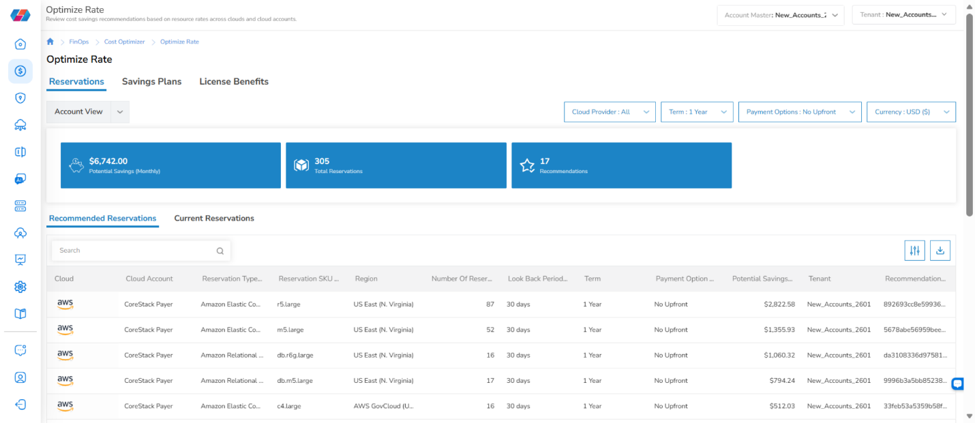
Navigate to Cost > Cost Optimizer > Optimize Rate > Savings Plans. The Savings Plans page opens, showing the Current Savings Plans and Recommended Savings Plans tabs.
Reviewing Current Savings Plans
The Current Savings Plans tab shows your existing plans. Two summary cards appear at the top: Total Active Plans (count of active plans) and Expiring in 30 days (count of plans expiring within 30 days). The grid below lists each plan's Cloud Account Name, Savings Plan Name, Savings Plan ID, Account ID, Scope, Plan Type, Payment Option, Commitment/Hour, Term, Status, Start Date, End Date, Upfront Cost, Utilization, Currency, and Actions.
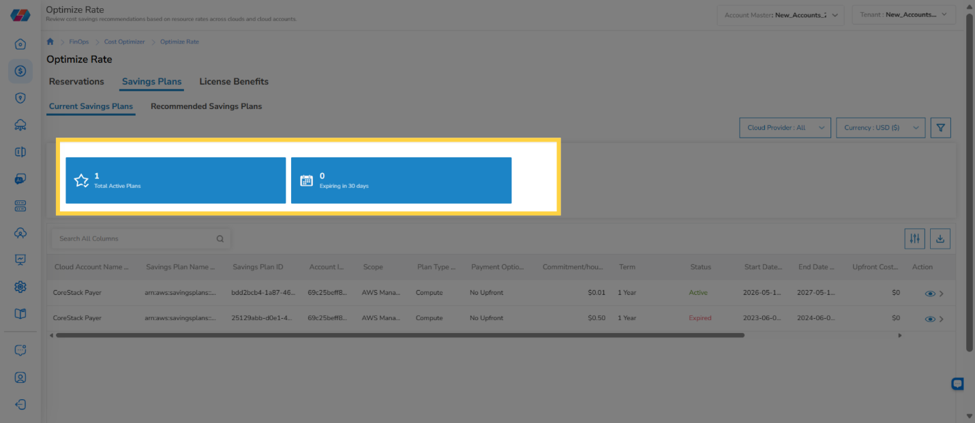
Select the Cloud Provider and Currency you want to view from the dropdown lists above the grid. The grid updates to show only plans matching your selection.
Step 1: View utilization and cost details for a specific plan
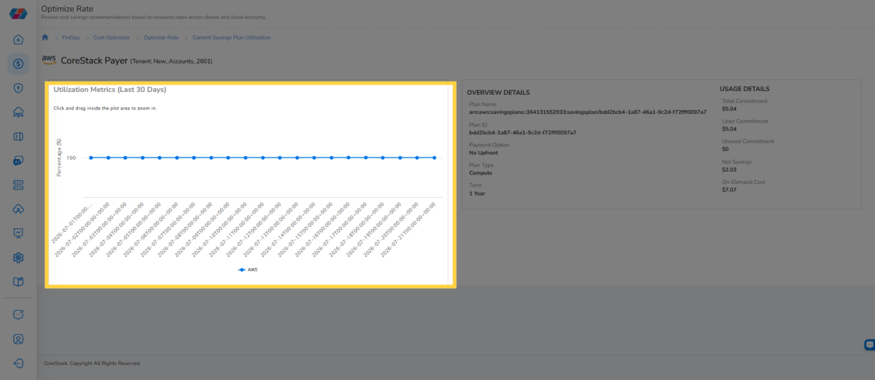
In the Actions column for the plan you want to inspect, click the View Utilization icon (eye icon). This opens a dedicated utilization view for that plan, showing the Utilization Metrics (Last 30 Days) chart alongside an Overview Details panel.
The Utilization Metrics (Last 30 Days) chart plots usage trends for the plan over the past month. Click and drag inside the plot area to zoom in on a specific time range.
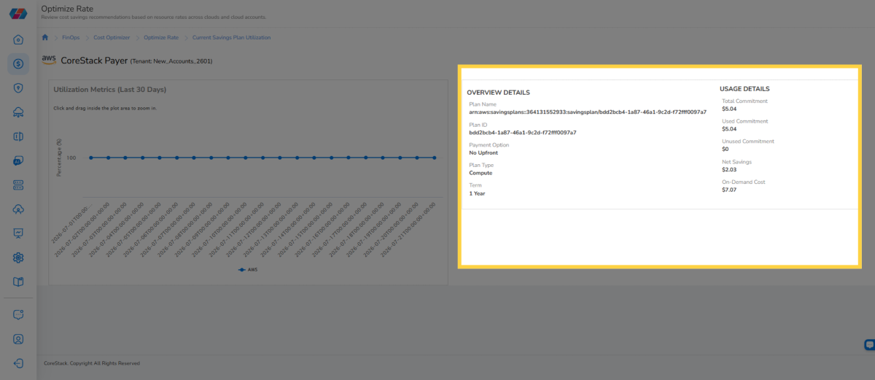
The Overview Details panel shows the plan's Plan Name, Plan ID, Payment Option, Plan Type, and Term, along with cost and commitment metrics: Total Commitment, Used Commitment, Unused Commitment, Net Savings, Potential Savings, On-Demand Cost Equivalent, and Region (for EC2 Instance Savings Plans). Together, these give a complete view of the plan's cost performance in one place.
Step 2: Download plan data
Click the Download Data as CSV icon above the grid. CoreStack downloads the currently filtered plan details as a CSV file.
Step 3: Customize the grid columns
Click the Edit Column icon above the grid. The column configuration pop-up opens.
In the Select Columns section, select or clear the checkboxes for the columns you want to show or hide. In the Rearrange Columns section, drag and drop column names into your preferred order.
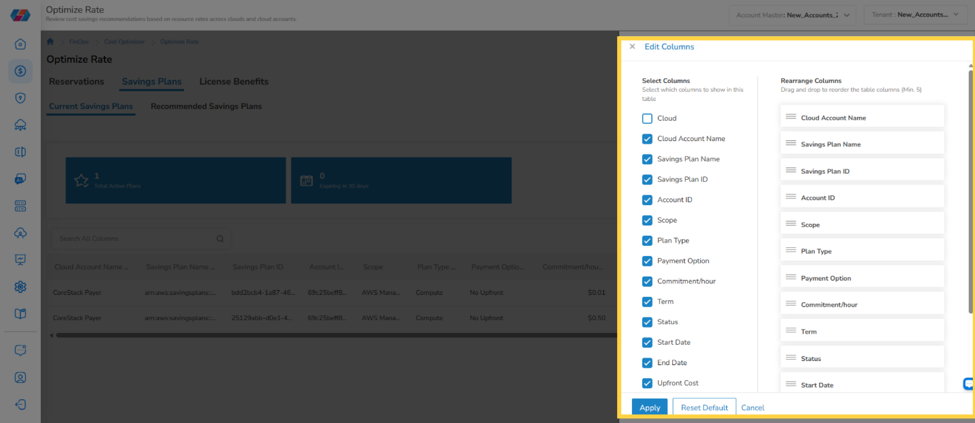
Click Apply to save your column configuration, or click Reset Default to restore the default columns and order.
Tip: Use the Search box above the grid to quickly find a specific plan by name, ID, or account.
Reviewing Recommended Savings Plans
Click the Recommended Savings Plans tab. One summary card appears at the top, Potential Savings (Monthly), along with two charts: Potential Savings Percentage (%) by Cloud Accounts (Top 10), which shows potential savings as a percentage of list price for the top 10 accounts, and Potential Absolute Savings by Cloud Accounts (Top 10), which shows the savings amount for the top 10 accounts.
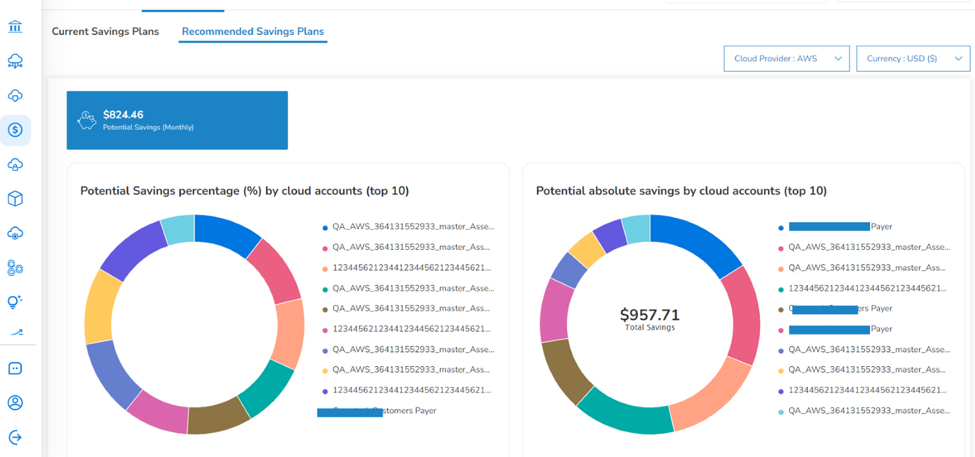
Select the Cloud Provider and Currency you want to view from the dropdown lists above the grid, the same way you would on the Current Savings Plans tab.
The grid below lists each recommendation’s Cloud Account Name, Recommendation ID, Plan Type, Scope, Look Back Period, Term, Commitment/Hour, Estimated Savings (%), Potential Savings (MTD), Utilization, Before Recommendation Purchase, After Recommendation Purchase, and Currency.
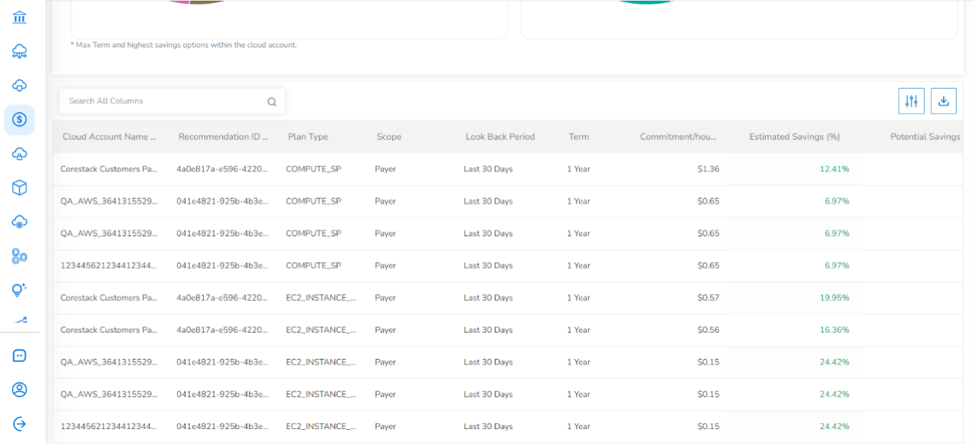
Step 1: Download recommendation data
Step 1: Download recommendation data
Click the Download Data as CSV icon above the grid. CoreStack downloads the currently filtered recommendation details as a CSV file.
Step 2: Customize the grid columns
Click the Edit Column icon above the grid, then follow the same Select Columns and Rearrange Columns steps described in the Current Savings Plans section above. Click Apply to save, or Reset Default to restore the defaults.
Use the Search box above the grid to quickly find a specific recommendation by account or recommendation ID.
Enabling Savings Plan Settings for Azure Billing Accounts
To generate savings plan information for Azure accounts — including Pay as You Go (PAYG) and Enterprise Agreement (EA) — you must explicitly enable the savings plan setting in the Azure portal billing account section. Without this setting, no savings plan data will appear in CoreStack for that account.
Step 1: Open Billing Scopes in the Azure portal
In the Azure portal, navigate to Cost Management + Billing | Billing scopes.
Step 2: Select the billing account
Select the billing account for which you want to enable the savings plan setting.
Step 3: Turn on the Savings Plan setting
In the Savings Plan field, click to select On.
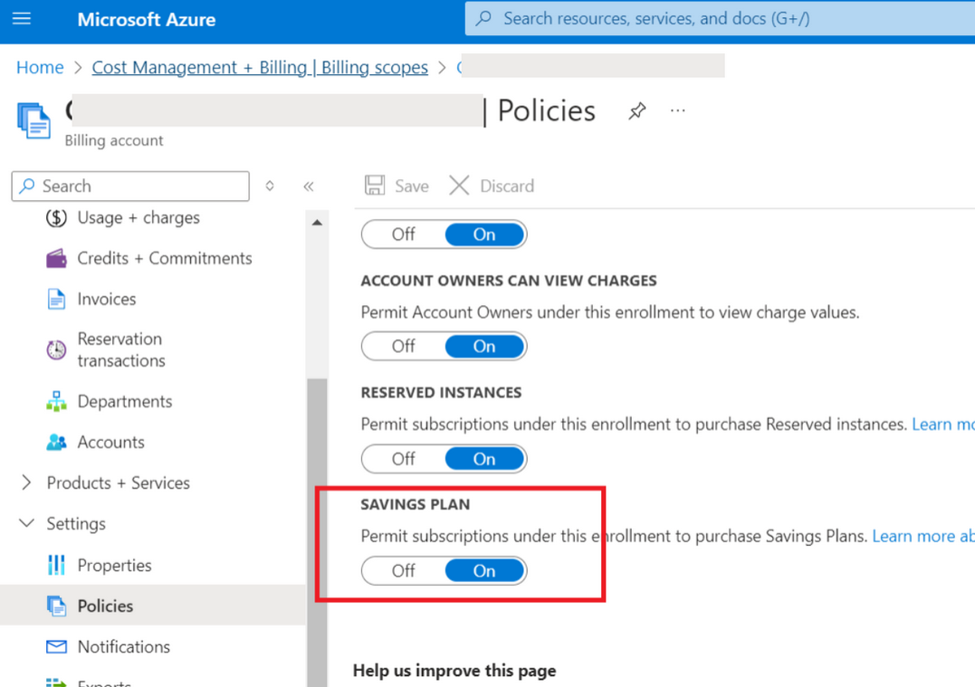
After the setting is enabled, savings plan information for that billing account becomes available in CoreStack.
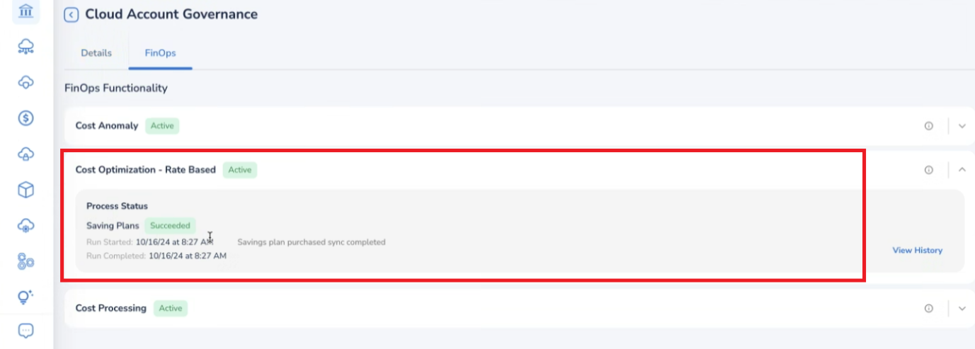
Important: For Azure EA and MCA accounts, the Account Governance unified page may show the Cost Optimization – Rate Based feature status as Active even when no savings plan information has been pulled into the platform. If this happens, confirm that the Savings Plan setting is turned on in the Azure portal billing account section — the Active status alone does not guarantee the setting is enabled.
Note: The service principal used to onboard the Azure account must have the
Microsoft.BillingBenefits/savingsPlanOrders/savingsPlans/readpermission to read savings plan information. Without it, savings plan data will not sync even with the setting turned on.
Frequently Asked Questions
Q: I turned on the Savings Plan setting in Azure, but I still don't see any data in CoreStack. What's wrong?
First, confirm the service principal used to onboard the account has the Microsoft.BillingBenefits/savingsPlanOrders/savingsPlans/read permission , without it, data won't sync even with the setting enabled. If the account is EA or MCA and shows Cost Optimization – Rate Based as Active under Account Governance, double-check the Azure portal setting directly rather than relying on that status indicator, since the two can be out of sync.
Q: What's the difference between the Current Savings Plans and Recommended Savings Plans tabs?
Current Savings Plans shows commitments you already have in place, with utilization and expiration tracking. Recommended Savings Plans shows plans you don't yet have, based on CoreStack's analysis of your historical usage, with estimated savings if you were to purchase them.
Q: Can I see savings plan data for both AWS and Azure at the same time?
Use the Cloud Provider dropdown above the grid to filter by a single provider, or select an option that includes both if available in your environment.
Q: Does downloading the CSV include all columns, or only the ones currently visible in the grid?
The CSV download reflects the plan or recommendation details for your current filter selections (Cloud Provider and Currency).
Troubleshooting
No savings plan data appears for an Azure PAYG or EA account
Cause: The Savings Plan setting has not been enabled in the Azure portal billing account section, or the setting was enabled after the account was already onboarded and hasn't synced yet.
Solution:
- In the Azure portal, navigate to Cost Management + Billing | Billing scopes and select the relevant billing account.
- Confirm the Savings Plan field is set to On. If it isn't, turn it on.
- Wait for the next scheduled data sync, then check the Current Savings Plans tab again in CoreStack.
If the issue persists, contact CoreStack support with the affected Azure billing account ID, the cloud account name as it appears in CoreStack, and a screenshot of the Azure portal Savings Plan setting.
Account Governance shows "Cost Optimization – Rate Based" as Active, but no plan data is pulled in
Cause: The unified Account Governance page status reflects that the feature is enabled for the account, not that Azure has actually returned savings plan data — this can happen when the Azure-side Savings Plan setting is still off.
Solution:
- Do not rely on the Active status alone as confirmation.
- In the Azure portal, verify the Savings Plan setting under Cost Management + Billing | Billing scopes is explicitly On for the billing account.
- Re-check the Current Savings Plans tab in CoreStack after confirming the setting.
Utilization chart shows no data for a plan
Cause: The service principal used to onboard the account may be missing the required read permission, or the plan is too new for 30 days of utilization history to exist yet.
Solution:
- Confirm the service principal has the
Microsoft.BillingBenefits/savingsPlanOrders/savingsPlans/readpermission. - Check the plan's Start Date in the Current Savings Plans grid — if it started fewer than 30 days ago, only partial utilization data will be available.
- If the permission is correct and the plan is older than 30 days, contact CoreStack support with the Savings Plan ID and cloud account name.
Updated about 2 months ago