

Compliance Posture
Introduction
Cloud Compliance through the platform provides a policy management service that ensures that cloud services consumed are compliant with established standards and security practices. Centralized policy management is powered by declarative policy language which allows to define enterprise business logic as policies which can be scheduled or executed on demand to manage compliance of various cloud services and its resources.
The platform's compliance rules enable users to assess the security of their cloud infrastructure and applications using a cloud platform's native security assessment tools or third-party assessment tools. User operations teams can also review their consolidated compliance posture in a dashboard and take any necessary actions form there.
Cloud Compliance offered through this platform is intended to help users meet the following objectives:
- Maintain compliance and configuration standards.
- Maintain security posture for the resources provisioned.
- Manage and activate policies to optimize resource utilization.
Compliance Posture Dashboard
Perform the following steps to navigate compliance views, apply filters, and review control details to ensure regulatory adherence:
1. Navigate to SecOps
On the left navigation menu, click SecOps.
2. Click Compliance Posture
Click Compliance Posture.
3. View the Compliance Posture Page
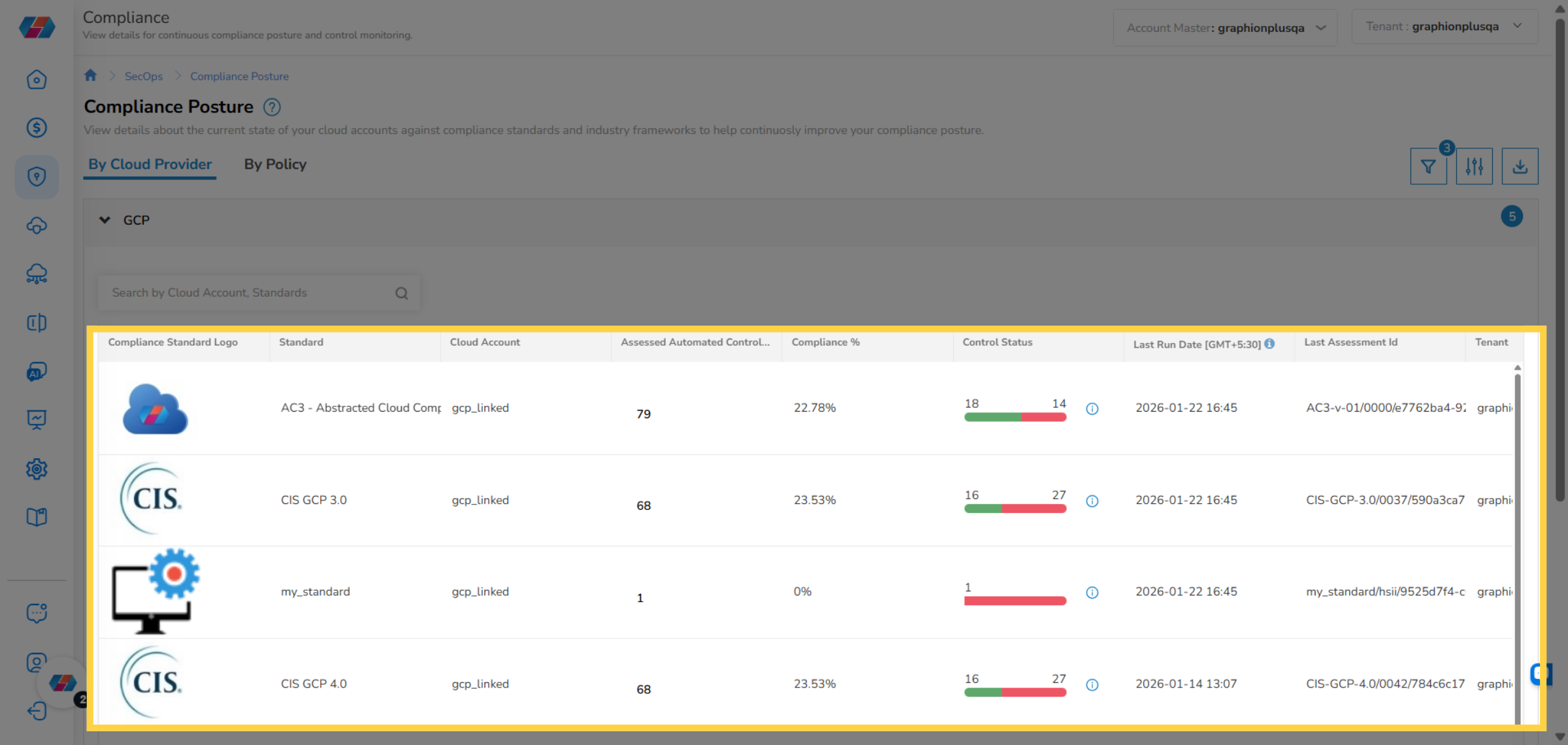
The Compliance Posture page opens and the By Cloud Provider tab displays by default. On this page, users can view details about the current state of their cloud accounts against compliance standards and industry frameworks to help continuously improve the compliance posture.
The By Cloud Provider tab shows the compliance details as per cloud providers and the By Policy tab shows the compliance details as per policies.
4. Apply Filter
Users can click the Filter icon on the top-right side of the screen and apply filters.
5. Select Values and Apply Filter
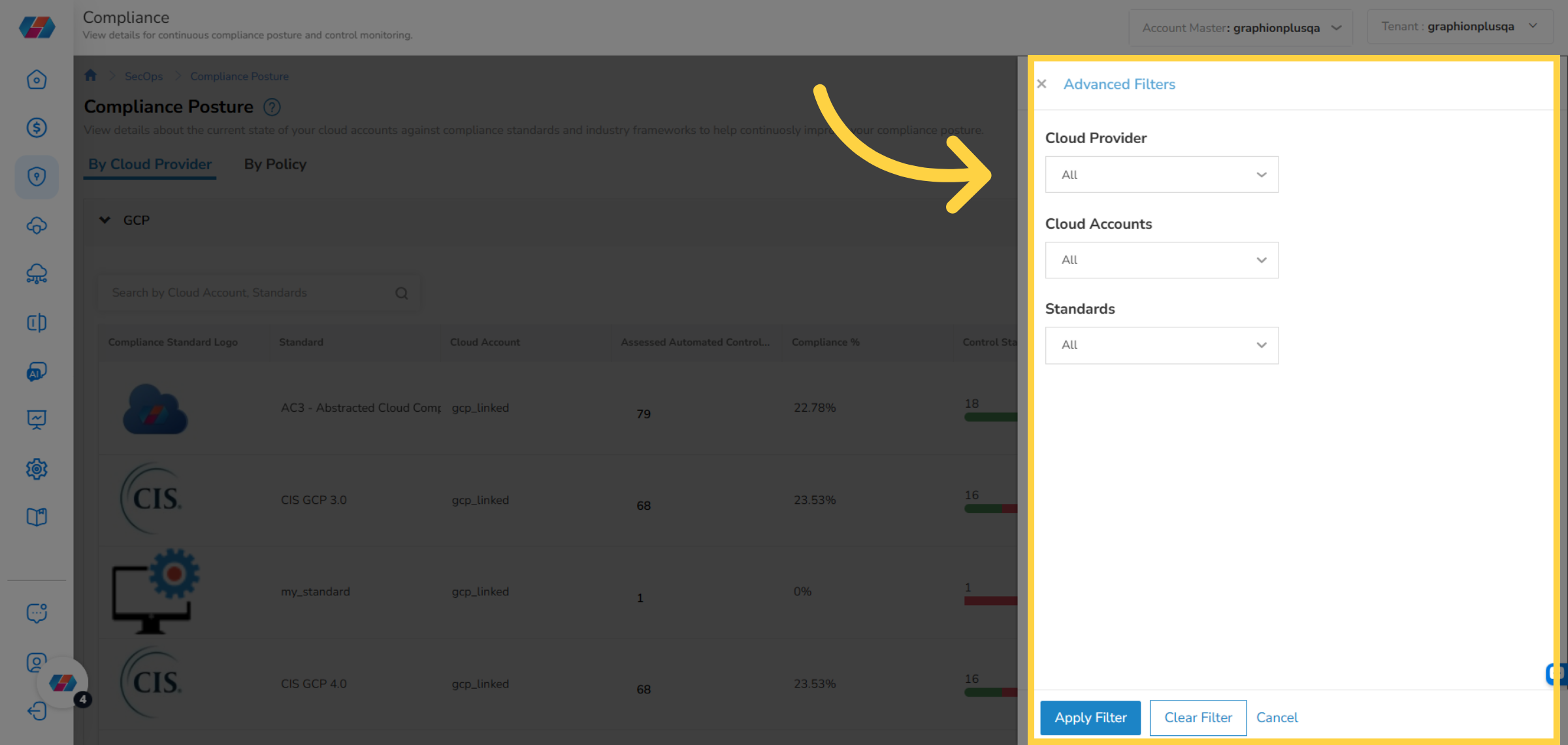
After the user clicks the Filter icon, the Advanced Filter screen opens. For the following filters, click the drop-down and select relevant options for each of the fields and click Apply.
- Cloud Provider
- Cloud Accounts
- Standards
After filling all the required fields, click Apply Filter.
6. Open Column Selector
Click the Edit column icon to open the Edit Columns screen.
7. Edit Columns
In this screen, users can check/uncheck the columns that they want to view on the Compliance Posture screen and they can also rearrange the order of columns.
8. Download Details
Click the "Download Data as CSV" icon to download compliance details in CSV format.
9. View Compliance Posture by Cloud Provider
In the By Cloud Provider tab, users can expand the section corresponding to a cloud provider to view the compliance posture details. For example, the GCP section shows all the GCP-related compliance postures.
10. Search for Details
Use the Search box to find the compliance details or standards.
11. View Compliance Details
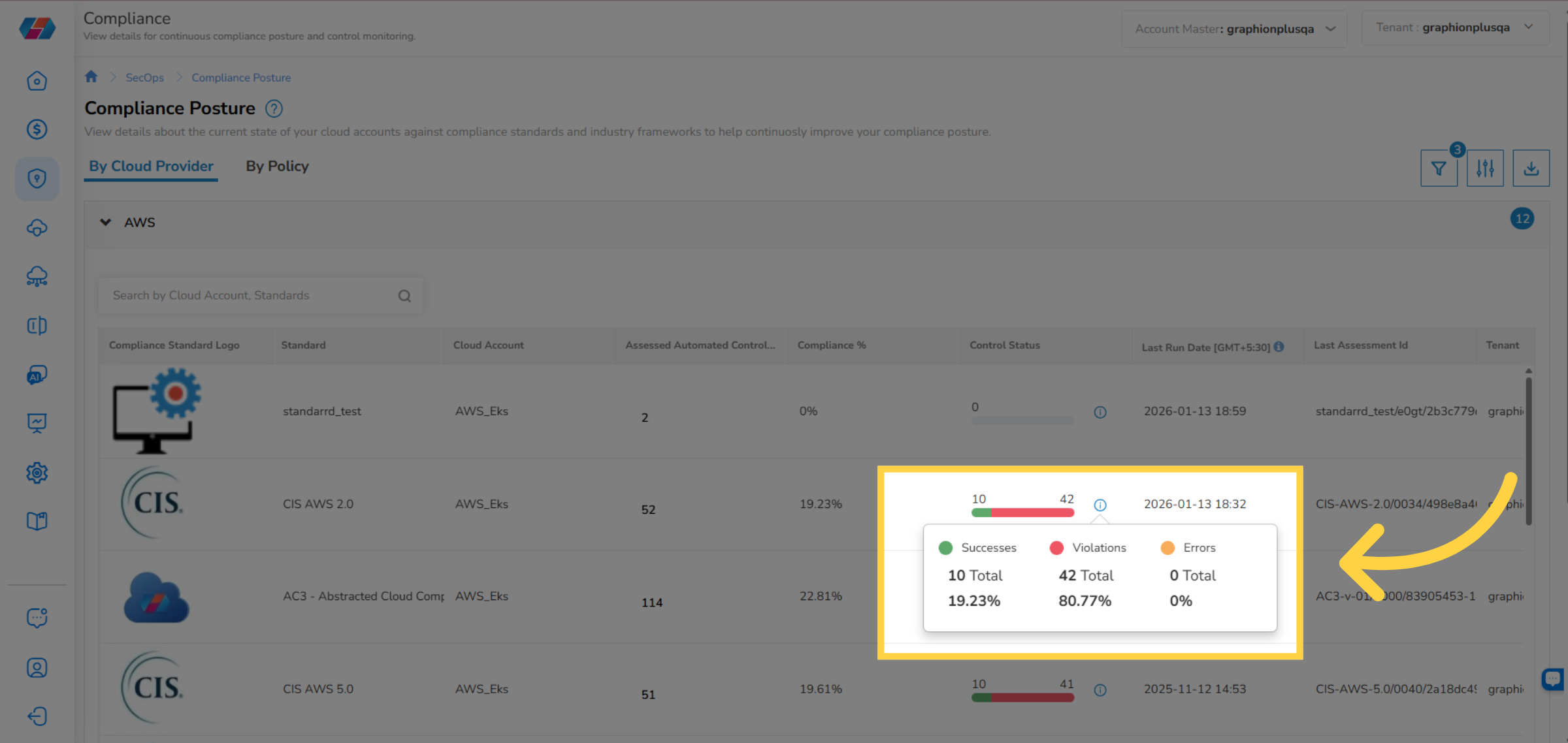
Users can view the compliance posture details in the columns that appears. In the Control Status column, click on "i" corresponding to a standard to view the status details. In this example, users can view the compliance details for AWS.
Download Policy Violations Summary
For a particular standard, scroll towards complete right side of the screen to view the Action column. Now click the "Download Policy Violations Summary" icon to download the policy violations summary details in Excel format.
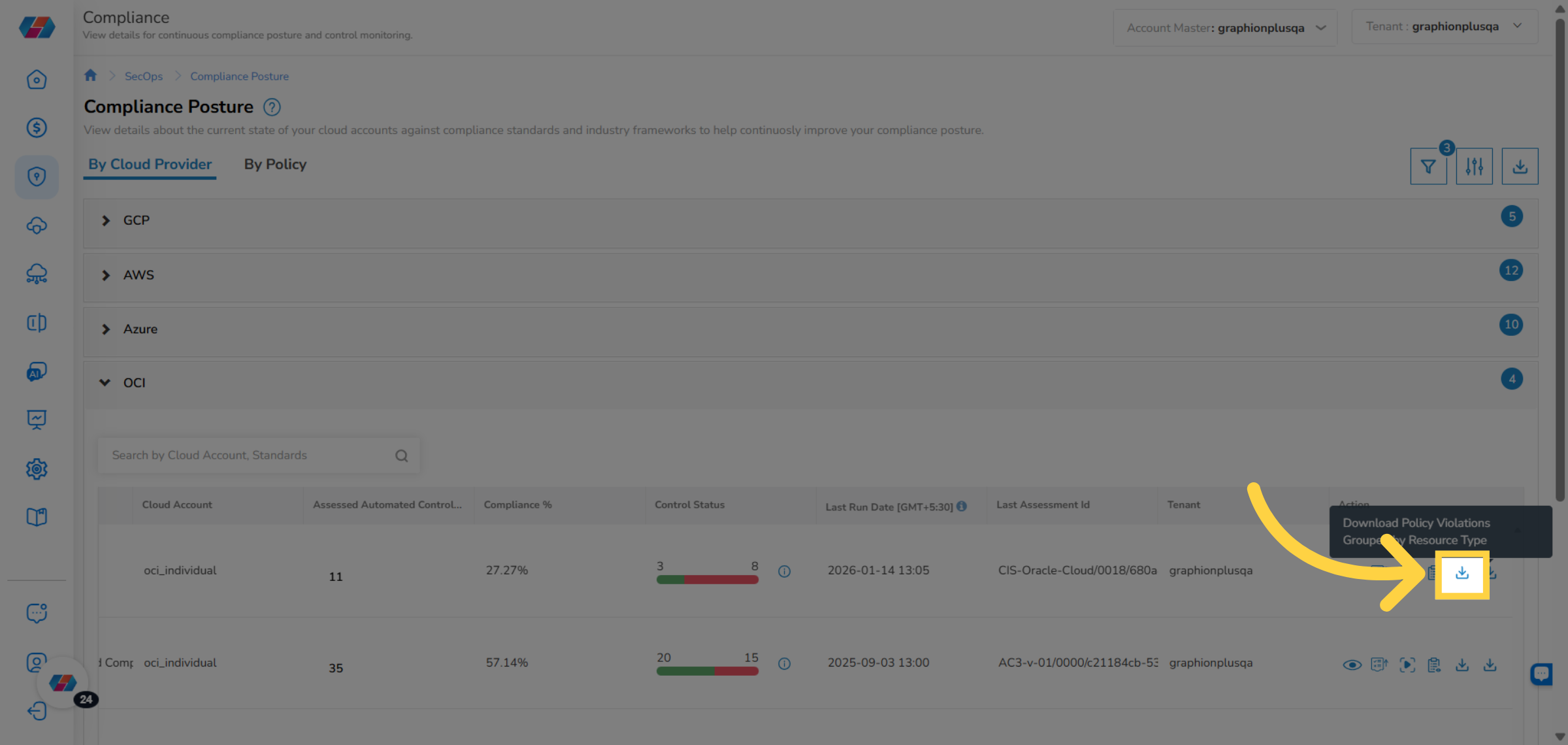
Download Policy Violations Grouped by Resource Type
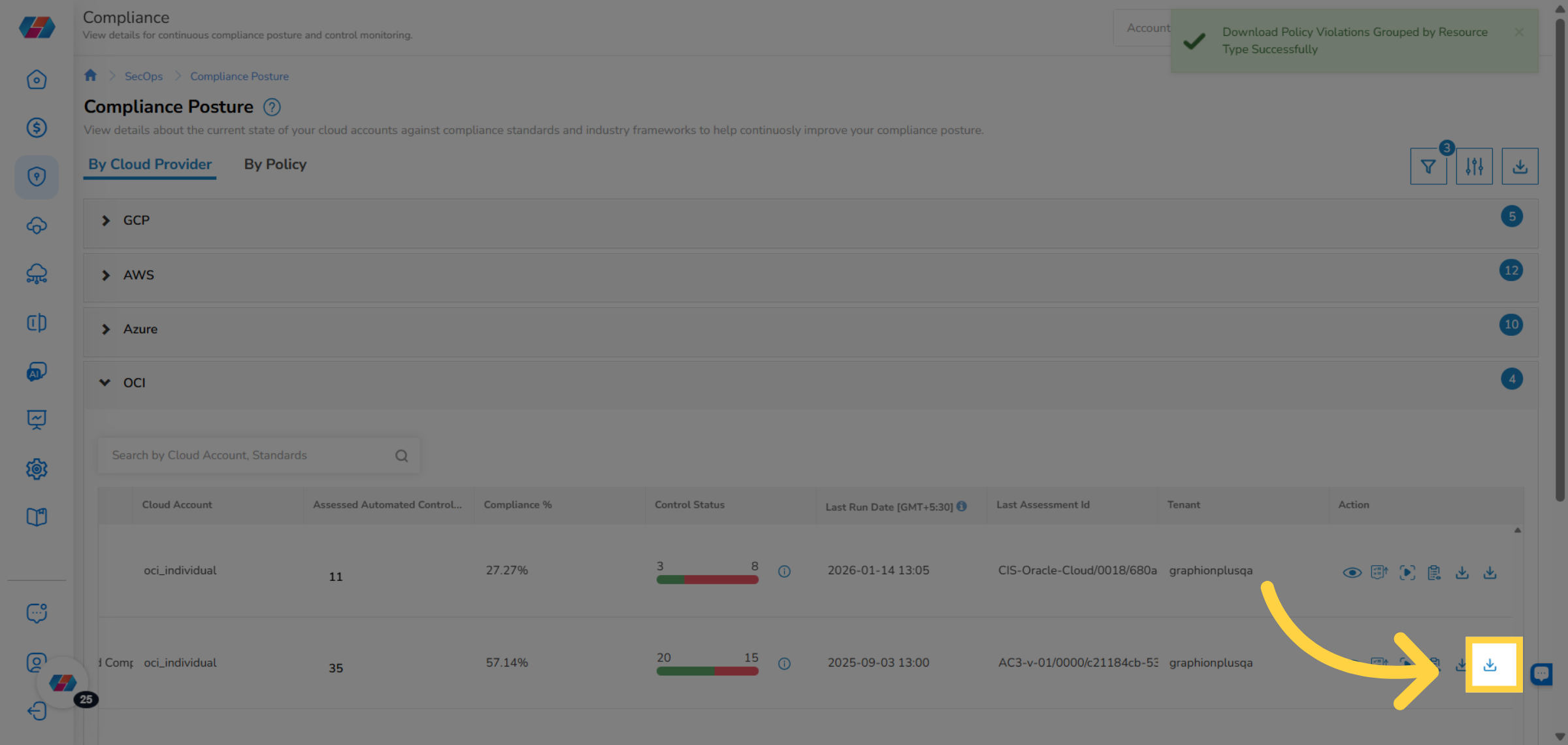
For a particular standard, scroll towards complete right side of the screen to view the Action column. Now click the "Download Policy Violations Grouped by Resource Type" icon to download the policy violation details grouped by resource types in Excel format.
View - Compliance Visibility
Click the eye icon corresponding to a standard to go to the Compliance Visibility page and view detailed information.
View the following details in the Compliance Visibility screen:
1. View Summary Details
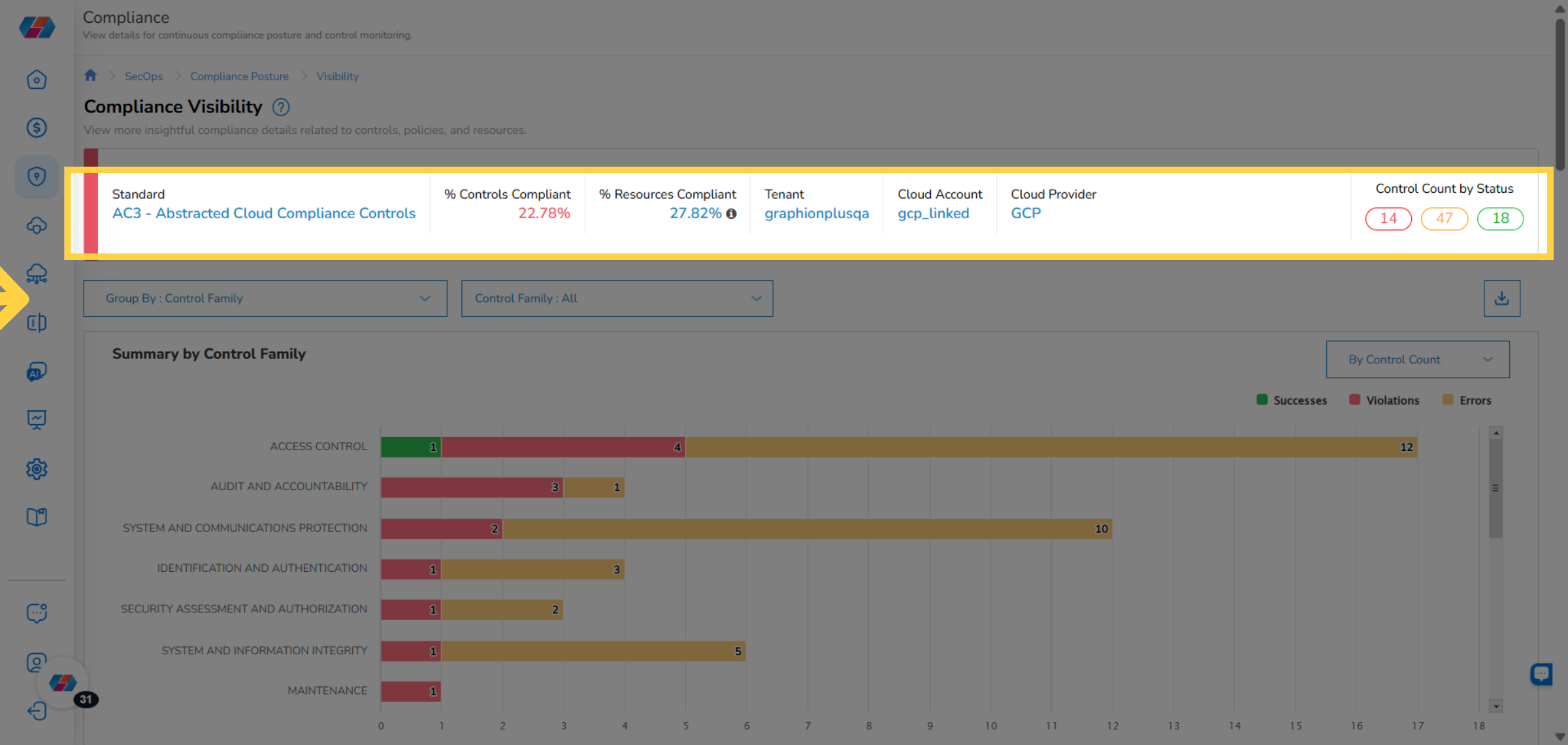
For a selected standard, users can view a short compliance summary on the top of the screen.
Users can click the numbers shown in the Control Count by Status section and can view the changes in the Summary by Control Family graph.
2. Apply Filters and Download Details
Users can select appropriate options in the Group By and Control Family drop-downs and view specific details in the graphs shown below. They can also click the "Download as CSV" icon located on the right side of the screen to download the compliance details in Excel format.
3. View Summary By Control Family Graph
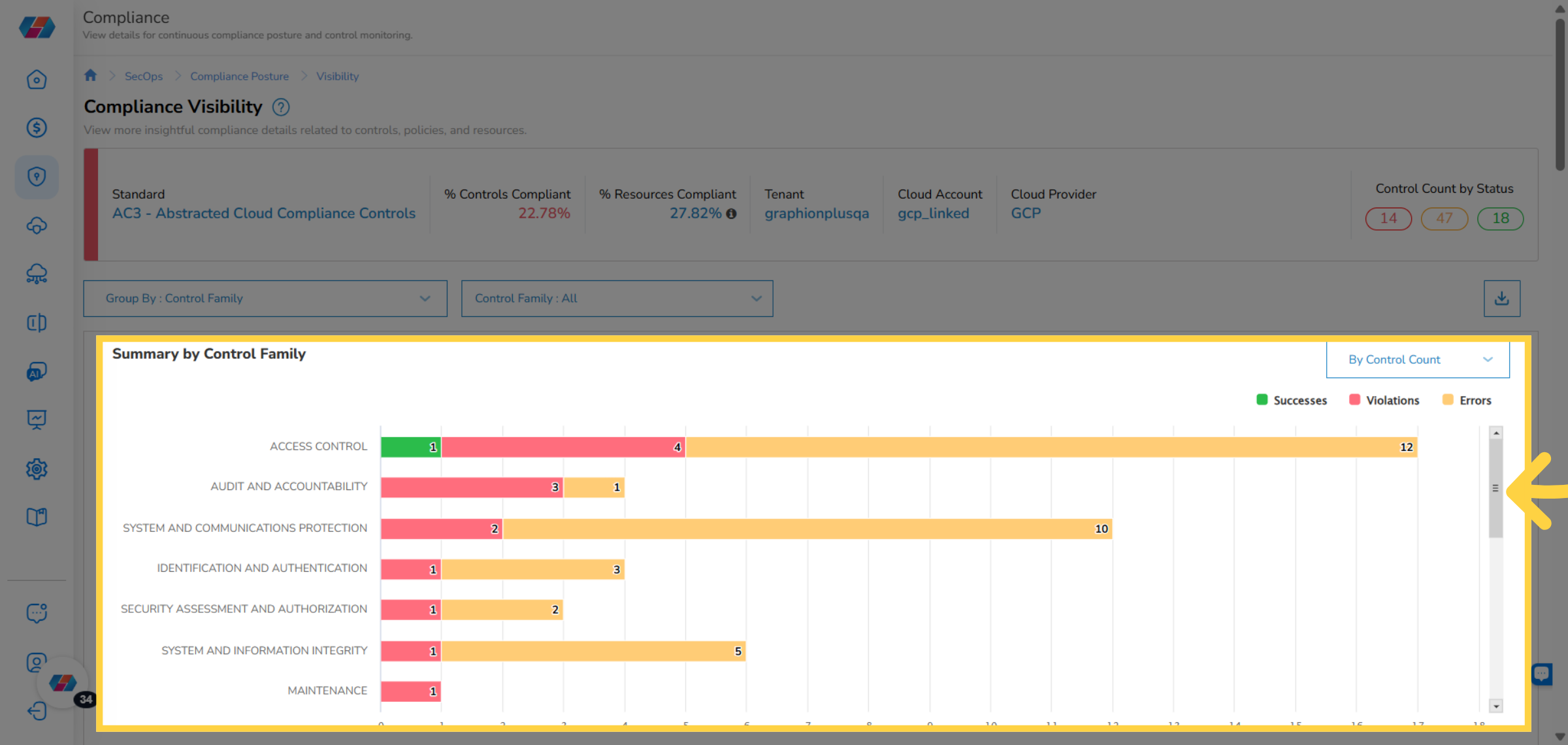
The Summary by Control Family graph shows the compliance counts as per control families. Users can hover the mouse pointer over the graph to view the control count.
4. Apply Filter for Summary by Control Family
In the Summary by Control Family graph, select an option in the drop-down to view specific details.
5. View Compliance Control Trend Graph
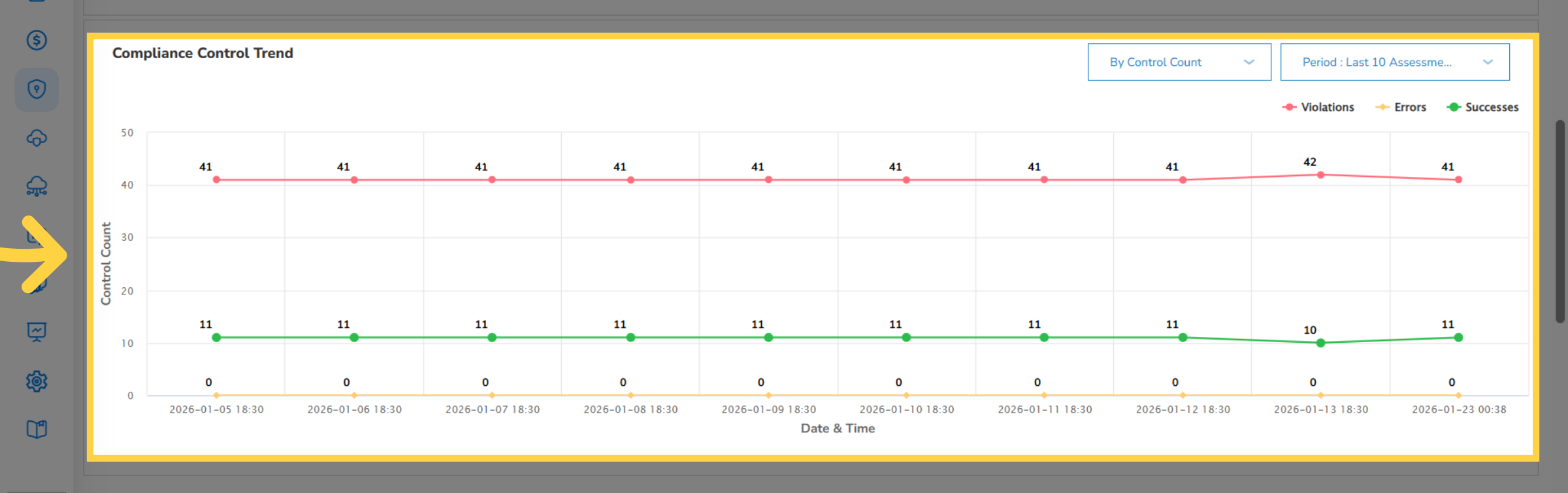
View the Compliance Control Trend graph that shows the control count as per date and time. You can hover the mouse pointer over a data-point on the graph to view details.
6. Apply Filter for Compliance Control Trend Graph
You can click the drop-downs and select appropriate values to apply the filter, and view specific details in the graph.
7. View Summary by Control Family
View the Summary by Control Family section that shows the list of controls grouped in different sub-sections.
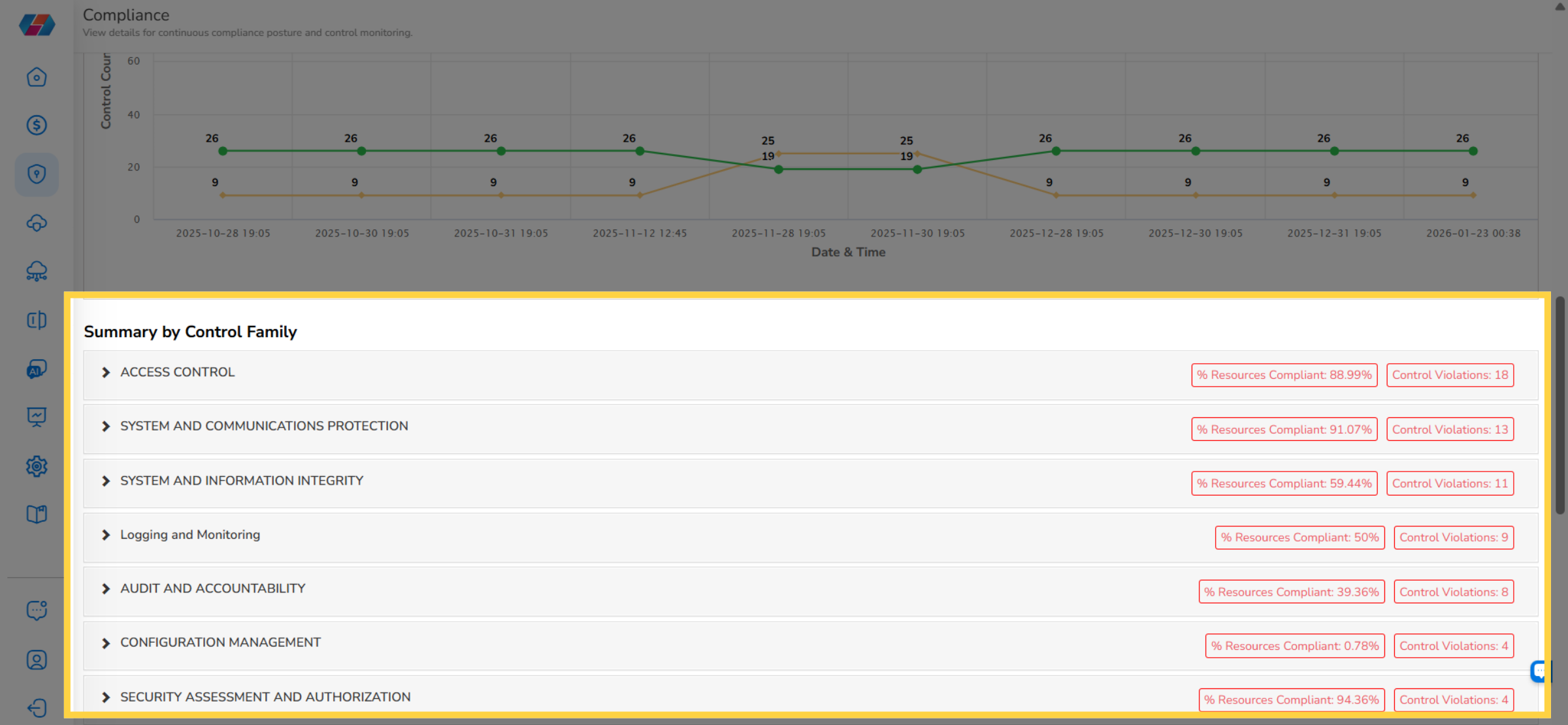
8. Expand a Control Family
Click to expand a sub-section (control heading) to view the list of controls within it.
9. Review Compliance Metrics
Each sub-section shows "% Resources Compliant" and "Control Violations".
10. View the List of Control Family
View the sub-sections along with the corresponding "% Resources Compliant" and "Control Violations".
11. View Control Details
Users can view the details for a control family in these columns -- Control Name, Policy Name, Control Family, Resource Type, Status, and Action.
12. Take Action on a Control
Based on the status of the control, users can take an action on a control. To take an action, first expand the control sub-section, and then click VIEW and select an option from -- Resources, Control Details, and Policy Details.
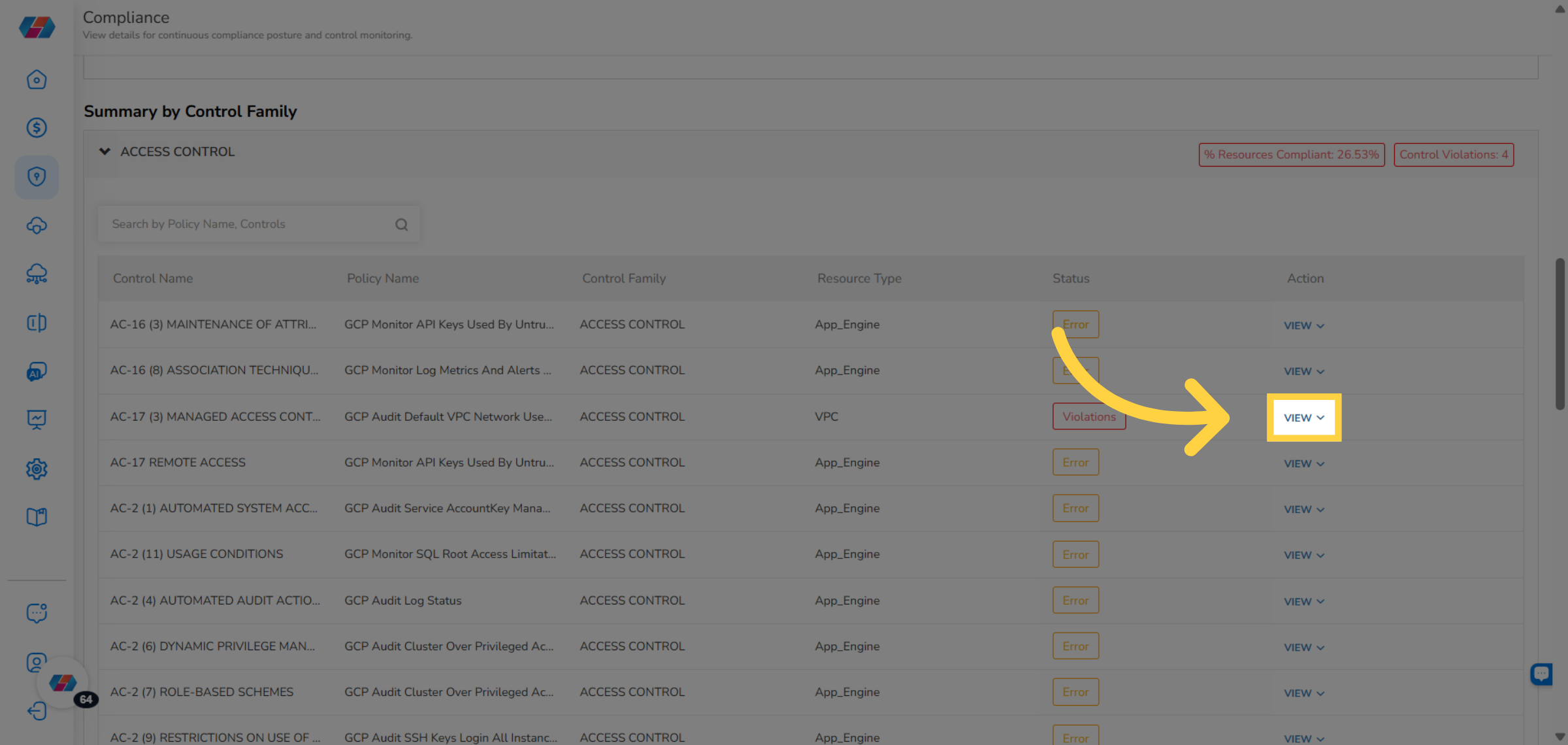
13. Select Resources Option
Select Resources to view the impacted resources.
14. View Impacted Resources Screen
On the Impacted Resources page, users can view the Overview section that provides brief details about the policy and control.
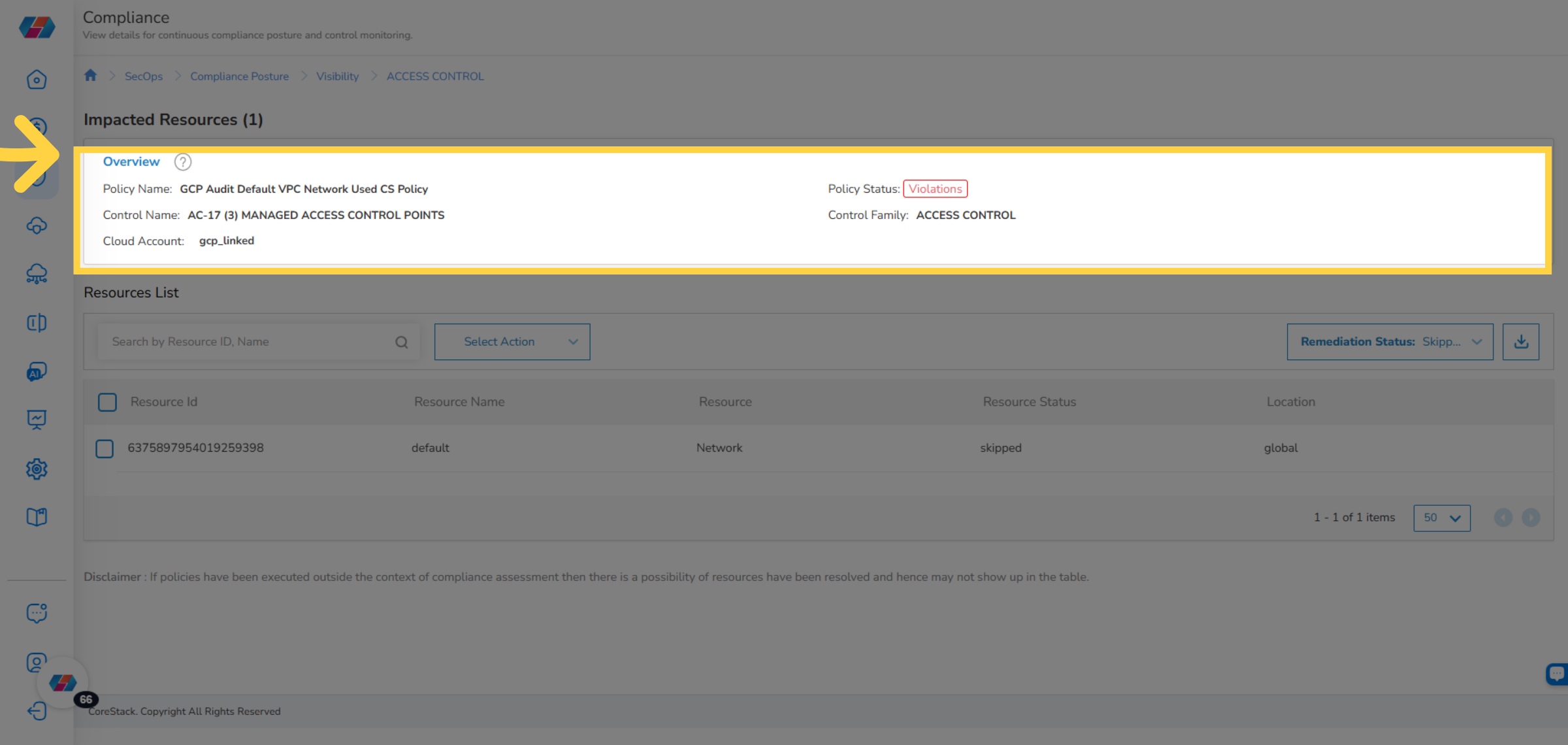
15. View Resource List
The Resource List section shows the resource details in various columns, such as Resource Id, Resource Name, Resource, Resource Status, Location, and Incident Number.
Users can use the Search box to find any resource-related details.
16. Download Data
In the Resources List section, users can click the "Download Data as CSV" icon to download the resource-related details.
17. Skip Resources
If you want to skip a resource, select the checkbox(es) next to the Resource ID(s), and then in the Select Action drop-down, select Skip. A dialog box appears where you can click Yes to skip the selected resource(s), else click No.
18. Select Control Details
Click VIEW and select the option Control Details.
19. View Control Details
The Control Details dialog box appears where users can view the control details in the Control Attributes and Control Action Attributes sections.
20. Select Policy Details
Click VIEW and then select Policy Details to view policy information.
21. View Policy Details
A dialog box appears where users can go through these tabs to view policy details: Metadata, Content, Compliance, Remediation, and Notification.
Improve Action
Click the Improve icon. This opens the By Policy tab that displays the list of policies and its details.
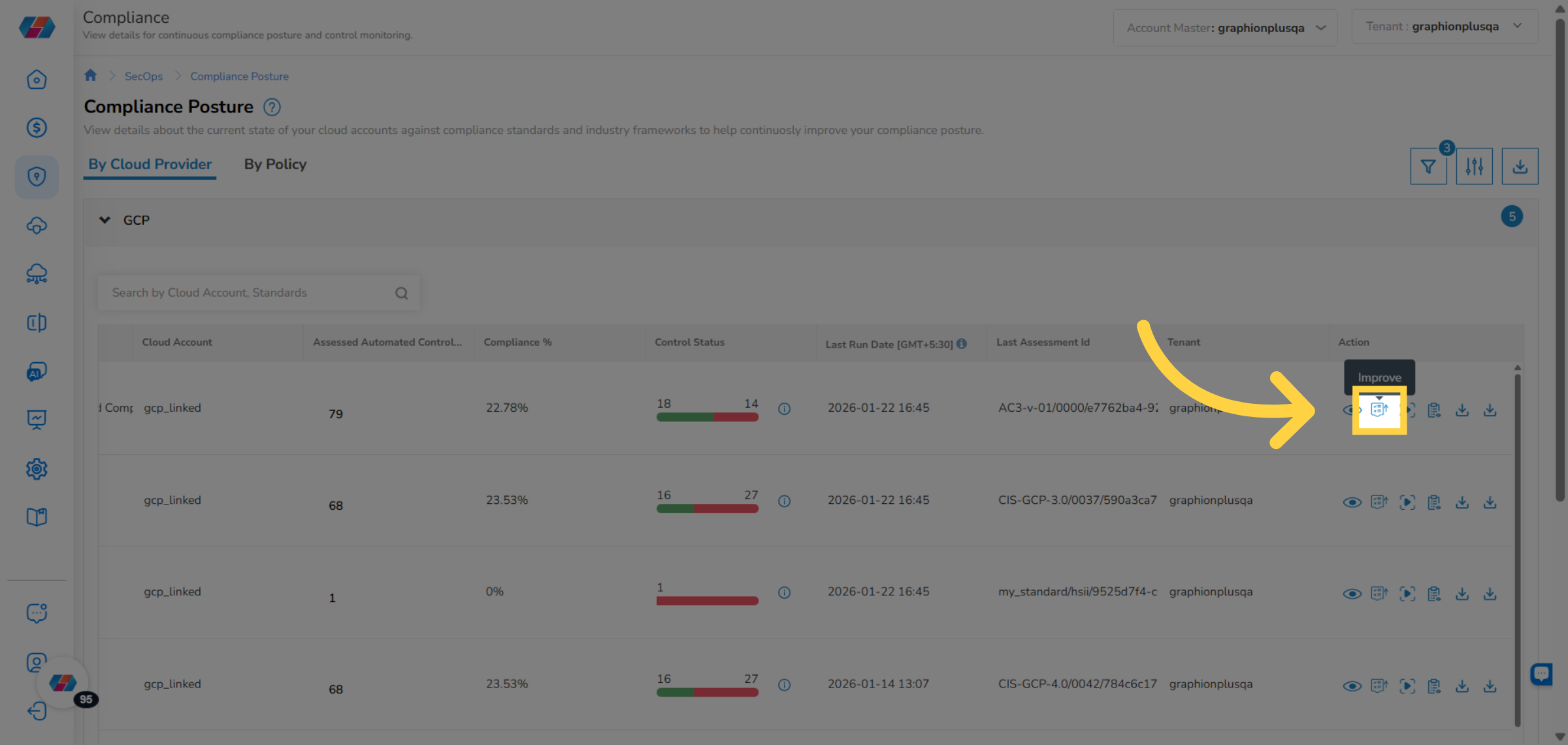
Perform the following steps to view details in the By Policy tab:
1. View By Policy Tab
View the list of policies along with its control status.
2. Expand a Policy
Expand a policy to view the resources related to it.
3. Download as CSV
Click the "Download as CSV" icon to download details as CSV.
4. Skip Action
Users can click resource IDs to select them. After that, they can click Actions and then click the option "Skip this resource" to skip the selected resources. A dialog box appears where the users can click Yes to skip the selected resources, else they can click No.
5. Apply Filters
In the By Policy tab, you can apply any of these filters that appears on the top-right side of the screen -- Standards, Cloud Provider, Policies, and Cloud Accounts. To apply the filter, click the drop-down, select relevant options, and then click Apply.
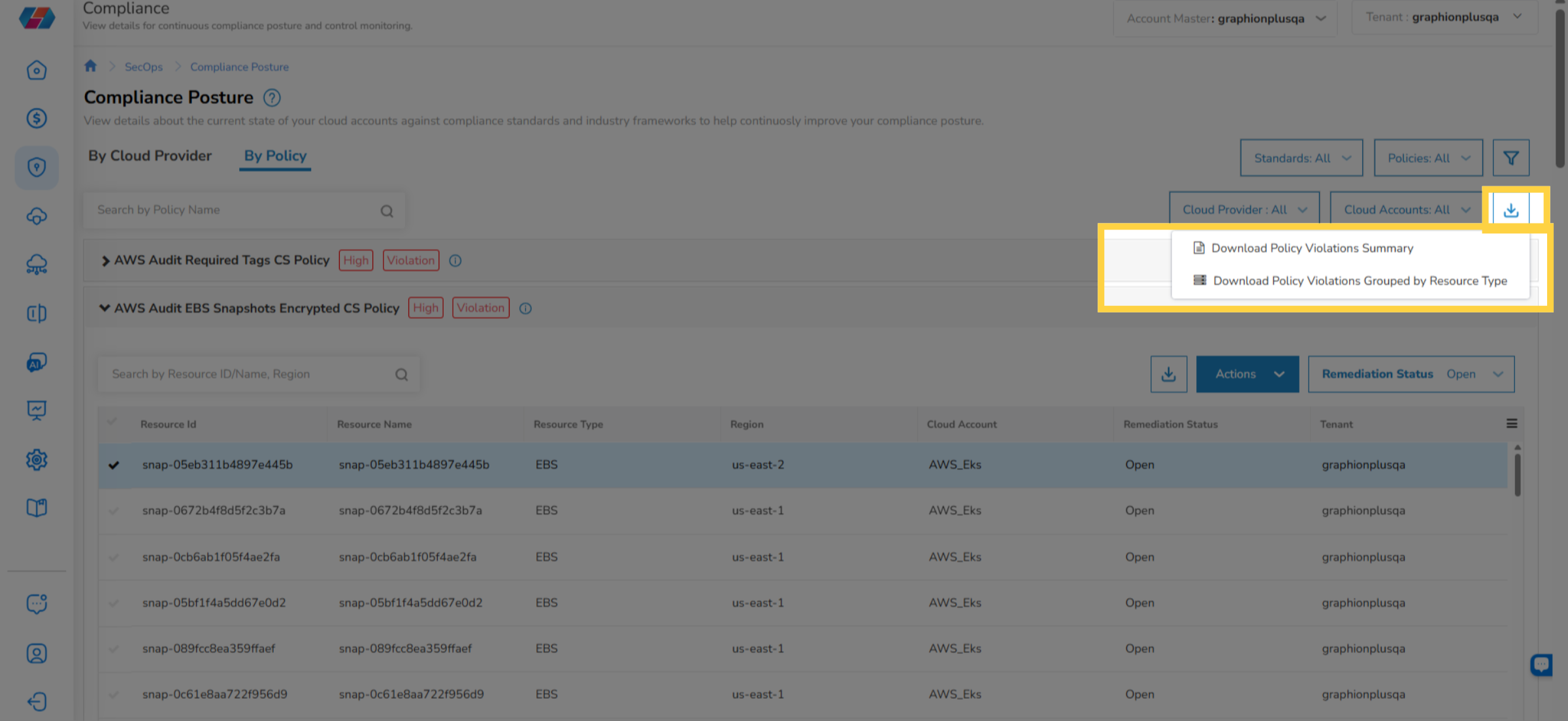
6. Download Policy Violations
Click the download icon and select one of the following options to download details:
- Download Policy Violations Summary
- Download Policy Violations Grouped By Resource Type
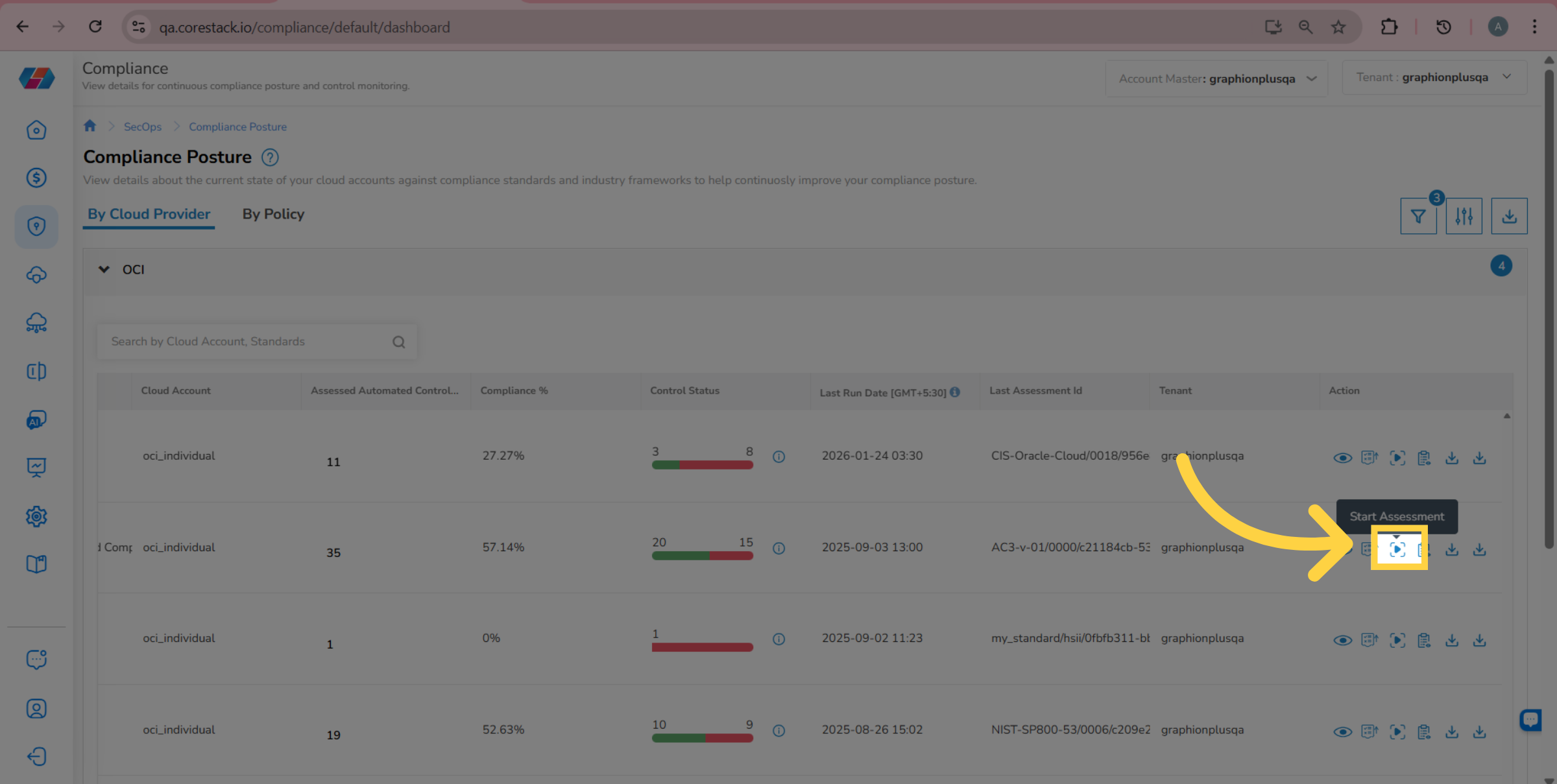
Start Assessment
Click the Start Assessment icon to start the assessment on the selected standard and cloud account. A message displays confirming successful execution of assessment.
View Standard
Click the Standard icon corresponding to a standard and cloud account to view the list of controls.
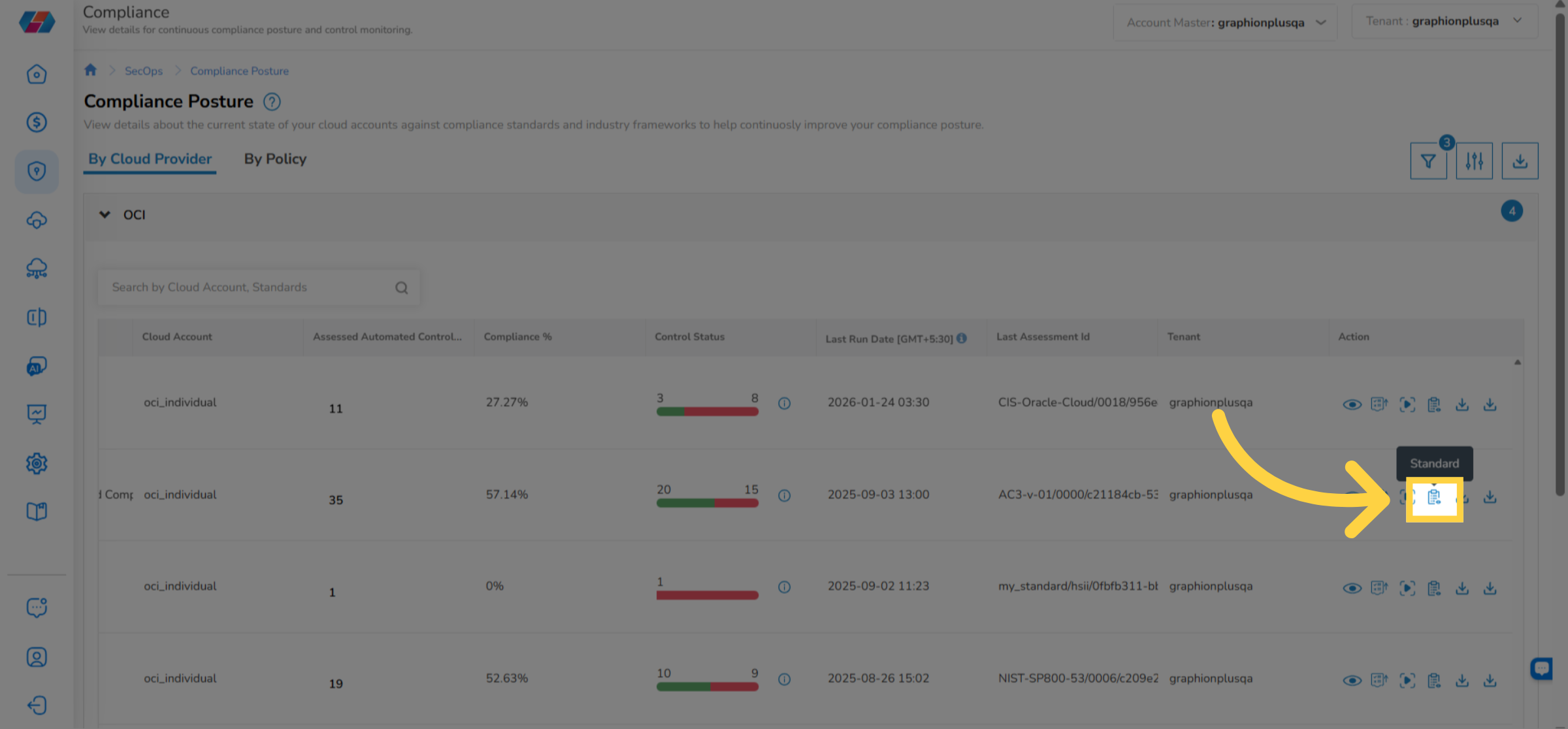
View the list of controls for the selected standard and cloud account.
Updated 8 months ago