

Graphion Overview
Introduction
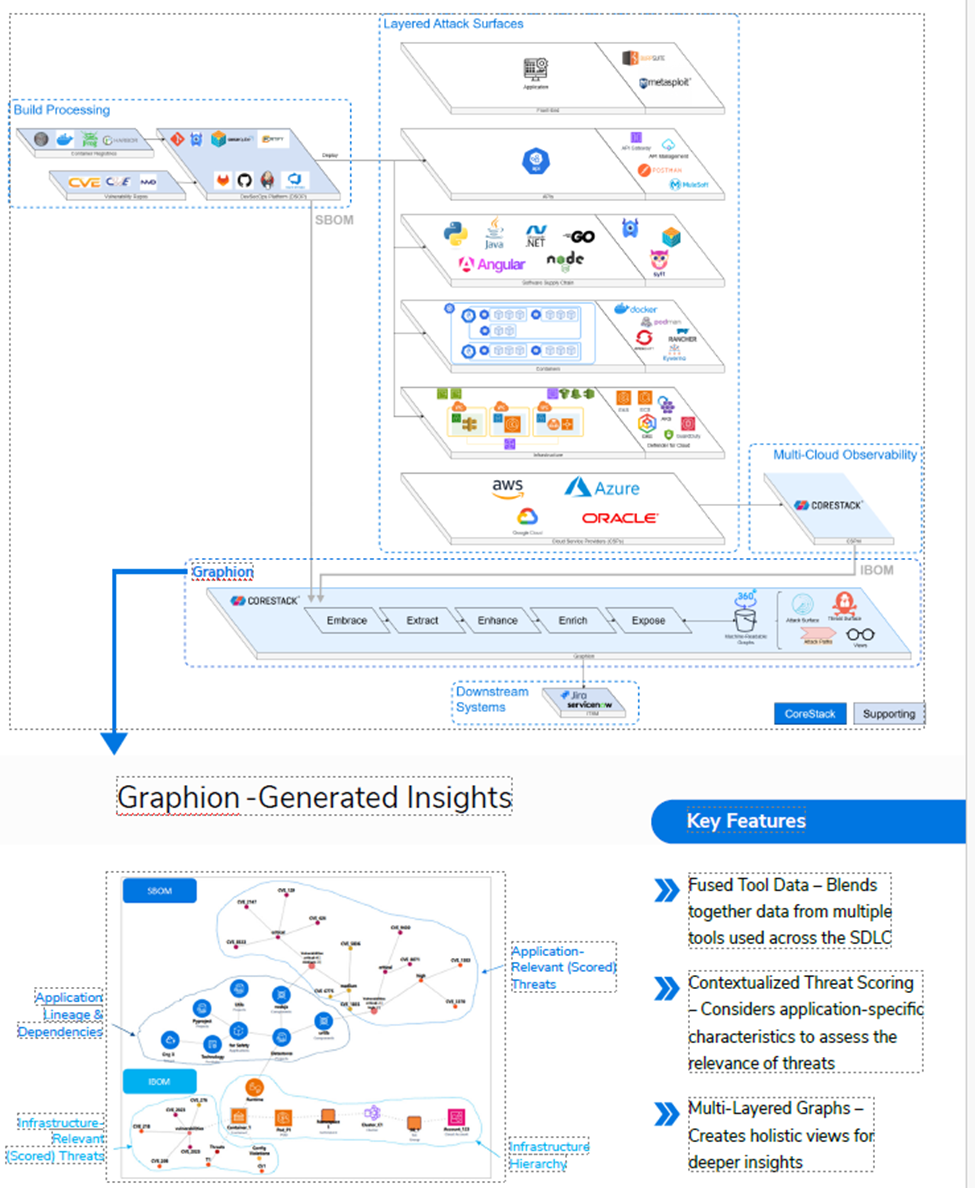
Graphion is an AI-driven Cloud-Native Application Protection approach (CNAPP) that unifies CSPM, AppSec, and Zero Trust enforcement. It builds a real-time graph of the entire cloud environment, integrating Software and Infrastructure Bills of Materials (SBOM + IBOM), policy automation, and AI-driven remediation. This unified model reveals interconnected risks and enables faster remediation and DevSecOps alignment.
Within CoreStack, Graphion is the unified security module accessible from the left navigation menu. It brings together cloud infrastructure security, supply chain security, compliance, identity and access, and application onboarding into a single, consolidated module — giving security teams a single entry point for all security capabilities.
Graphion is most relevant to security teams and cloud administrators who need visibility across multiple security domains without switching between separate modules. It does not replace CoreStack's FinOps, CloudOps, or Governance modules — it is scoped exclusively to application and infrastructure security operations.
Note: Graphion is visible only if your organization has the appropriate product bundle enabled and you have been assigned the necessary roles and permissions. If Graphion does not appear in your left navigation menu, contact your Tenant Admin to confirm bundle activation and role assignment.
Key Capabilities
-
Real-Time Risk Mapping: Multi-dimensional graph linking code, containers, configs, and cloud assets to cascading risks.
-
SBOM + IBOM Intelligence: Full-stack visibility — what was built and where it runs. Enables early detection of vulnerabilities, drift, and misalignment.
-
Embedded Zero Trust: Every change and deployment validated against policies in real time, supporting secure-by-design and full auditability.
-
Agentic AI: Learns business criticality, scores risks, and recommends precise, explainable remediations.
-
DevSecOps Integration: Fits seamlessly into CI/CD, container registries, infrastructure provisioning, and security tooling.
Strategic Value
Graphion acts as a control tower for cloud-native risk, unifying threat mapping, vulnerability intelligence, and security automation. It enables organizations to:
-
Secure software supply chains
-
Maintain continuous compliance
-
Operationalize Zero Trust
-
Strengthen DevSecOps without slowing delivery
Prerequisites
Before you begin, ensure the following:
-
Roles and Permissions: You have the required roles and permissions assigned in CoreStack to access the Graphion module. Contact your Tenant Admin if you are unsure which roles apply to your account.
-
Cloud Account Onboarded: At least one cloud account (AWS, Azure, GCP, or OCI) has been onboarded in CoreStack.
-
Access: You can see Graphion in the CoreStack left navigation menu.
How It Works
Graphion is accessed from the CoreStack left navigation menu. Clicking Graphion expands the module and reveals ten navigation items, each taking you to a different area of your security posture. Some items — such as Cloud Security and Supply Chain Security — open dedicated Graphion pages with their own dashboards and widgets. Others — such as Compliance Posture, Compliance Standards, and Access Posture — open existing security views that are surfaced directly within the Graphion navigation for convenience. All ten items are available from the same left nav, keeping your full security workflow accessible in one place.
Navigating the Graphion Module
Click Graphion in the CoreStack left navigation menu to expand the module. The ten navigation items listed below become available.
| Menu Item | Navigates To | Description |
|---|---|---|
| Cloud Security | Cloud Security Dashboard | Opens the Cloud Security Dashboard — the central view for cloud security posture, displaying Vulnerabilities, Threats, Misconfigurations, and related widgets. |
| Supply Chain Security | Supply Chain Dashboard | Opens the Supply Chain Security dashboard for application-level security visibility. |
| Vulnerability Graph | Vulnerability Graph | Opens the Vulnerability Graph for a visual map of vulnerability relationships across your environment. |
| Compliance Dashboard | Compliance Dashboard | Opens the Compliance Dashboard, surfacing compliance posture and standards widgets. |
| Compliance Posture | Compliance Posture page | Opens the Compliance Posture view, showing compliance scores and policy adherence across your cloud accounts. |
| Compliance Standards | Compliance Standards page | Opens the Compliance Standards view, showing your accounts mapped against supported compliance frameworks. |
| Identity & Access | Identity & Access Dashboard | Opens the Identity & Access dashboard for visibility into access posture and violations across your cloud accounts. |
| Access Posture | Access Posture page | Opens the Access Posture view, showing identity and access risks across your cloud environment. |
| App Onboarding | App Onboarding page | Opens the App Onboarding workflow for connecting applications to CoreStack. |
| SBOM | SBOM page | Opens the Software Bill of Materials view for tracking software components and their associated vulnerabilities. |
Graphion Sections
Cloud Security
Cloud Security opens the Cloud Security Dashboard — the central security posture view for your cloud infrastructure. The dashboard displays key metrics and widgets across Vulnerabilities, Threats, and Misconfigurations for all connected cloud accounts. Use this section to monitor your infrastructure security posture, triage active findings, and investigate specific issues.
Supply Chain Security
Supply Chain Security opens the Supply Chain Security dashboard, providing visibility into the security of your software supply chain — including application components, dependencies, and associated vulnerabilities detected across your connected accounts.
Vulnerability Graph
Vulnerability Graph opens a visual map of vulnerability relationships across your environment, showing how vulnerabilities connect to resources, accounts, and applications. Use it to understand the blast radius of a specific CVE or to trace vulnerability propagation across your infrastructure.
Compliance Dashboard
Compliance Dashboard opens the compliance overview for your connected cloud accounts. It surfaces compliance posture and standards data, giving you a high-level view of how your accounts measure against active compliance frameworks.
Compliance Posture
Compliance Posture opens the detailed compliance posture view, showing compliance scores and policy adherence broken down by cloud account, region, and framework. Use it to identify which accounts or resources are failing specific compliance checks.
Compliance Standards
Compliance Standards opens the compliance standards view, showing your accounts mapped against supported compliance frameworks such as CIS, NIST, PCI DSS, and others. Use it to assess coverage across standards and drill into specific control failures.
Identity & Access
Identity & Access opens the identity and access security dashboard, surfacing access violations and posture data across your connected cloud accounts. Use it to identify over-privileged identities, access anomalies, and policy violations.
Access Posture
Access Posture opens the access posture view, providing a detailed breakdown of identity risks, permission gaps, and access policy adherence across your cloud environment.
App Onboarding
App Onboarding opens the application onboarding workflow, where you can connect applications to CoreStack for scanning and monitoring. Onboarded applications become visible across Graphion's security views.
SBOM
SBOM (Software Bill of Materials) opens the SBOM view, listing the software components and dependencies detected across your onboarded applications. Use it to identify which components carry known vulnerabilities and trace their presence across your environment.
Frequently Asked Questions
Q: Some Graphion menu items look the same as pages I used to access in AppSecOps / SecOps. Is that intentional?
Yes. Compliance Posture, Compliance Standards, and Access Posture are surfaced within the Graphion navigation for convenience. They provide the same views you may have previously accessed through AppSecOps or SecOps, now available directly from Graphion without needing to switch modules.
Q: I can't see all ten menu items in Graphion. Why?
The visibility of menu items depends on your assigned roles and permissions, and your organization's enabled product bundle. If specific items are missing, contact your Tenant Admin to confirm that the appropriate bundle is active and that you have the required access for those sections.
Q: Do I need separate credentials to access different sections within Graphion?
No. All sections within Graphion are accessible using your existing CoreStack credentials. Access to individual sections is controlled by the roles and permissions assigned to your account. If you can log in to CoreStack but cannot access a specific Graphion section, contact your Tenant Admin to review your permissions.
Troubleshooting
Graphion does not appear in the left navigation menu
Cause: The Graphion bundle may not be enabled for your organization, or your user account has not been assigned the required roles and permissions.
Solution:
-
Ask your Tenant Admin to confirm the Graphion bundle is active for your organization.
-
Ask your Tenant Admin to confirm you have been assigned the required roles and permissions to access Graphion.
-
Log out and log back in to refresh your session permissions.
-
If Graphion still does not appear after the above steps, contact CoreStack support with your tenant ID and user email.
A Graphion menu item opens a blank or empty page
Cause: The section may require at least one connected and scanned cloud account, or your account may not have permissions for that specific view.
Solution:
-
Confirm that at least one cloud account is onboarded and has completed a scan in Graphion > App Onboarding.
-
If the account is onboarded and scanned but the page is still blank, check with your Tenant Admin that you have the required roles and permissions for that specific section.
-
Refresh the page and try again — some views may take a moment to load after initial login.
-
If the issue persists, contact CoreStack support with your tenant ID, the menu item that is blank, and the date of the last successful scan.
Updated 3 months ago